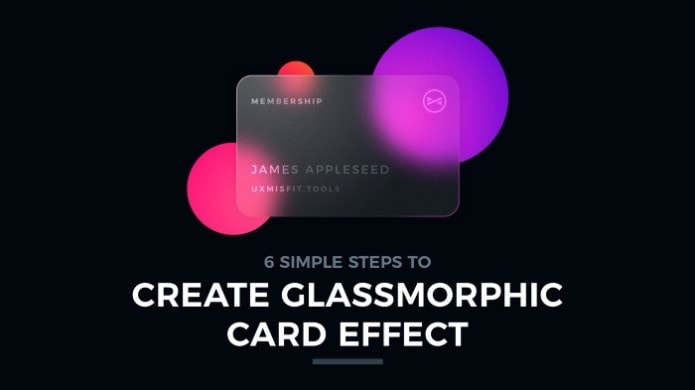
Glass is a popular digitial material. Use these quick tutorial to prepare glassmorphic elements of your UI quickly.
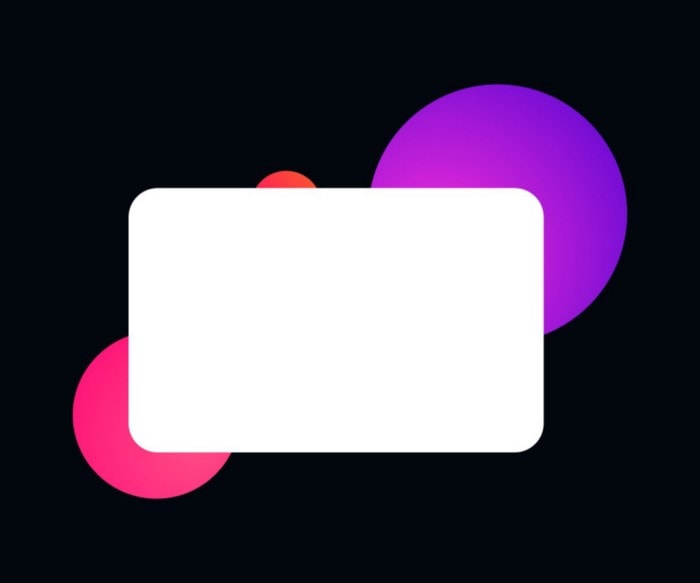
1. Draw a shape
To create a card, you need to create a basic shape first. You may want to imitate physical credit card proportions. To do this, create a rectangle with the following dimensions: 640×400, plus a 40pt corner radius.
2. Apply Gradient Fill
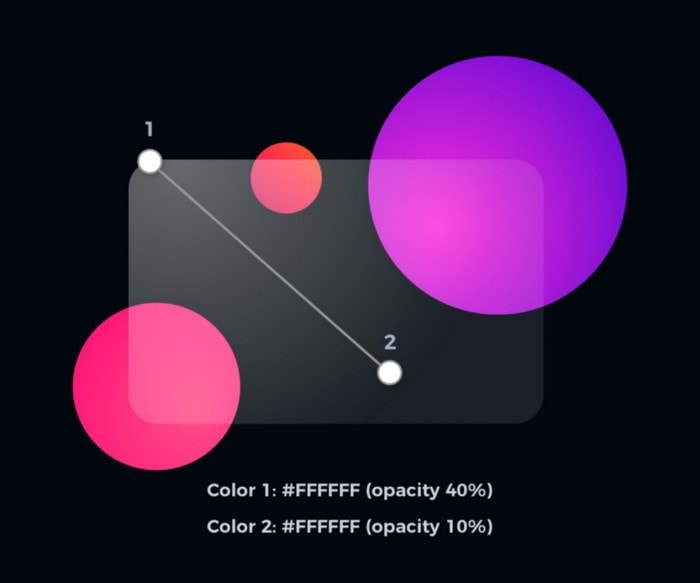
It is time to fill the shape. However, let’s try to use something more subtle than just a solid color. In the tutorial, we will use a gradient. Both gradient colors will be pure white (#FFFFFF), but they will differ with opacity. Set the first one to 40%, and the second to 10% opacity.
3. Turn on Background Blur — imitate the glass
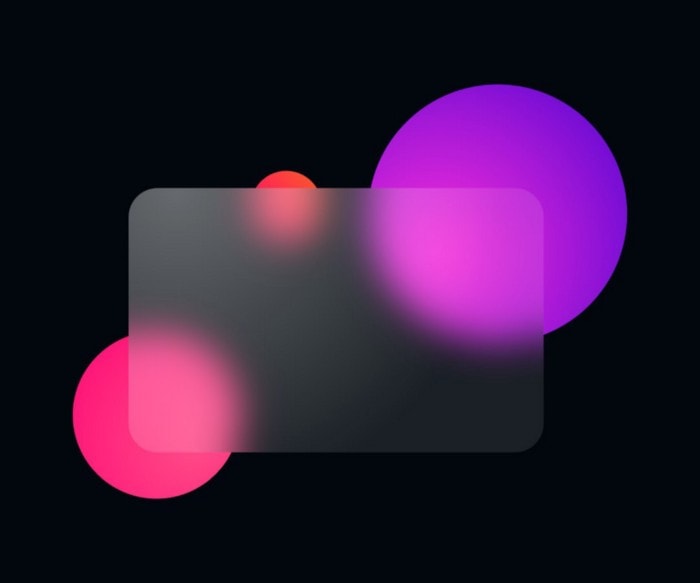
It is the blur that imitates the glass. Set blur value to around 20 to see how the surface of the material is changing. Obviously, you may play with your settings.
4. Add Border
The elegant border adds additional polish to the element. It also helps to establish visual hierarchy when the glass surfaces overlap.
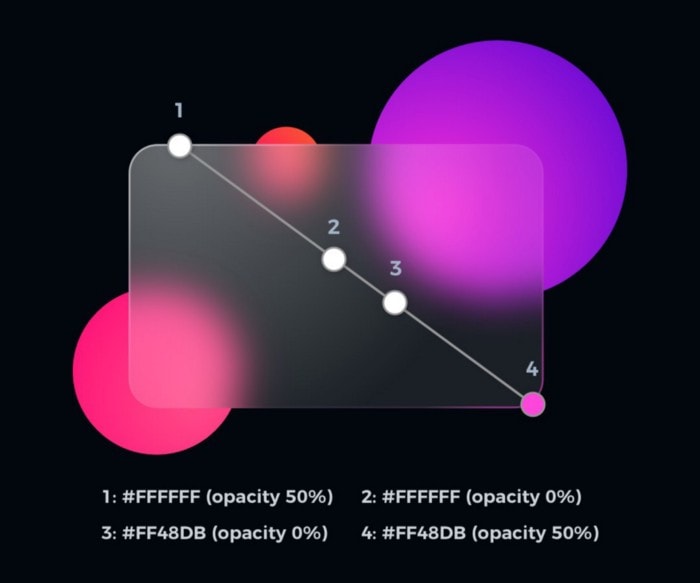
If you want to create the illusion of directional light in your design, you may want to use a gradient for the border. I made my card this way, so it looks even more “physical”.
Settings for card border diagonal gradient:
- Border: 3px
- Color 1: #FFFFFF (opacity 50%)
- Color 2: #FFFFFF (opacity 0%)
- Color 3: #FF48DB (opacity 0%)
- Color 3: #FF48DB (opacity 50%)
This simple set creates a nice illusion of interference with the environment:
5. Apply Drop Shadow
The subtle shadow effect helps to strengthen the visual hierarchy. Thanks to the shadow, it will be much easier to distinguish all layers.
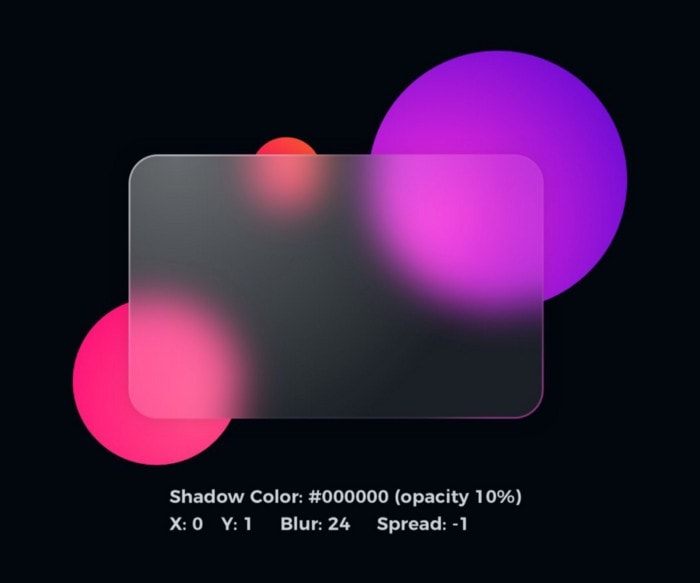
In this example, I used dark color with 24 Blur value. I also decreased Spread to -1.
Note: I have made a tutorial for nice looking shadows. One of the mentioned techniques will not work here — the one about creating a shadow with a separate layer. This time you will achieve the best results by adding shadow style property to shape with the glass surface.
6. Fill with Content
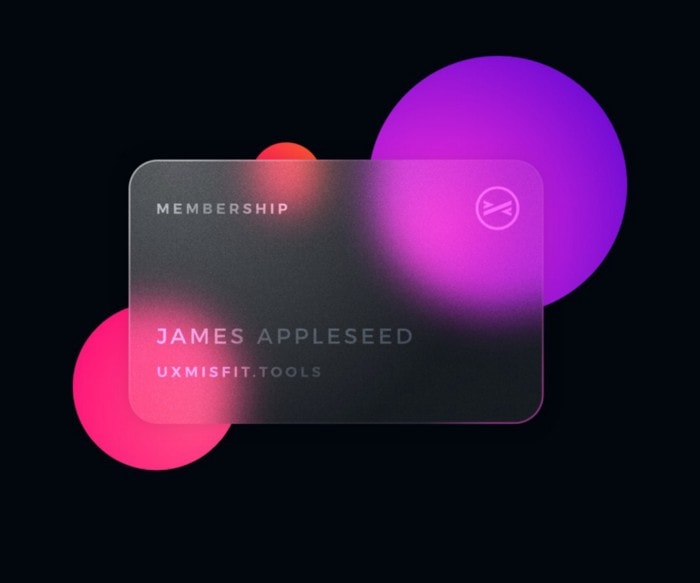
Time to add some content. Fill it with necessary logos & text. To create an illusion of the imprinted layer, fill your content with white color, and decrease the opacity to 50%. You may also play with layer blending — try Overlay to get interesting results.

Extra Tip! Frosty Texture ❄️
Your glass card is done. However, you may go even further to add some premium texture to it!
To add an elegant noise, add an image fill with noise. Decrease opacity to 20% and set the blending mode of the fill to Overlay.
See how gorgeous it looks now:
One more thing! 😎
If you prefer to watch UI Design tutorials, I have prepared something for you!
Now on my YouTube channel you may see how to make the glass card in Sketch & Figma! Check it out now! Don’t forget to subscribe the channel to see upcoming tutorials.
Step by step tutorial for Figma: