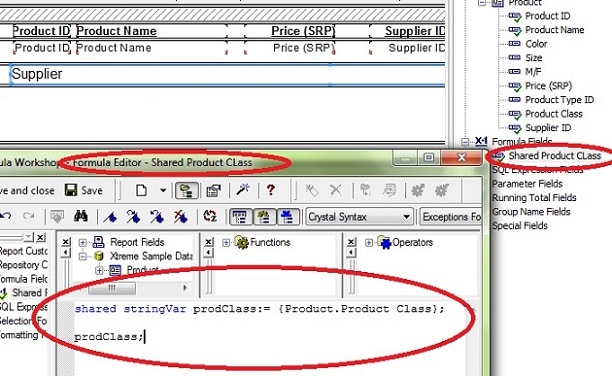
Im Unterbericht eine Formel einfügen. Wir möchten eine Summe, die an den Hauptbericht zur Weiterverarbeitung übergeben werden soll. Das Summen-Feld, das wir zur Weiterverarbeitung nutzen möchten, mit Shared Variable ausstatten:
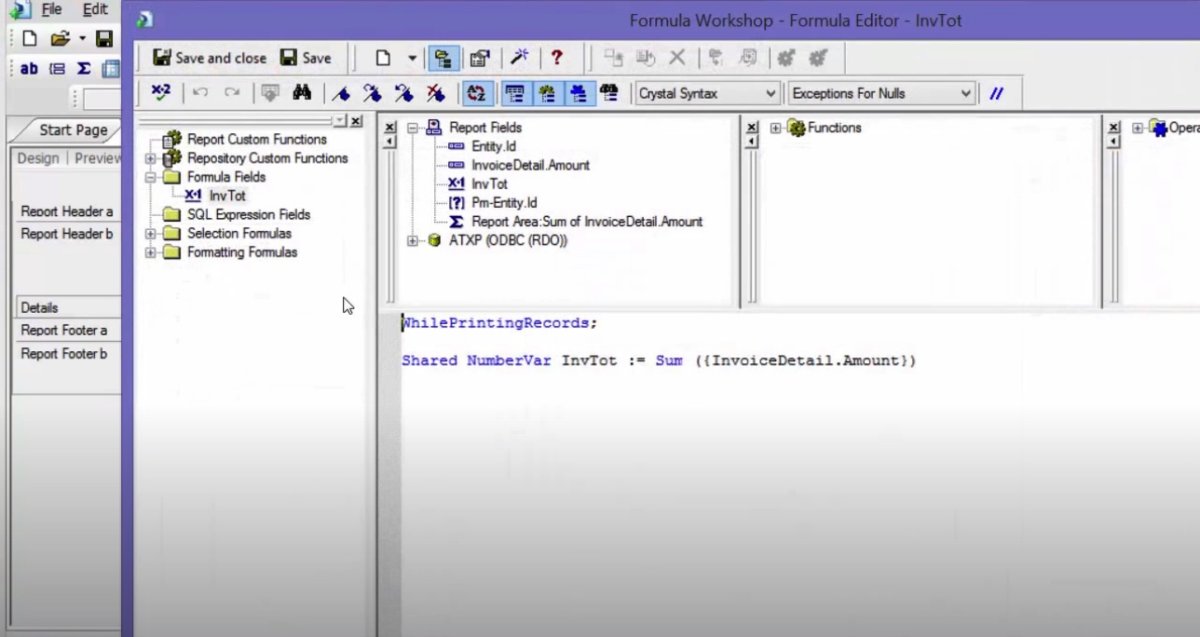
Hier heisst das Summenfeld, das übergeben werden soll, InvTot. InvTot ist die Summe aus dem Feld „InvoiceDetail.Amount“. (ganz normal 😃 )
Nun zum Hauptbericht.
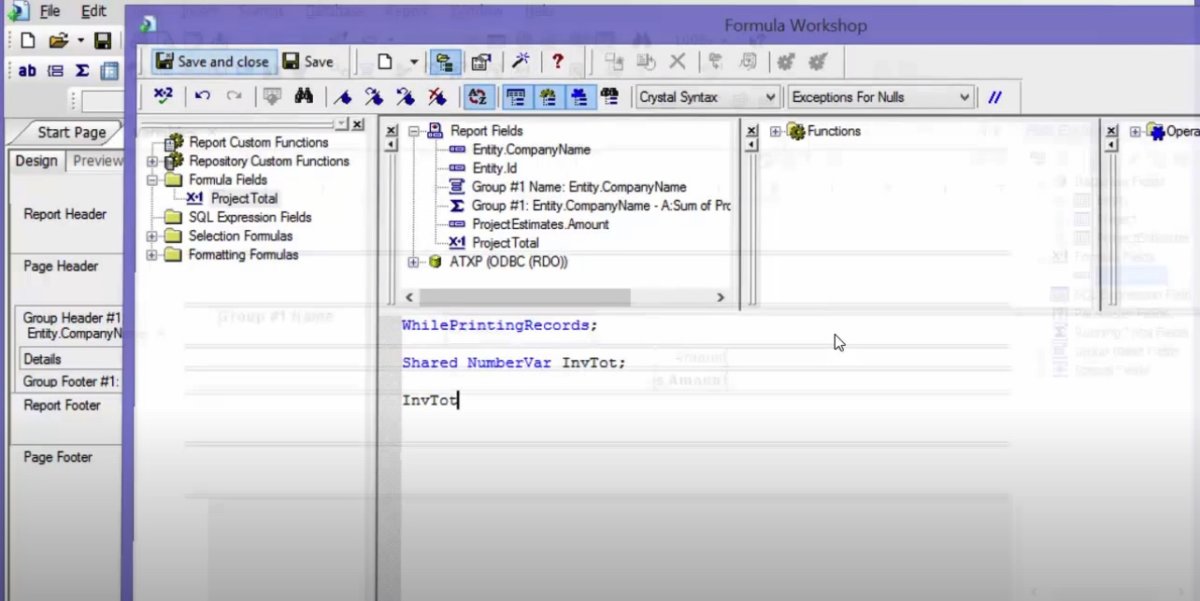
Hier wird eine Formel angelegt, die die Summe aus dem Unterbericht holt.
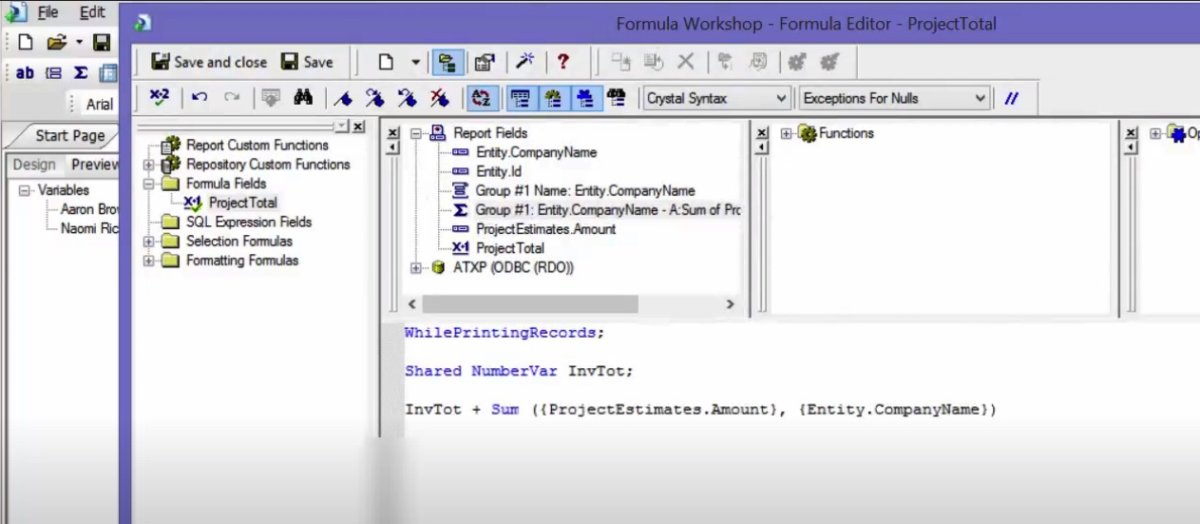
Man kann dann in dieser Formel zur Unterbericht-Summe noch weitere Felder addieren wie hier das Feld (Summe aus ProjectEstimates.Amount…)
Variablen Formularübergreifend behandeln
Hier habe ich ganz schön lange gesucht, bis ich die Lösung gefunden habe. Das Problem war, dass ich zwei Summen, aus zwei verschiedenen Unterberichten im Hauptformular weiterverarbeiten wollte. Aber wie an die Felder kommen? Die Lösung ist dafür ganz einfach: Shared Variables!
Um mit Shared Variables arbeiten zu können, muss als erstes im Berichtskopf eine Formel hinterlegt werden, in der die Variablen initialisiert werden:
SHARED STRINGVAR Summe; //Die Variable muss zuerst deklariert werden.
""; // Als Rückgabewert der Formel kommt ein leeres Textfeld hin.
Dann kann ich in jeder anderen Formel mit dieser Variablen arbeiten. Allerdings muss sie jedes Mal am Anfang der Formel deklariert werden:
SHARED STRINGVAR Summe; //Deklaration
Summe := {TABLE.FIELD1}; //Erst jetzt kann ich damit arbeiten...
Um dann den Wert der Variable auszugeben:
SHARED STRINGVAR Summe;
Summe;
Dann kann man problemlos diese Werte in Formeln oder im Bericht nutzen.
Mehrere Record Werte in einer Zeile anzeigen
Mehrere Datensätze in einem Bericht auszugeben ist mit Hilfe der Gruppiermöglichkeit ja kein Problem. Nur was mache ich, wenn die Ergebnisse nicht untereinander, sondern nebeneinander ausgegeben werden sollen.
Lösung 1 (Quick ‚n Dirty): Man fügt eine Kreuztabelle ein, macht alle Felder bis auf die Spaltenbezeichnungen unsichtbar, und gut. Aber eben eine nicht schöne Lösung.
Lösung 2 (Elegant): Man fügt eine Gruppe in sein Formular, besser Unterformular ein. Dann muss man die Werte sammeln und im Gruppenfuß ausgeben:
In den Gruppenkopf ein unterdrücktes Formelfeld zur (Re-)Initialisierung anlegen:
Shared StringVar Array x;
Redim x[5];
Shared NumberVar i := 1
In den Detailbereich wird dann folgende Formel eingefügt, während der Detailbereich aber unterdrückt wird:
Shared StringVar Array x;
Shared NumberVar i;
x[i] := {Feld};
i := i+1
Und zum Schluss erfolgt die Ausgabe in einem Feld über eine Formel im Gruppenfuß:
Shared StringVar Array x;
Shared NumberVar i;
Local NumberVar j;
Local NumberVar n;
Local StringVar str := "";
For j := 1 to i - 1 Do
(
str := str + x[j];
For n:= 1 to 4-Len(x[j]) Do
str := str + " "
);
str
Bestimmte Bereiche oder Felder Aus- und Einblenden
Bestimmte Bereiche / Felder sollen nur auf bestimmten Seiten angezeigt werden?
Kein Problem!
Zum Beispiel soll die Seitenzahl in einem Formular nur auf der zweiten Seite erscheinen.
Das Feld oder die Formel mit der Seitenzahl in den Bericht einfügen und im Formatierdialog unterdrücken. Neben der Checkbox befindet sich die Schaltfläche für den Formeleditor. Im Formeleditor dann als Auswahlformel eingeben:
PageNumber = 1;
Das heißt, dass dieses Feld nur dann unterdrückt wird, wenn die Seitenzahl 1 ist, auf allen anderen Seiten wird das Feld eingeblendet.
Frage dazu
Ich habe einen Unterbericht, aus welchem ich den Wert auslesen möchte, um in im Hauptbericht in einer Formel zu verwenden. Wie von dir beschrieben, habe ich die Variable deklariert. Nur für was steht {TABLE.FIELD1}? Dies müsste doch irgendein Bezug zum Unterbericht sein, oder? Mein Unterbericht lautet: srKnz und die darin enthaltene Tabelle: relAcp; auszugebendes Feld: MwstKnz
{TABLE.FIELD1} steht für das Feld in der Tabelle, aus dem Du die Variable füllen möchtest. In Deinem Fall sollte das dann so aussehen:
{relAcp.MwstKnz};
Shared Variables: To access a value in sub-report through shared variable we need to do following steps:
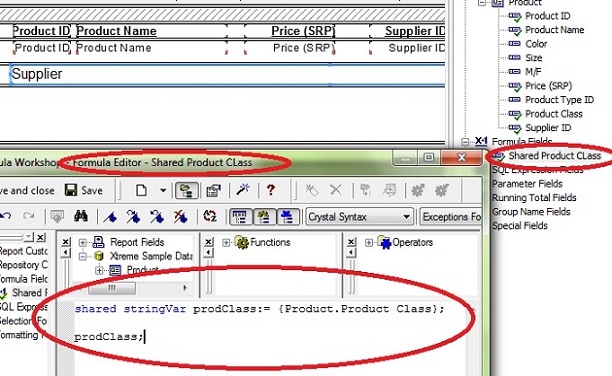
1) Create a formula (“Shared Product Class” as shown in below screen shot) in main report by right clicking on formula fields in “Fields Explorer” and click “New”.
2) Now the Formula Editor will be displayed as in below screenshot.
3) Create a shared variable and assign a value to it as shown in below screen shot.
4) Place this formula in a section where the value needs to be processed and the sub report (in which this value needs to be referred) has to be placed in subsequent section.
Figure 2: Shared variable – Main report
5) Click on “Save and close”.
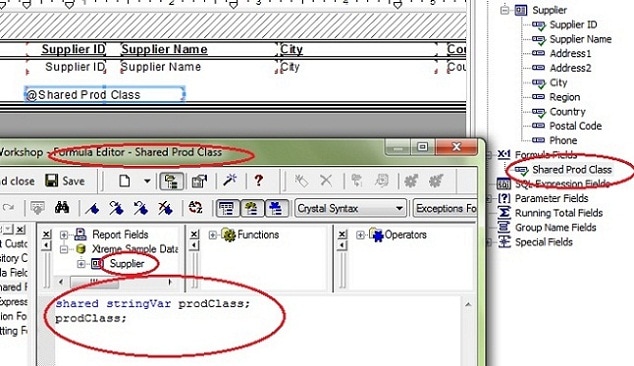
6) Now go to sub report and create a formula (“Shared Prod Class” as shown in below screen shot) in sub report and copy the code in formula editor.
Figure 3: Shared variable – Sub report
7) Click on “Save and close”.
8) Place this formula in the section in sub-report where we want to display this value as shown in above screen shot (@Shared Prod Class).
9) Now go to main report and run the report. We can see the value of shared variable in below screen shot.
Figure 4: Output for shared variable passing
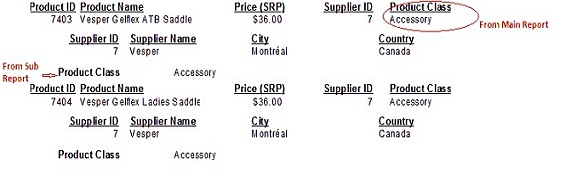
In the above screenshot, the Product Class value (i.e. Accessory) is displayed once from main report and another time from sub report (as indicated in red font). Here, the database field used for this is available from main report only. But, since we have shared the value from main report and accessing the same in sub report, the same value is available in sub report (even though, there is no related database field in sub report).
If a report contains a subreport and data from the subreport is required for calculations in the main report, we will need to pass the data from the subreport to the main report. This can be accomplished by using Shared Variables. For example, the value in a subreport needs to be included in the total for the main report.
Using shared variables requires two formulas: one to store the value in a shared variable, the other to retrieve the value from the shared variable.
The most important thing to remember when using shared variables is that Crystal Reports must first evaluate the formula where the value is stored before evaluating the formula that retrieves the shared variable. In other words, the first formula (in the subreport) needs to be in a section above the second formula (in the main report).
For example, in order to pass a grand total value from a subreport to the main report, follow these steps:
1. In the subreport, create a formula similar to the one below:
//@SubFormula
//Stores the grand total of the {Gifts.Gift Amount} field in a currency variable called ‚myTotal‘
WhilePrintingRecords;
Shared CurrencyVar myTotal := Sum ({Gift.Gift Amount})
2. Place this formula in the Report Footer of your subreport
3. In the main report, create a formula that declares the same variable name:
//@MainFormula
//Returns the value that was stored in the shared currency variable called myTotal in the subreport
WhilePrintingRecords;
Shared CurrencyVar myTotal;
myTotal
4. Place @MainFormula in a section that is beneath the section containing the subreport.
NOTE: For the shared variable to return the correct value in the main report, you must place @MainFormula in a main report section that is beneath the section containing the subreport. This ensures Crystal Reports evaluates the @SubFormula before @MainFormula.
One way to do this is to insert a section below the section containing the subreport, and place @MainFormula in this new sub-section:
- Go to Report > Section (in Crystal XI) or Format > Section (in Crystal 8.5)
- On the Sections list, highlight the section containing the subreport.
- Click Insert (at top of dialog box). This inserts an additional subsection.
- Click OK to return to the report, and insert @MainFormula into this new sub-section.
The next time you preview the report, @MainFormula displays the value from the subreport. In this particular example, that value was the grand total of the {Gift.Gift Amount} field.
5. Once you have verified that @MainFormula is returning the correct value from the subreport, you can include this formula in other main report formulas, such as:
//@NewFormula
//includes data from subreport
{@MainFormula} + Sum ({Gift.Gift_Amount})
Place this formula in the same section as @MainFormula, or in a section further down on the report.