
Plugin Hot Random Image
https://de.wordpress.org/plugins/hot-random-image/
Snippet
add_filter( 'generate_page_hero_background_image_url', function( $url ) {
if ( is_front_page() ) {
$urls = array(
'https://yourURLtoImage.com/image.png',
'https://yourURLtoImage.com/image2.png',
'https://yourURLtoImage.com/image3.png'
); $url = $urls[array_rand($urls)]; } return $url; } );
Here’s a fantastic little solution I found from Dan Benjamin that allows you to drop a simple php script in a folder of images to display them at random. This code is really light and works perfectly in all my tests.
I’m using it to randomize background images on the content module of an iThemes Builder site. You can also use it to display a random image from a folder in a post as well. Yes you can do this with something like NextGen Gallery, but a simple solution like this is better if you don’t need all the features of a full gallery plugin.
Here’s all you have to do…
- Save the code below or copy and paste it into your text editor of choice.
- Save it as rotate.php (or whatever you want to call it) into a folder of images on your web site.
- Add the script like you would add an image. <img src=”path-to-your-images/rotate.php”> or for a background in css, add this to the element background-image: url(path-to-your-images/rotate.php);
<?php

/*

	AUTOMATIC IMAGE ROTATOR
	Version 2.2 - December 4, 2003
	Copyright (c) 2002-2003 Dan P. Benjamin, Automatic, Ltd.
	All Rights Reserved.

	http://www.hiveware.com/imagerotator.php

	http://www.automaticlabs.com/


	DISCLAIMER
	Automatic, Ltd. makes no representations or warranties about
	the suitability of the software, either express or
	implied, including but not limited to the implied
	warranties of merchantability, fitness for a particular
	purpose, or non-infringement. Dan P. Benjamin and Automatic, Ltd.
	shall not be liable for any damages suffered by licensee
	as a result of using, modifying or distributing this
	software or its derivatives.


	ABOUT
	This PHP script will randomly select an image file from a
	folder of images on your webserver.  You can then link to it
	as you would any standard image file and you'll see a random
	image each time you reload.

	When you want to add or remove images from the rotation-pool,
	just add or remove them from the image rotation folder.


	VERSION CHANGES
	Version 1.0
		- Release version

	Version 1.5
		- Tweaked a few boring bugs

	Version 2.0
		- Complete rewrite from the ground-up
		- Made it clearer where to make modifications
		- Made it easier to specify/change the rotation-folder
		- Made it easier to specify/change supported image types
		- Wrote better instructions and info (you're them reading now)
		- Significant speed improvements
		- More error checking
		- Cleaner code (albeit more PHP-specific)
		- Better/faster random number generation and file-type parsing
		- Added a feature where the image to display can be specified
		- Added a cool feature where, if an error occurs (such as no
		  images being found in the specified folder) *and* you're
		  lucky enough to have the GD libraries compiled into PHP on
		  your webserver, we generate a replacement "error image" on
		  the fly.

    Version 2.1
        - Updated a potential security flaw when value-matching
          filenames

    Version 2.2
        - Updated a few more potential security issues
        - Optimized the code a bit.
        - Expanded the doc for adding new mime/image types.

        Thanks to faithful ALA reader Justin Greer for
        lots of good tips and solid code contribution!


	INSTRUCTIONS
	1. Modify the $folder setting in the configuration section below.
	2. Add image types if needed (most users can ignore that part).
	3. Upload this file (rotate.php) to your webserver.  I recommend
	   uploading it to the same folder as your images.
	4. Link to the file as you would any normal image file, like this:

			<img src="http://example.com/rotate.php">

	5. You can also specify the image to display like this:

			<img src="http://example.com/rotate.php?img=gorilla.jpg">

		This would specify that an image named "gorilla.jpg" located
		in the image-rotation folder should be displayed.

	That's it, you're done.

*/


/* ------------------------- CONFIGURATION -----------------------


	Set $folder to the full path to the location of your images.
	For example: $folder = '/user/me/example.com/images/';
	If the rotate.php file will be in the same folder as your
	images then you should leave it set to $folder = '.';

*/


	$folder = '.';


/*

	Most users can safely ignore this part.  If you're a programmer,
	keep reading, if not, you're done.  Go get some coffee.

    If you'd like to enable additional image types other than
	gif, jpg, and png, add a duplicate line to the section below
	for the new image type.

	Add the new file-type, single-quoted, inside brackets.

	Add the mime-type to be sent to the browser, also single-quoted,
	after the equal sign.

	For example:

	PDF Files:

		$extList['pdf'] = 'application/pdf';

    CSS Files:

        $extList['css'] = 'text/css';

    You can even serve up random HTML files:

	    $extList['html'] = 'text/html';
	    $extList['htm'] = 'text/html';

    Just be sure your mime-type definition is correct!

*/

    $extList = array();
	$extList['gif'] = 'image/gif';
	$extList['jpg'] = 'image/jpeg';
	$extList['jpeg'] = 'image/jpeg';
	$extList['png'] = 'image/png';


// You don't need to edit anything after this point.


// --------------------- END CONFIGURATION -----------------------

$img = null;

if (substr($folder,-1) != '/') {
	$folder = $folder.'/';
}

if (isset($_GET['img'])) {
	$imageInfo = pathinfo($_GET['img']);
	if (
	    isset( $extList[ strtolower( $imageInfo['extension'] ) ] ) &&
        file_exists( $folder.$imageInfo['basename'] )
    ) {
		$img = $folder.$imageInfo['basename'];
	}
} else {
	$fileList = array();
	$handle = opendir($folder);
	while ( false !== ( $file = readdir($handle) ) ) {
		$file_info = pathinfo($file);
		if (
		    isset( $extList[ strtolower( $file_info['extension'] ) ] )
		) {
			$fileList[] = $file;
		}
	}
	closedir($handle);

	if (count($fileList) > 0) {
		$imageNumber = time() % count($fileList);
		$img = $folder.$fileList[$imageNumber];
	}
}

if ($img!=null) {
	$imageInfo = pathinfo($img);
	$contentType = 'Content-type: '.$extList[ $imageInfo['extension'] ];
	header ($contentType);
	readfile($img);
} else {
	if ( function_exists('imagecreate') ) {
		header ("Content-type: image/png");
		$im = @imagecreate (100, 100)
		    or die ("Cannot initialize new GD image stream");
		$background_color = imagecolorallocate ($im, 255, 255, 255);
		$text_color = imagecolorallocate ($im, 0,0,0);
		imagestring ($im, 2, 5, 5,  "IMAGE ERROR", $text_color);
		imagepng ($im);
		imagedestroy($im);
	}
}

?>
How to display random image when page loads in WordPress
Several years ago, I used a WordPress plugin named „Random Content“ to display random content. I think you might be able to use this plugin to display random image when loading a page in WordPress.
However, this plugin was updated one year ago. Therefore, it would be desirable not to use it.
There is also a plugin „WordPress Random Image„, however it’s also has not been update for many years.
It’s possible to display image randomly using simple javascript. Google search will display many articles containing javascript code to display random image.
For example, you can use the following code found at https://stackoverflow.com/questions/2777479/display-random-image-when-page-loads-without-utilizing-onload-in-the-body-tag:
<script type="text/javascript">
var imageURLs = [
"http://www.example.com/images/image1.png"
, "http://www.example.com/images/image2.png"
, "http://www.example.com/images/image3.png"
];
function getImageTag() {
var img = '<img src=\"';
var randomIndex = Math.floor(Math.random() * imageURLs.length);
img += imageURLs[randomIndex];
img += '\" alt=\"Some alt text\"/>';
return img;
}
</script>
You can insert this script to your theme’s header.php file. Or, if you want to apply it a specific page, you can enque this js script.
For example, please create a js file to containing the above script except <script type=“text/javascript“> and </script>. And then, upload this file onto your child theme’s sub-directory (e.g. /wp-content/themes/your-child-theme/js/random_image.js.)
Now add the following code to your child theme’s function file:
function random_scripts_method() {
wp_register_script('random-scripts', get_stylesheet_directory_uri() . 'js/random_image.js', array('jquery'), '1.0', true);
wp_enqueue_script('random-scripts');

}
add_action( 'wp_enqueue_scripts', 'random_scripts_method' );
If you want to apply this script to specific pages, the following code will work:
function random_scripts_method() {
wp_register_script('random-scripts', get_stylesheet_directory_uri() . 'js/random_image.js', array('jquery'), '1.0', true);
if ( is_page( 'careers' ) ){ // this script will be enqueued only on the page "careers"
wp_enqueue_script('random-scripts');
}
}
add_action( 'wp_enqueue_scripts', 'random_scripts_method' );
Please refer to this document for more about the is_page() function.
Next, please place the following code where you want to display random image:
<script type="text/javascript">
document.write(getImageTag());
</script>
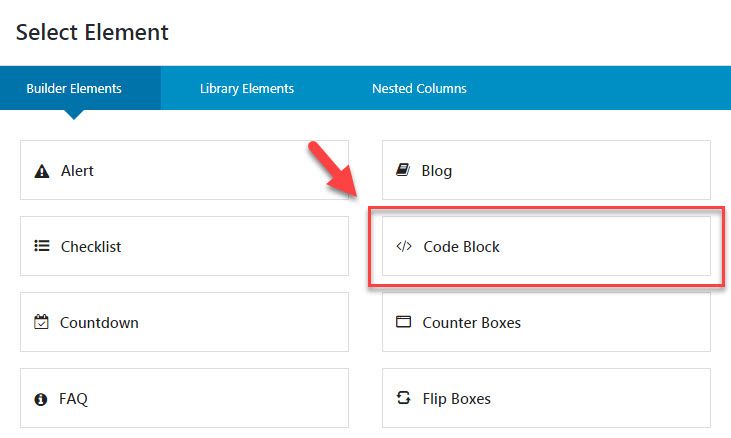
In Avada, you can use the Code Block element to insert the code.
When using Visual Composer (now „WPBakery Page Builder“), you can use the Raw HTML element. For example, the following shows the Raw HTML element in The 7.
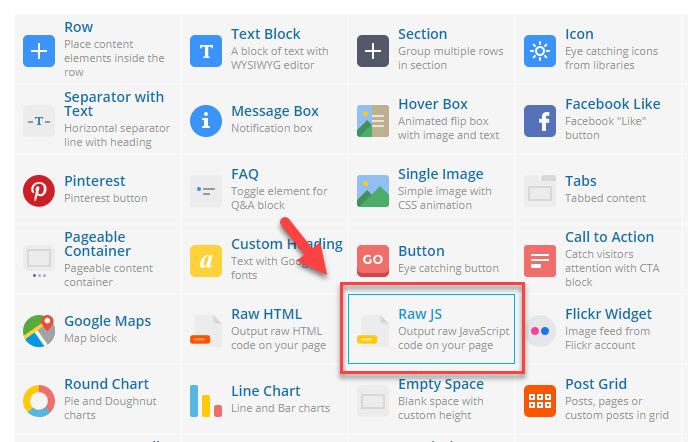
If the above script does not work, you can perform some search to find a working js script.