Basics
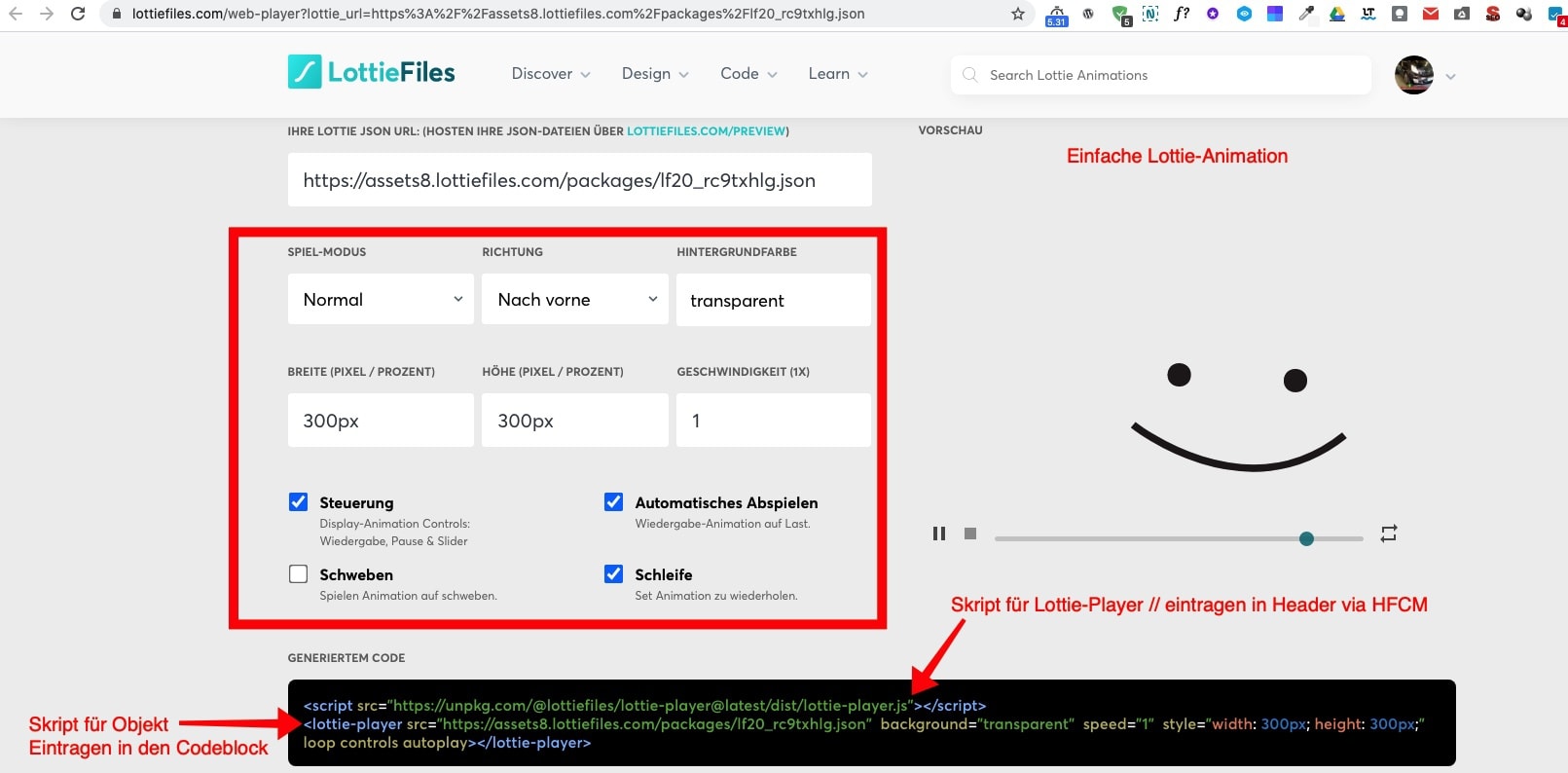
Man aktiviert das Plugin HFCM, um den Lottie Player als Snippet in den Header zu laden. Ebenso müssen die Interactivity-Bibliotheken (wenn gewünscht) in den Header geladen werden.
Code für Player
<script src="https://unpkg.com/@lottiefiles/lottie-player@latest/dist/lottie-player.js"></script>
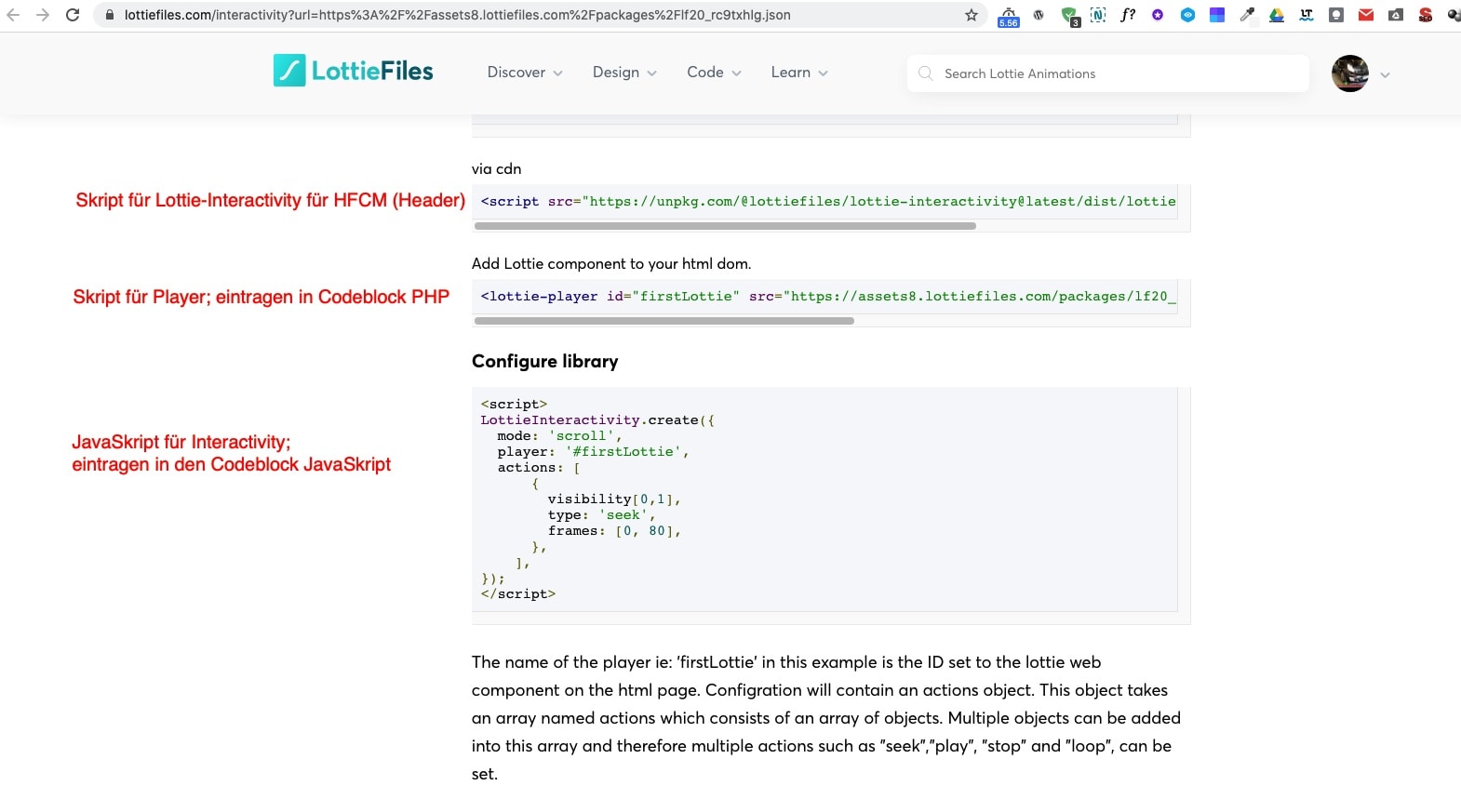
Code für Lottie Interactivity
<script src="https://unpkg.com/@lottiefiles/lottie-interactivity@latest/dist/lottie-interactivity.min.js"></script>
Den Code für das eigentliche Objekt kopiert man in einen Oxygen-Codeblock in den Bereich PHP. Skripte werden im Bereich JavaScript hinterlegt. Die Codes erhält man auf der Lottie-Website, wenn man sich die gewünschte Animation ausgesucht hat.
Einfache Lottie-Animation
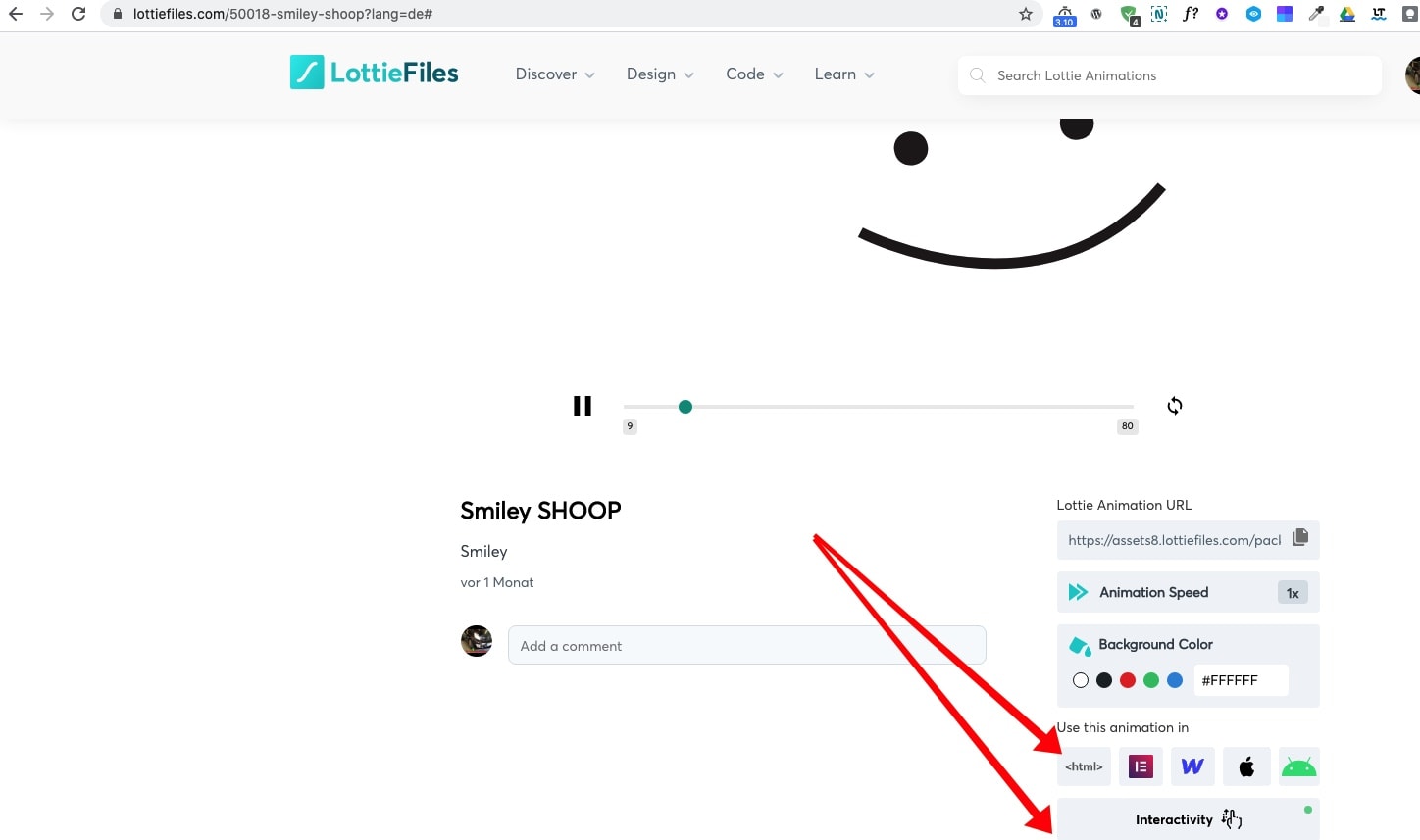
<html> Konfigurationsmöglichkeiten und Code zum Einbetten
interactivity – verschiedene Varianten und deren Codes zum Einbetten
Möchte man die Skripte selbst hosten, dann lädt man sich die entsprechenden Bibliotheken herunter und fügt sich mittels des Plugins My Custom Functionality in die Website ein.
- Connect to your server using a FTP client and navigate to the plugin directory.
- Upload the files you want to use/load in the corresponding directories inside the
assetsdirectory. - Edit
plugin.phpand use the commented sample code as an example to add enqueue or other site-specific code. While there you may also want to edit the plugin’s header with your name, plugin and author URLs etc.
// loads a CSS file in the head.
// wp_enqueue_style( 'highlightjs-css', plugin_dir_url( __FILE__ ) . 'assets/css/style.css' );

/**
* loads JS files in the footer.
*/
// wp_enqueue_script( 'highlightjs', plugin_dir_url( __FILE__ ) . 'assets/js/highlight.pack.js', '', '9.9.0', true );
In WordPress kann auch das Plugin Lordicon zur Einbindung von LottieAnimations verwendet werden.
https://www.youtube.com/watch?v=gDFcZxLHI8g&t=292s