
Plugin: “WP-Sweep” und „WP-DBManager„
Don’t forget to do a backup!
-- Cleaning wp_commentmeta
SELECT *
  FROM wp_commentmeta
 WHERE comment_id NOT IN (SELECT comment_id FROM wp_comments);

DELETE FROM wp_commentmeta
 WHERE comment_id NOT IN (SELECT comment_id FROM wp_comments);

SELECT *
  FROM wp_commentmeta
 WHERE meta_key LIKE '%akismet%';

DELETE FROM wp_commentmeta
 WHERE meta_key LIKE '%akismet%';

-- Cleaning wp_postmeta table
SELECT *
  FROM wp_postmeta pm
       LEFT JOIN wp_posts wp ON wp.ID = pm.post_id
 WHERE wp.ID IS NULL;

DELETE pm
  FROM wp_postmeta pm
       LEFT JOIN wp_posts wp ON wp.ID = pm.post_id
 WHERE wp.ID IS NULL;
Want to optimize WordPress database?
There are two important components of a typical WordPress installation:
- WordPress files stored on your server
- WordPress database
It’s an essential for you to clean up your WordPress database and reduce its size from time to time. Especially if you are running a Woo-Commerce store on WordPress, this is a regular stuff you should be doing.
Over time, your WordPress database has accumulated many redundant tables, unused records, huge wp_postmeta and many entries which you can remove without affecting your website.
This is a must-do process for every WordPress user to keep the size of their database at a minimum and keep their WordPress blog loading quickly.
This will help reduce the load on your server and your WordPress performance will improve dramatically.
In this tutorial, I will take the example of ShoutMeLoud’s WordPress database which is 286.3 MB and drastically reduces its size.
Tutorial: How to Optimize WordPress Database Size
Step 1. Take WordPress Database Backup (IMPORTANT)
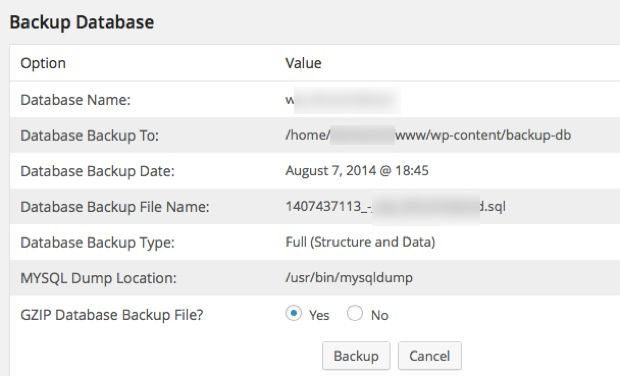
This is an essential step.
In my case, I have used my hosting company’s backup feature to take a complete backup of the database and all included files. If your hosting, offers backup feature, then use it before you follow the steps below to optimize WordPress database.
You can also use the WP-DB Manager plugin to take a backup of your database file. You can find a tutorial over here. We will also be using WP-DB Manager plugin to run a few SQL queries, empty, and drop database tables (all of which this plugin can do).
Step 2. Disable And Delete Unused WordPress Plugins
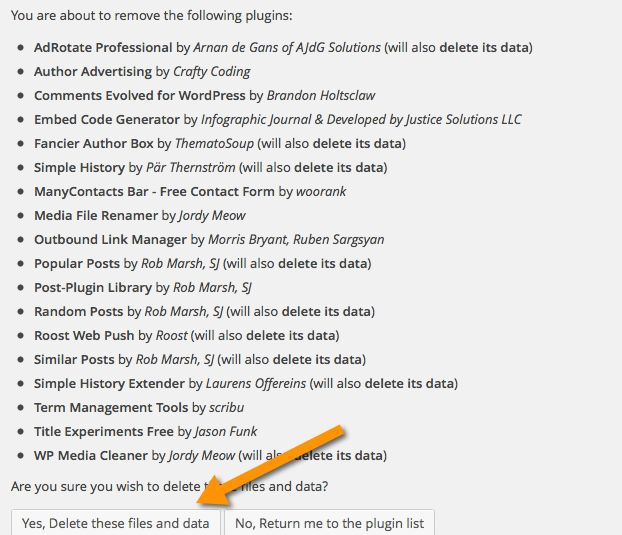
Go through the active plugin list on your WordPress blog and disable those plugins which you are not using anymore. There might be plugins that you use once in a while, but I suggest you disable them now and re-install them when they’re needed again.
Our goal for today is to completely optimize the database size.
Only disabling unused plugins will not be of much help here, so make sure you also delete those unused plugins.
Speaking of useful plugins:
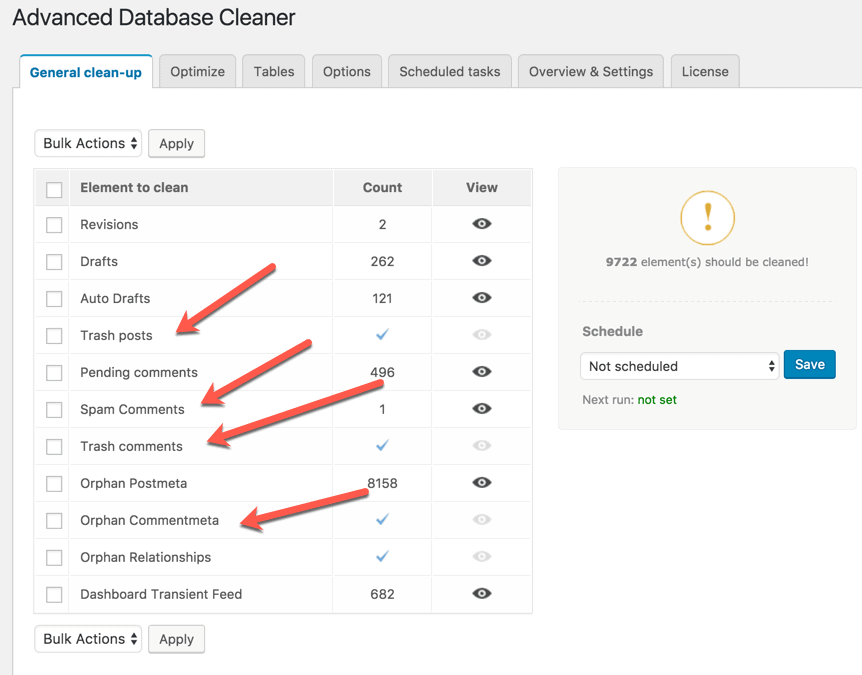
Step 3. Delete All Spam Comments, Trash Posts, and Post Revisions
Whatever comments you have in your spam and trash folders, delete them.
Similarly, delete all posts from the trash folder and delete all post revisions.
- Install and use the Advance WordPress database cleaner plugin to get this done with one click.
Step 4. Find and Clean Orphan Tables
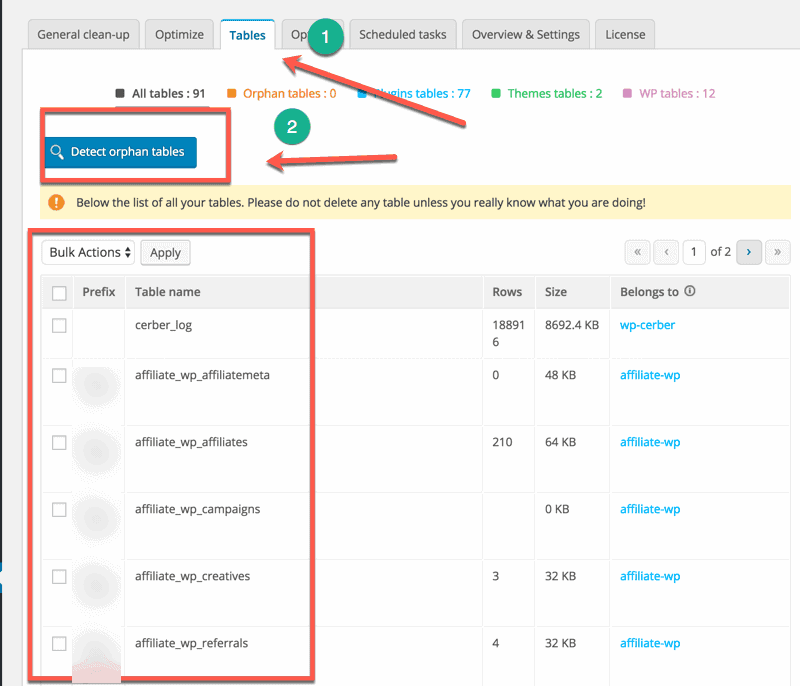
Install the WP Advanced database cleaner WordPress plugin & and follow this tutorial.
This plugin will find orphan and unused tables in your database. Using this plugin will help you clean all such tables.
This is a quite critical step and does it only when you are sure of the table names which you are not using.
If you are confused, skip this step.
- Note: Deactivate the plugin after using it.
Step 5. Remove Unused Meta Values From Database
(Caution: Technical knowledge needed)
This is something I do once a year and suggests you do it only if you are accustomed to phpMyAdmin.
If you have used phpMyAdmin before, simply follow this easy tutorial and get rid of all unused meta values from your database.
This won’t bring down your database size significantly, but it is useful if you are highly determined to clean up your WordPress database.
Step 6. Useful MySql Queries To Optimize WordPress Database
One of the tables which are a major cause of increased database size is “wp_commentmeta” due to the Akismet plugin.
Before running the below-mentioned query, my wp_commentmeta size was 146 MB.
After optimizing, it reduced to 16.1 MB.
Here are two queries which you need to run. Use the WP-DB Manager plugin > Run SQL query option to execute these queries from the WordPress dashboard.
- Run both SQL commands separately.
DELETE FROM wp_commentmeta WHERE comment_id NOT IN (SELECT comment_id FROM wp_comments);DELETE FROM wp_commentmeta WHERE meta_key LIKE '%akismet%';
Note: For some WordPress installations, there is a chance your database table names might be different from what is used in the above code. It could be something like “wp_commentsmeta”, so don’t forget to check your DB table names and replace them accordingly.
Here are couple more SQL queries which will be useful to reduce database size:
DELETE FROM wp_postmeta WHERE meta_key = "_edit_lock";DELETE FROM wp_postmeta WHERE meta_key = "_edit_last";
Step 7. Empty and Drop Unused Database Tables
Again, this step is for those WordPress users who have a fair knowledge of WordPress tables.
Under the WP-DB Manager plugin, you will find an option to “Empty/Drop Table” and from there you can see the list of all the tables in your WordPress DB.
Here you can empty those logs which are not useful and drop those tables which were created by any plugins that you are not using anymore.
For example, I removed “wp_roostsettings” which was created by one of the plugins I deleted in Step 2.
Step 8. Optimize Database and Be Amazed
If you have followed all of the above steps as mentioned, it’s now time to optimize your database and see how much size you have freed up.
You can optimize your database using the “Optimize” option of the WP Advanced Database cleaner plugin.
As mentioned above, my WordPress database size was 286 MB before cleaning up, and after all of the above-mentioned steps, my database size dropped to 96.7 MB.
That’s a huge reduction of 189 MB!
Overall, if you have a busy WordPress site, you should clean your WordPress database once every two months, or at least optimize your WordPress database once every two weeks.
Each table in the WordPress database has its own little eccentricities that clog up websites, and as part of my MySQL work in the last few weeks, I’ve tried to break down each one’s plumbing problems. The wp_postmeta table (you may have a different prefix in your database) is a particularly tricky case: it doesn’t have obvious rows to clear out, like wp_posts (revisions) or wp_options (transients). But under the right (wrong) circumstances, it can still get fatter than a 40-pound cat.
The Problem with wp_postmeta
The two dangers of the wp_postmeta table are:
- Import leftovers from another CMS like Blogger, Movable Type, etc. I don’t know if import technology has improved since, but on imports from several years ago, these services transferred everything correctly to
wp_posts—and then dumped everything, or a lot of things, as a duplicate intowp_postmeta, sometimes multiple times. I just removed 137 megabytes of this from a client’s site and I’m not done digging. If you have ever transferred your site, this is a clean-up you should do immediately. - Leftovers from deleted or deactivated plugins that didn’t clean up after themselves. This is pretty common. WP-Optimize and other plugins claim they can catch these, but in my experience, clean-up plugins aren’t smart enough to do this properly. No disrespect—it’s a complicated task that needs human attention. But we can make it easier.
Good database habits: prevention first
Every WordPress site should do this sort of scan at least once, but both of these are problems facing older sites. Newer plugins should do a better job of cleaning up after themselves. However, the default of many plugins is to leave everything when you delete the plugin unless you check a settings box confirming you want it to take all its data with it. (WordFence is one of these.) So make sure you go through every settings screen to take care of this.
If you have the time and expertise, I would even test every plugin you want use on a sample site to see if it’s leave-no-trace or not. Or look at the code to check.
It’s going to be a lot faster to do this upfront than spend hours a few years from now trying to figure out if aiosp_description is something you’re still using on 3,000 posts.
What’s in the wp_postmeta table?
wp_postmeta is a standard WordPress meta table, so it comes with a unique ID for the row, the ID of the post the row is attached to, and meta_key and meta_value pairs that actually add the metadata to posts, pages, and attachments.
meta_key rows come with a leading underscore (for secret/default settings) and no underscore (for user-accessible settings in the admin dashboard), so we need to search for both.
WordPress and plugins might add meta_key rows with multiple different values attached to the prefix. i.e. the All-In-One SEO plugin adds (or used to add) individual metadata key-value pairs like this:
aiosp_descriptionaiosp_editaiosp_keywordsaiosp_title
(Yoast used to do this and now adds its own table to mirror the wp_posts table instead).
So our first step is to isolate the prefixes and then we can do individual searches to further break them down. We want to know how many rows they occupy and how much hard drive space, too.
We’ll be doing this from the command line after logging into mysql, or you can also perform these operations from your database with phpMyAdmin.
We’ll do this with a pair of queries—if there’s a more efficient way, email me!
The first query uses a SUBSTRING_INDEX with an underscore delimiter and a position of 1 to return the string of the meta_key value that appears before the first underscore. In other words, it will return all prefixes with no leading underscore. But it also returns all rows with a leading underscore as a blank, so we can filter those out with the WHERE clause.
The second query returns the prefix from only rows with a leading underscore, ensured by another WHERE clause.
Let’s build the first query:
SELECT SUBSTRING_INDEX(meta_key, '_', 1) AS `Meta`
     FROM wp_postmeta
     WHERE meta_key NOT LIKE '\_%';
We probably want to do this with a row count and in order.
SELECT SUBSTRING_INDEX(meta_key, '_', 1) AS `Meta`, COUNT(*) AS `Count`
     FROM wp_postmeta
     WHERE meta_key NOT LIKE '\_%'
     GROUP BY `Meta`
     ORDER BY `Count` DESC;
And let’s add the data size of each group of prefixes, too. We’ll get this by summing the length of each column in the table and dividing by 1048567 (1024 x 1024) to get megabyte values from bytes.
SELECT SUBSTRING_INDEX(meta_key, '_', 1) AS `Meta`,
 (SUM(LENGTH(meta_id)+LENGTH(post_id)+LENGTH(meta_key)+LENGTH(meta_value)))/1048567 AS `Size`, COUNT(*) AS `Count`
    FROM wp_postmeta
    WHERE meta_key NOT LIKE '\_%'
    GROUP BY `Meta`
    ORDER BY `Size` DESC;
And here’s the second query for prefixes without leading underscores.
-- list and count for prefixes with a leading underscore
SELECT SUBSTRING_INDEX(meta_key, '_', 2) AS `Meta`, '' COUNT(*) AS `Count`
    FROM wp_postmeta
    WHERE meta_key LIKE '\_%'
    GROUP BY `Meta`
    ORDER BY `Count`;
-- list, data size, and count
SELECT SUBSTRING_INDEX(meta_key, '_', 2) AS `Meta`,
(SUM(LENGTH(meta_id)+LENGTH(post_id)+LENGTH(meta_key)+LENGTH(meta_value)))/1048567 AS `Size`, COUNT(*) AS `Count`
FROM wp_postmeta
WHERE meta_key LIKE '\_%'
GROUP BY `Meta`
ORDER BY `Size` DESC;You might want to add a LIMIT 5 or so just to get the main prefixes.
Investigating the meta keys
Now we know what’s taking up space. It’s up to you to figure out if this is metadata you’re actually using or if it is plugin or import leftovers. This is the part that plugins can struggle to figure out programmatically.
This is also a good point to back up your database or at least the wp_postmeta table in case you delete something it turns out you needed.
How to investigate:
- Check the prefixes against your current plugins to find obvious orphans
- Do deeper searches on prefixes with many rows to get the full list of keys
- Look for outdated meta keys with a date search
I am no longer using the commenting plugin Disqus on Rawkblog, for instance, so anything here with “disqus” in it is going to be trash. But not everything is going to be this obvious, which is where checking by date, to see which meta keys haven’t been used in a while, can give us some quick clues.
Go over to wp_posts to check your latest post ID. On Rawkblog, I’m up to 15896. If I have a prefix that hasn’t been used since post 4330—and I do, “aktt_notify_twitter”—then it could well be junk. I know for sure this one is, but it could also just be a field that is infrequently used and is still adding info to the post—when in doubt, check the actual posts before deleting anything.
I’m going to walk through ways I tried to do this and get to the best solution at the end.
You can check prefixes one by one to see when they were most recently used. Use your own prefix:
SELECT post_id, meta_key
    FROM wp_postmeta
    WHERE meta_key LIKE 'aktt\_%'
    ORDER BY post_id DESC
    LIMIT 1;
This will give you the most recent post_id for the meta key. If it’s 500 posts ago, you may have junk. If you are only checking two or three, this is easy enough. It’s fastest to do these one at a time.
The better way: we can do this even more easily with the SQL MAX function to grab the highest ID number that pairs with the prefix. SQL is amazing.
SELECT MAX(post_id) AS `post_id`, SUBSTRING_INDEX(meta_key, '_', 1) AS `Meta`
FROM wp_postmeta
    WHERE meta_key NOT LIKE '\_%'
    GROUP BY `Meta`
    ORDER BY `post_id` DESC;
Looking at Rawkblog, I have a ton of meta data that stops at post No. 15,158.
Looking this up… this post is a NextGen slideshow. I’ve deleted this plugin and am no longer using it. But all the slideshow junk is still in my wp_postmeta! Wow.
See, this is why you look.
Let’s add data and a row count to this to see how much space this is all taking up:
SELECT MAX(post_id) AS `post_id`, SUBSTRING_INDEX(meta_key, '_', 1) AS `Meta`, (SUM(LENGTH(meta_id)+LENGTH(post_id)+LENGTH(meta_key)+LENGTH(meta_value)))/1048567 AS `Size`, COUNT(*) AS `Count`
    FROM wp_postmeta
    WHERE meta_key NOT LIKE '\_%'
    GROUP BY `Meta`
    ORDER BY `post_id` DESC;

SELECT MAX(post_id) AS `post_id`, SUBSTRING_INDEX(meta_key, '_', 2) AS `Meta`,
 (SUM(LENGTH(meta_id)+LENGTH(post_id)+LENGTH(meta_key)+LENGTH(meta_value)))/1048567 AS `Size`, COUNT(*) AS `Count`
    FROM wp_postmeta
    WHERE meta_key LIKE '\_%'
    GROUP BY `Meta`
    ORDER BY `Size` DESC;
This is really good. But here’s the best way, which adds a JOIN so we can get the dates and not have to look at the other table. Don’t forget to add MAX to the date.
SELECT MAX(t1.post_id) AS `post_id`, MAX(t2.post_date) AS `Date`, SUBSTRING_INDEX(t1.meta_key, '_', 1) AS `Meta`, (SUM(LENGTH(meta_id)+LENGTH(post_id)+LENGTH(meta_key)+LENGTH(meta_value)))/1048567 AS `Size`, COUNT(*) AS `Count`
    FROM wp_postmeta AS t1
    JOIN wp_posts AS t2
        ON t1.post_id = t2.ID
    WHERE meta_key NOT LIKE '\_%'
    GROUP BY `Meta`
    ORDER BY `Date` DESC;
The main offender here for Rawkblog: 2,760 rows for a Disqus plugin I’m no longer using.
Here’s the second query:
SELECT MAX(t1.post_id) AS `post_id`, MAX(t2.post_date) AS `Date`, SUBSTRING_INDEX(t1.meta_key, '_', 2) AS `Meta`, (SUM(LENGTH(meta_id)+LENGTH(post_id)+LENGTH(meta_key)+LENGTH(meta_value)))/1048567 AS `Size`, COUNT(*) AS `Count`
    FROM wp_postmeta AS t1
    JOIN wp_posts AS t2
        ON t1.post_id = t2.ID
    WHERE meta_key LIKE '\_%'
    GROUP BY `Meta`
    ORDER BY `Date` DESC;
Once you have your list of meta keys that haven’t been used since, say, 2011, check some of those old IDs (or just login to WordPress and look at your posts) and see if this is junk or not. Looking at the meta of a post page should make this pretty clear.
Cleaning the clutter
Here’s the fun part:
DELETE FROM wp_postmeta
    WHERE meta_key LIKE 'disqus%';
Insert your own meta key.
Delete by the individual meta key or by prefix—do a search first to make sure you don’t delete anything accidentally. Always do a SELECT double-check before a DELETE. If you’ve never done an SQL DELETE, don’t—hire a professional. (I am a professional!)
As always, OPTIMIZE your tables after any deletions to finish the clean-up process.
Let’s get started on how to optimize WordPress Database to improve blog performance?
Step-1
Cleanup wp_commentmeta WordPress Table. You absolutely don’t need this. If you are using Disqus or Akismet plugin then both plugins adds lots of junk data which you never used and not gonna use in the future. You could simply delete it without any hesitation.

- Go to cPanel
- Click on
phpMyAdmin - Choose your WordPress database
- Click on Empty link for table wp_commentmeta
- On Confirm dialog just click OK.

Step-2
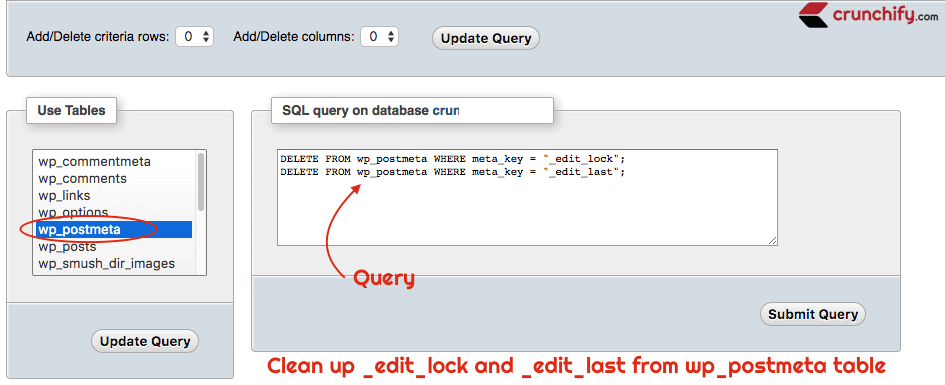
Clean up all _edit_lock and _edit_last records from wp_postmeta table.
If you have a single author blog then you absolutely don’t need _edit_lock and _edit_last records as it helps you stop accidental overriding other users changes on the same post.
Just use below SQL query to clean up both _edit_lock and _edit_last.
DELETE FROM wp_postmeta WHERE meta_key = "_edit_lock"; DELETE FROM wp_postmeta WHERE meta_key = "_edit_last"; |
You could also use phpMyAdmin Query editor from cPanel to do the same.
Step-3 Disable Auto Save
By default WordPress save your post every 2 minutes and stores as revisions in Database. It also save latest draft every 30 seconds which has latest copy. If you feel, you don’t need all the revisions of the post then you could simply delete it.
Add below function to your theme’s functions.php file and you are all set.
Detailed post on how to delete post/page revisions.
function CrunchifyDisableAutoSave() { wp_deregister_script('autosave'); } add_action( 'wp_print_scripts', 'CrunchifyDisableAutoSave' ); |
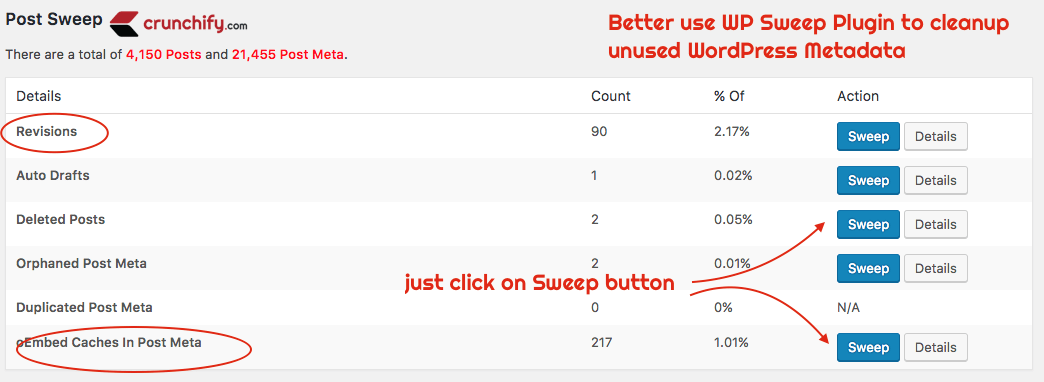
Step-4 Better use plugin WP Sweep to clean up Metadata
Plugin link. How to Deep-Clean WordPress Database and How To Reduce WordPress Database Size? Below all steps are the solution.
- Stored Post Revisions
- Auto drafts
- Orphaned post meta
- Orphaned comment meta
- Orphaned user meta
- Deleted comments
- Unapproved comments
- Spammed comments
- Deleted comments
- Orphan term relationships
- And much more….
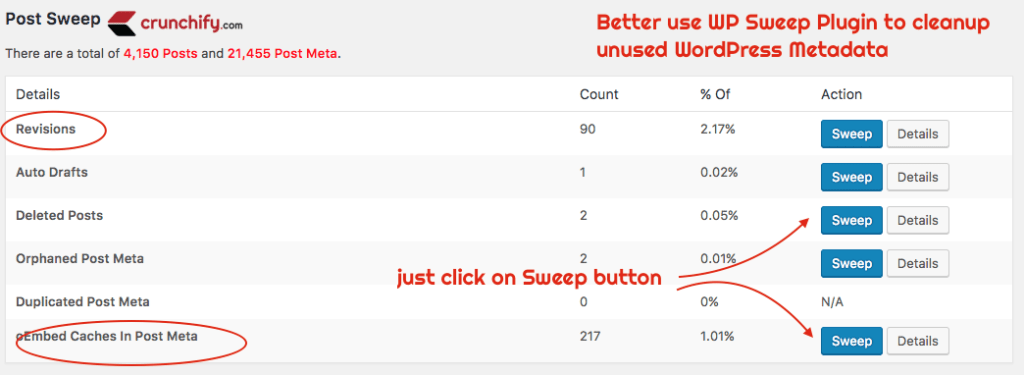
This is the Easiest Way To CleanUP WP Database. Do you have a question on wp sweep vs wp optimize? Well, I would suggest to go with WP Sweep.
Step-5 Please delete unwanted Plugin – I mean it.
This is big one. I absolutely stand behind this. You know, JetPack, Disqus, WooCommerce, WP Post Review Pro and lot more plugins are adding thousands of unwanted records to your DB? Well, if you don’t know that then follow each below tutorials.
- Delete all unwanted records for plugin Disqus
- Remove all Geo IP location data from Database added by WooCommerce
- Remove Akismet data from DB
- Remove Transient Variable on Post Publish
- Remove all _jetpack_transient Object from WP_Options table
Oh really?? Do I have to perform all above steps? Well, yes if you used any of above plugins before and not using right now then I would suggest strongly to go over each Database optimization.
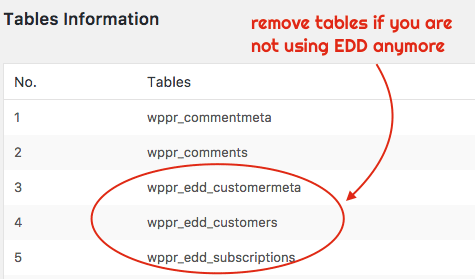
Step-6 Empty and drop all unused Database Tables
Here is a simple example. Let’s say you used Easy Digital Download on your site before. In order for it to run, plugin creates 3 Database tables. Now as you may moved over your premium subscription site to another or altogether stopped using EDD then there is no point of keeping those 3 tables in your live site’s Database.
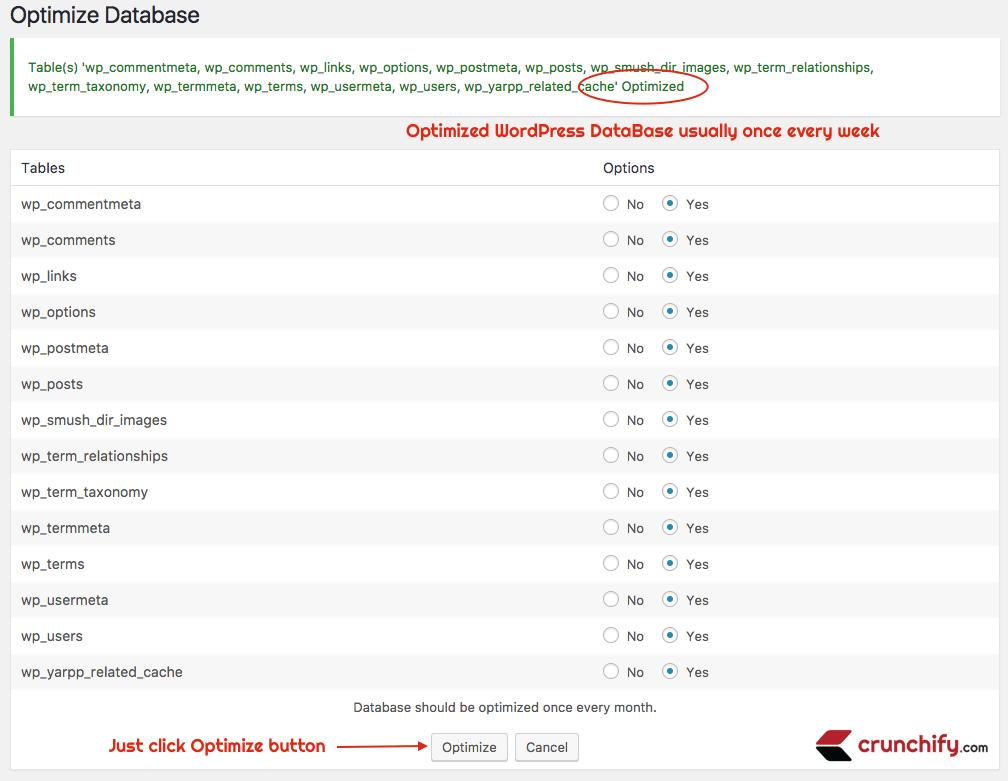
Step-7 After all above steps, Optimize your Database
On Crunchify, we are using plugin WP-DBManager for DB backup in addition to VaultPress and optimizing Database.


I hope these steps help you boost up your site speed. Eventually, fast site will rank high in Google SERP and will attract more visitors.