
1. Change Database Prefix
Have you ever seen your WordPress database tables? (You can access it through your web host account) By default, the database has eleven tables. Each table has a specific function. For instance, wp_posts stores information from posts, pages, and the navigation menu. Since the functions of each table are pre-determined, hacker knows where your site details are stored. For instance, if they want to exploit your site users, they can aim for the table ‘wp_users’.
WordPress uses the ‘wp_’ prefix for all the tables by default. Changing this to a unique prefix can be helpful in hiding table names and it’ll help secure your WordPress site. To do this, open your ‘wp-config’ file.
Step 1: To access the wp-config.php, open your web host account and go cPanel. Select File Manager, and it’ll take you a page that looks somewhat like this:
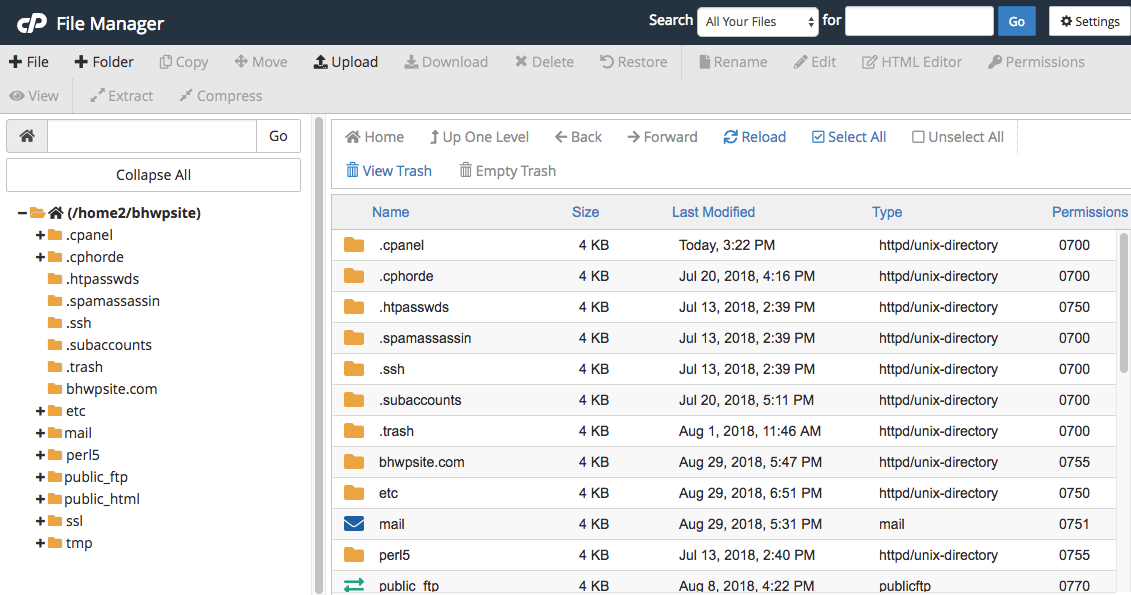
Step 2: On the left-hand side, there’s a public_html folder. In this folder, you’ll find the wp-config file.
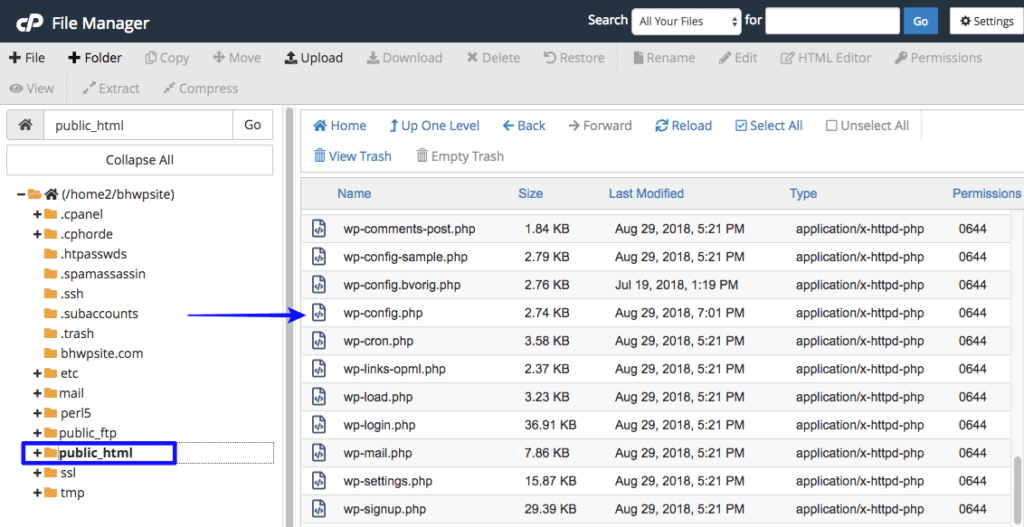
In the ‘wp-config’ file place the following lines:
[code]$table_prefix = ‘wp_’;[/code]

You need to change it to something random like:

[code]$table_prefix = ‘agora_’;[/code]
This will change the name of the tables in the database from ‘wp_users’ to ‘agora_users’, ‘wp_posts’ to ‘agora_posts’ etc.
2. Disable Editing Theme/Plugins Files
In the WordPress dashboard, there is an option to edit the plugin/theme file. This means that with access to the dashboard and sufficient permission anyone can edit your themes or plugins.
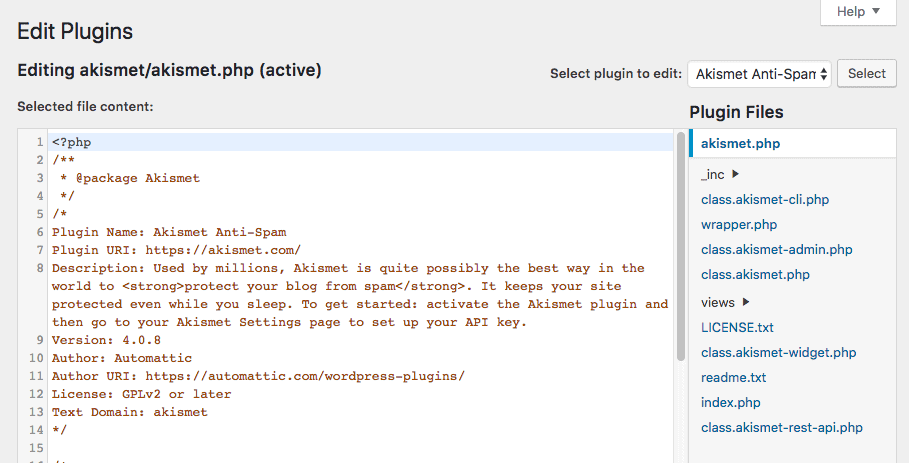
Although a handy tool if you want to reconfigure any plugin, it becomes dangerous in the hand of a hacker. For instance, suppose a hacker manages to break into your site with the help of an exploit. It’s easy for them to add a malware to an existing plugin or theme. They could be hiding backdoor which they’ll later exploit to gain access into your site whenever they want. You can prevent this from happening and secure your WordPress site by disabling the option to edit these files. Simply place the following code in your WordPress config file:
[code]define(‘DISALLOW_FILE_EDIT’,true);[/code]
3. Prevent Users From Installing or Updating Plugin & Themes
Disabling users from editing these files only offers one level of security. It does not prevent the hackers from installing a malicious plugin which they can use to exploit your site. Once they have access to the admin panel along with the right user permission, they can install a rogue theme or plugin. If you don’t install plugins often, then you can disable the option by adding the following code in the WordPress config file:
[code]define(‘DISALLOW_FILE_MODS’,true);[/code]
4. Enforce the Use of ‘FTP’
Preventing users from installing and updating plugins and themes can be restrictive and even impractical for sites that install plugins quite often. Moreover, updating themes and plugins is very important for the security of a site. An alternative method to ensure that the plugins are being installed by a valid user is to force users to provide ‘FTP’ details. Even when your Admin Panel is compromised, hackers cannot install a rogue plugin unless they have your FTP credentials.
Just add the following lines to your ‘wp-config.php’:
[code]define(‘FS_METHOD’, ‘ftpext’);[/code]
If your web host or server supports ‘FTPS’ then add the following lines in the config file:
[code]define(‘FTP_SSL’, true);[/code]
If your web host or server supports ‘SFTP’ then add the following lines:
[code]define(‘FS_METHOD’, ‘ssh2’);[/code]
5. Change Security Keys
You don’t have to enter your login credentials every time you need to log in to your site. Ever wondered how your browser stores these credentials? After signing into your account, your login information is stored in an encrypted manner in the browser cookie. Security keys are random variables that help improve this encryption. If your site is hacked, changing the secret keys will invalidate cookie and force every active user to log out automatically. Once thrown out, the hacker losses access to your WordPress admin.
You can generate a new set of security keys and place them in the ‘wp-config’ file. It’ll help secure your WordPress site.
6. Hide the ‘wp-config.php’
In any WordPress site, the wp-config file has a default location. Hence changing the file location can prevent it from falling into the hand of the hackers. Fortunately, WordPress allows the ‘wp-config’ folder to reside outside your WordPress installation. For instance, if your WordPress is installed in the public_html folder, then the config file will be present in the public_html folder by default. But you can move the wp-config outside the public_html folder and it’ll still work.
Create a new ‘config.php’ file
Create a new file called ‘config.php’. The file should be created in a non-WWW accessible directory. For example if your blog or website content is in /home/youruser/public_html/, then create the file config.php in /home/youruser/ so the file cannot be reached by any of your visitors. Typically this should be a directory before public_html or www directory.
Open the existing WordPress wp-config.php file and move the lines which contain the database connection details, the database prefix and also the WordPress security keys from the wp-config.php file to the new config.php file as shown in the below example. Add <?php at the beginning of the new config.php file and ?> at the end of the file.
01 02 03 04 05 06 07 08 09 10 11 12 13 14 15 16 17 18 19 20 | <?phpdefine('DB_NAME', 'Your_DB'); // name of databasedefine('DB_USER', 'DB_User'); // MySQL userdefine('DB_PASSWORD', 'DB_pass'); // and passworddefine('DB_HOST', 'localhost'); // MySQL host// The WordPress Security Keysdefine('AUTH_KEY', 'Your_key_here');define('SECURE_AUTH_KEY', 'Your_key_here');define('LOGGED_IN_KEY', 'Your_key_here');define('NONCE_KEY', 'Your_key_here');define('AUTH_SALT', 'Your_key_here');define('SECURE_AUTH_SALT', 'Your_key_here');define('LOGGED_IN_SALT', 'Your_key_here');define('NONCE_SALT', 'Your_key_here');// The WordPress database table prefix$table_prefix = 'wp_'; // only numbers, letters and underscore?> |
Modify wp-config.php file
After removing all the sensitive data from the wp-config.php file, simply add the following line straight after <?php in the wp-config.php file; include(‘/home/yourname/config.php’);. So the first two lines of your wp-config.php should look like this;
1 2 | <?phpinclude('/home/yourname/config.php'); |
Now instead of having all the sensitive information stored in your wp-config.php file, the wp-config.php file is reading such information from a different location.
Please note that the include path (i.e. /home/yourname/) varies from one web server or web hosting provider to the other. If you are not sure what is the absolute path of your website, refer to the blogger tip How to find absolute path on a webserver using PHP.
7. Secure the wp-config.php File
The configuration is vulnerable to attacks making it imperative to secure it. One way of doing it is by changing its location so that hackers can’t find it in its default location. Although some developers may oppose this, there are plenty who think it’s a good idea. Take a look at this discussion.
Another security measure that you can take is to restrict file permission. Set the file permissions to 600 so that only true owners can edit the wp-config file. To change the file permission of wp-config, select the file and then choose the option ‘Permission’.
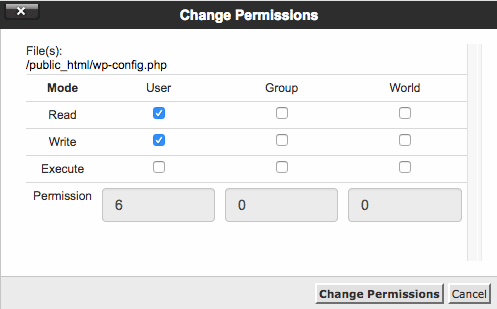
And then you need to include the following lines in the .htaccess file to prevent hackers from loading the wp-config file directly from the browser.
# protect wpconfig.php

<files wp-config.php>

  order allow,deny

  deny from all

</files>
Over to You
With that, we have covered how to secure your WordPress site with the wp-config file but this is just one of the many ways to improve your site’s security. A few other security measures that you can take include using a security plugin, using an SSL certificate, using a unique and strong username and password, implementing HTTP authentication, and two-factor authentication among other things. But before implementing any of these methods, you must back up your site. If something goes wrong, you can simply restore a backup and get our site up and running in no time.