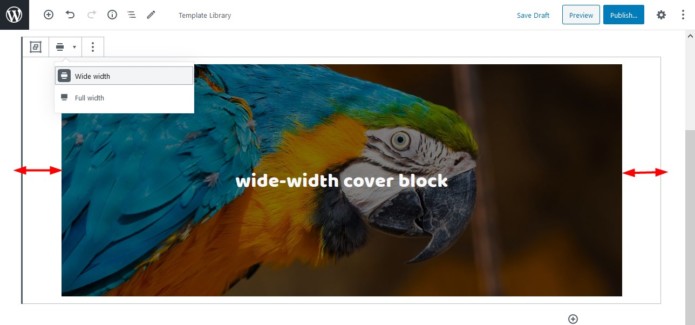
Note that you can align content for both pages and posts in WordPress.
Theme support for full-width alignment
The trick is, if you really need a no-brainer solution, this feature (the ability to span the full website width) must be supported by your WordPress theme by default. That is since it’s an opt-in style, theme developers must declare it via add_theme_support (‘align-wide’) in functions.php if they consider it to be a reasonable addition.
If you are okay with getting your hands dirty, you can add WordPress theme support for full-width alignment yourself. As far as I know, there is no full-width plugin WordPress that can do the job.
Also, some WordPress users tend to question the align items vs align content difference.
The align-item property allows you to align elements vertically. It applies to containers only and determines how flex items are aligned within a flex line and along the cross-axis.
Meanwhile, the align-content property lets you align elements if they are on multiple rows. It also applies to containers only but defines how flex lines are aligned along the cross-axis.
!!! Set up different Gutenberg layouts via the block settings
So the following guide will work for you if your theme already supports it. To check whether it does, insert the top-level (a parent block that can host multiple blocks) Group Gutenberg block and then navigate to the “Change alignment” setting:
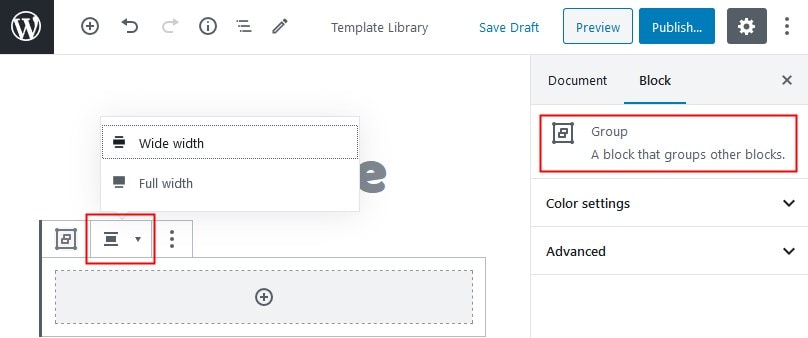
Let’s emphasize on the difference between these content alignment options in Gutenberg:
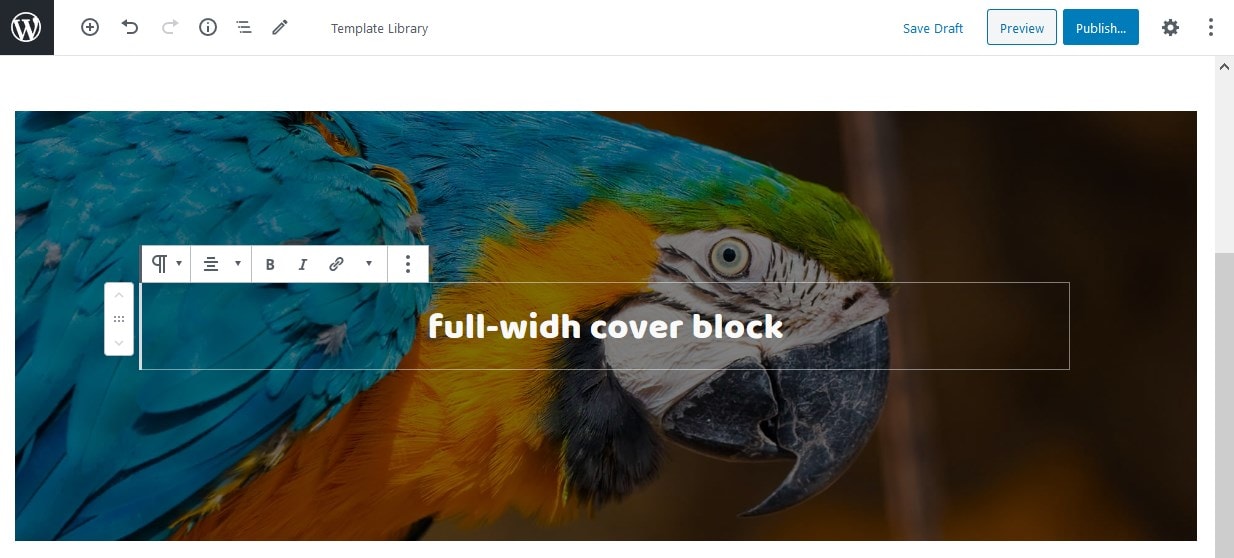
Full-width containers – both the section and content span the full width of the screen (WordPress alignfull)
Wide-width containers – the section is full-width, but the content is fixed (WordPress alignwide)
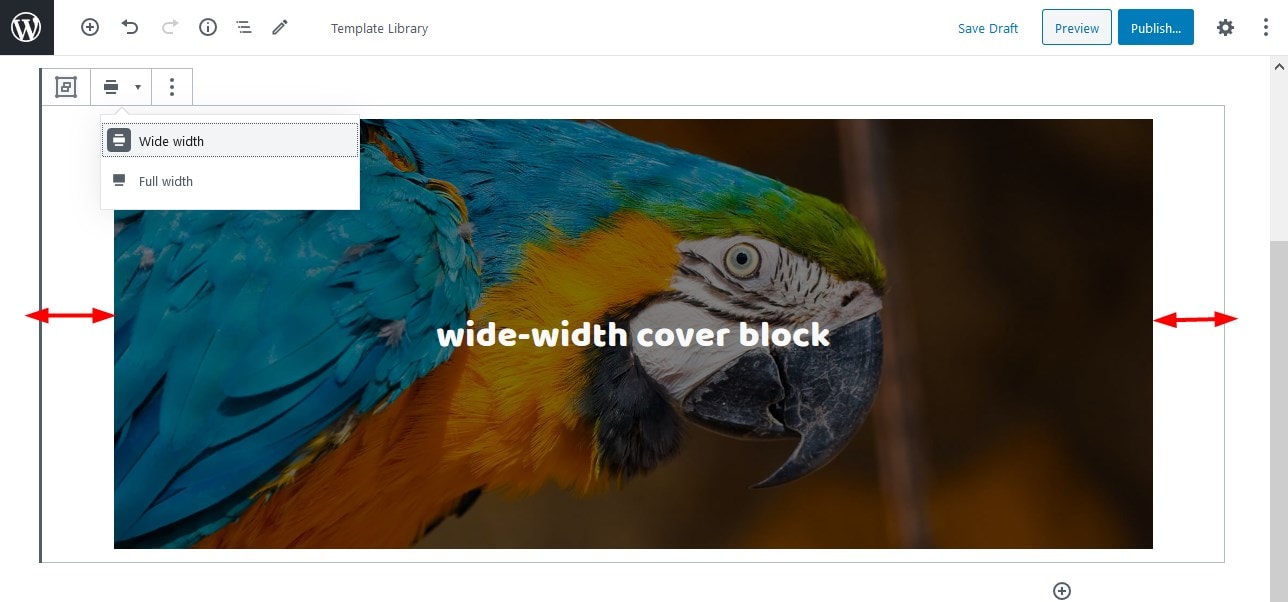
Moreover, some default Gutenberg blocks, e.g. the Cover block (which in its turn can hold multiple blocks) and the Gallery block, support different alignment options out of the box. In other words, you don’t need to put the Group block first to set a full-width alignment in Gutenberg.