Dashboard
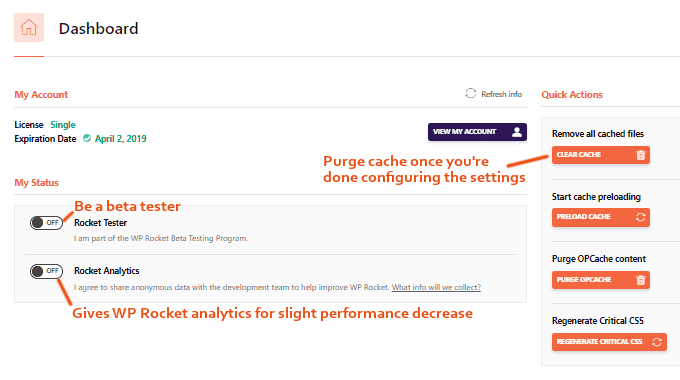
Beta Tester – I don’t do it.
Rocket Analytics – lets WP Rocket collect data anonymously. This has minimal affect on load times/CPU, but sending data to any external resource means more work for your server.
Remove All Cached Files – do this when you’re dong configuring the WP Rocket settings.
Start Cache Preloading – generates a cache for your homepage and all internal links you use on the homepage. I don’t do this since I have preload set to “automatic” in the preload tab.
Purge OPcache Content – purges the OPcahce which prevents issues when you update WP Rocket, but it’s still displaying the previous version in the WordPress admin.
Regenerate Critical CSS – do this when you make changes to stylesheets, or add/modify custom CSS via the WordPress Customizer (or a plugin).
Cache
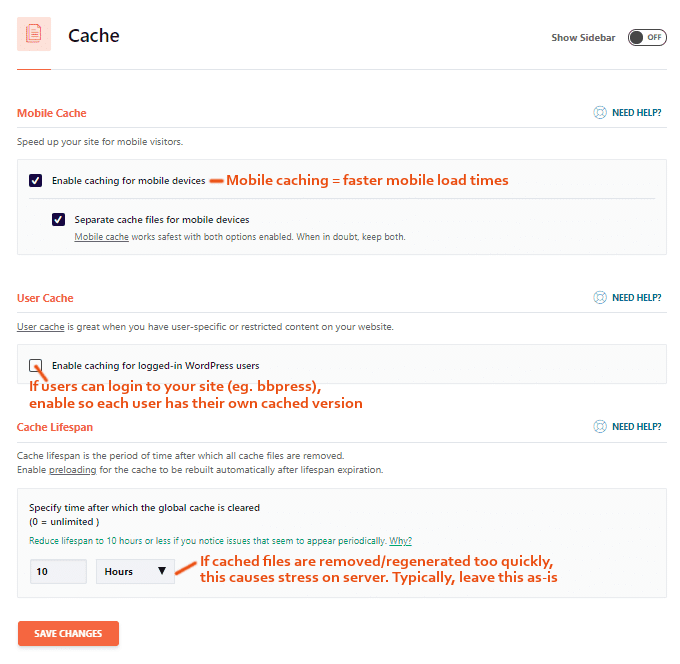
Mobile Cache – enable caching for mobile devices, but only “create a caching file for mobile visitors” if you are NOT using a plugin to create a mobile site (eg. free version of WP Touch).
User Cache – enable if users are logging into your site to interact with it (eg. bbPress). This gives each user their own cache, otherwise this should be disabled. Learn more.
SSL Cache – enable if using SSL.
Cache Lifespan – leave as the default. If you rarely update your site or have a lot of static content, you can increase this a bit.
File Optimization
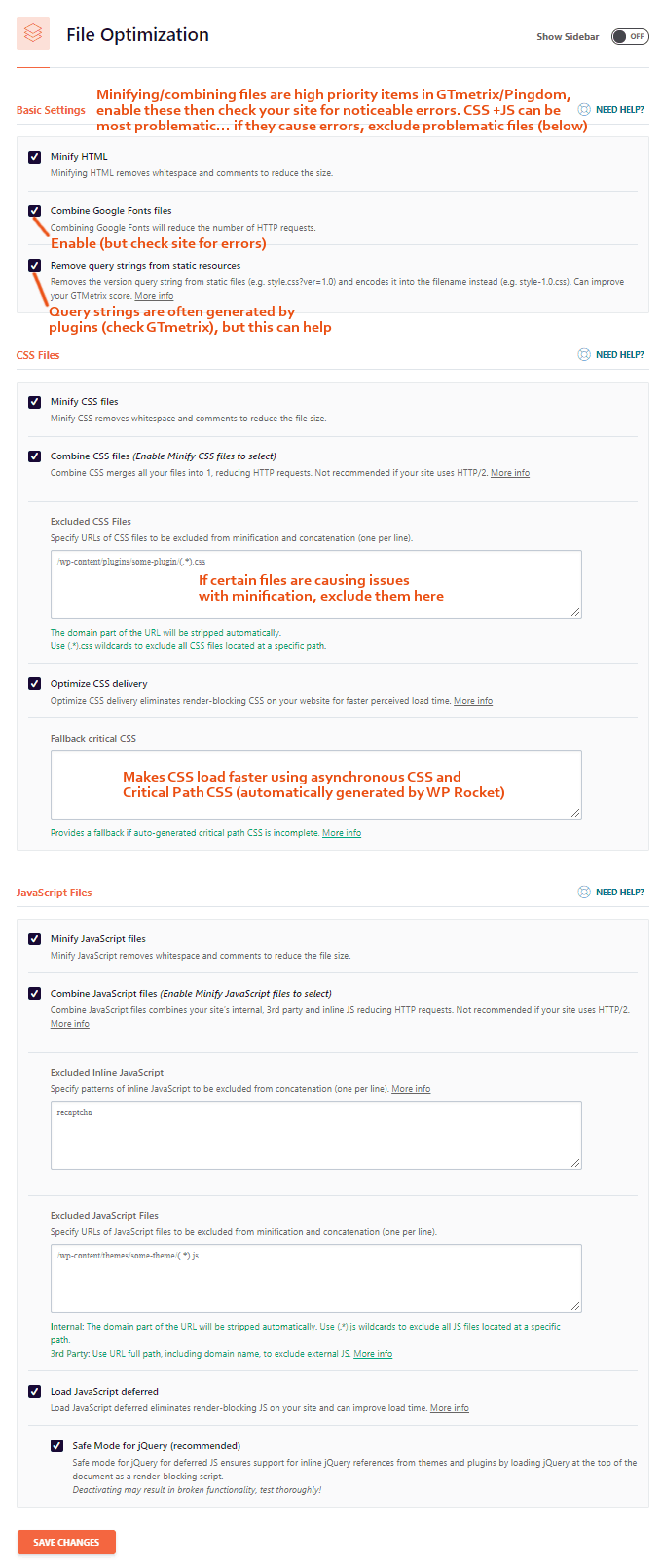
Minify Files – ideally these should make all “minify” and “combining” items in your Pingdom and GTmetrix report 99 – 100%. Sometimes enabling these can cause issues with your layout (especially CSS and JS) so check a few pages on your site to make sure this doesn’t happen. If it does, find the problematic files and add them to either the exclude CSS or exclude JS option.
Combine Files – just like minify, enable and check your site for errors.
Combine Google Font Files – Google Fonts are often shown in Pingdom/GTmetrix report. This can help, and you can also trying adding them in “Prefetch DNS Requests” in the Preload tab.
Remove Query Strings From Static Resources – In GTmetix you might see “remove query strings from static resources.” This can help, however most query strings are generated by plugins – expand your items in GTmetrix and see what is making it red – it could be a plugin.
Exclude CSS – if for some reason a minification option messes up your site layout, locate the problematic file and add it here. See WP Rocket’s article on resolving issues with minification.
Optimize CSS Delivery – your page will start loading without CSS styles which is an item in Google Page Speed Insights. WP Rocket automatically generates this for you. They say…
When you activate the Optimize CSS delivery setting checkbox, CSS will be loaded asynchronously on your site. Additionally, Critical Path CSS will be generated for your website in the background and added upon the next page load.
JavaScript Files – same concept as CSS only with JavaScript files.
Media
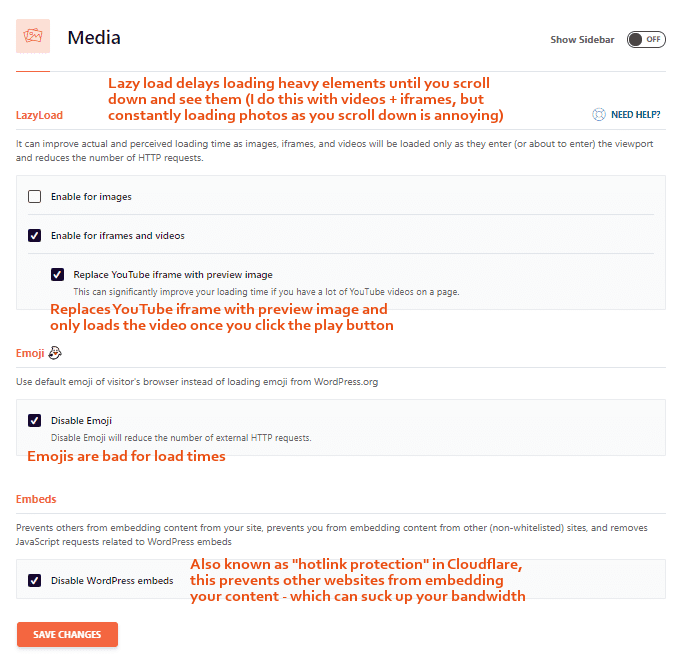
Lazyload – delays loading of images, iframes, and videos until you scroll down the page and they become visible (test to see if you like it or not). This significantly reduces load times and HTTP requests however the ongoing loading can be annoying especially for long content. This can also be done using other free plugins like Lazy Load and Lazy Load For Videos but WP Rocket does a great job. I have it lazyload for photos since it’s annoying.
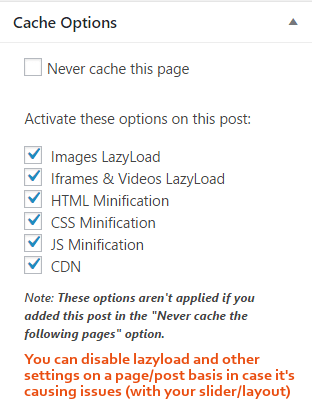
You can also disable Lazyload on individual pages/posts using the sidebar:
Disable Emojis – these slow down your site. You can also disable these under Settings → Writing → Formatting, then do not convert emoticons.
Embeds – similar to Cloudflare’s hotlink prevention, this prevents sites from embedding your content on their website which sucks up bandwidth and makes your site slower.
Preload
If you want to learn about preloading, WP Rocket has a simple tutorial. Or if you want to dig deeper here is an advanced tutorial which is about WP Super Cache but the same concepts apply. Preload, in somewhat simple terms, is a refresh when the cached pages are all cleared out and refreshed in one go. I would enable it since it improves both website/indexing speed.
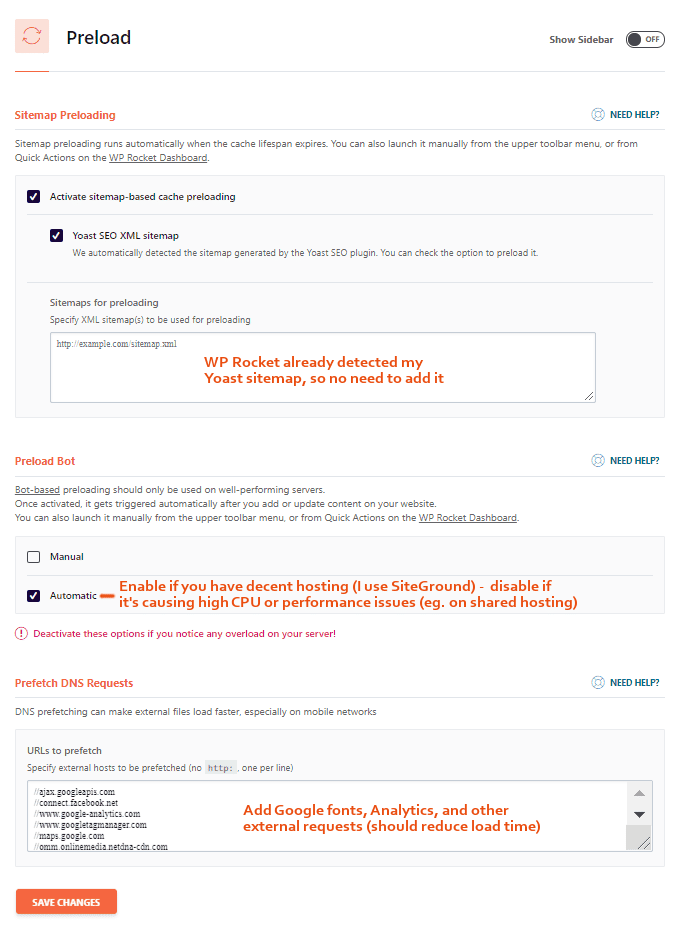
Sitemap Preloading – extends the benefit of preload to ALL URLs in your sitemap, not just your homepage and the internal links you use on the homepage. This does not use an external bot like the manual/automatic option… even if the end result is the same. As long as WP Rocket detected your sitemap in “sitemaps for preloading,” there is no need to add it here.
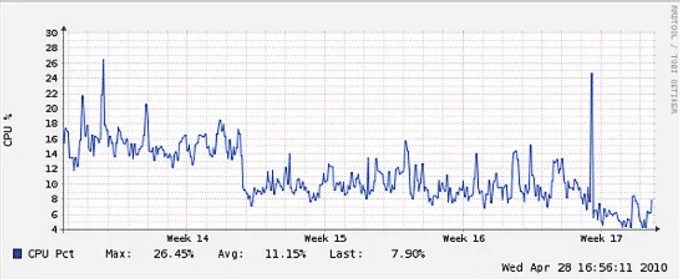
This is what preloading can do for your server…
Prefetch DNS Requests – add Google Fonts, YouTube videos, or other scripts/requests from external websites to help browsers anticipate these. This will result in faster load times.
These are the ones I added:
- //fonts.googleapis.com
- //ajax.googleapis.com
- //connect.facebook.net
- //www.google-analytics.com
- //www.googletagmanager.com
- //maps.google.com
- My CNAME from MaxCDN
Advanced Rules
The advanced options are mainly for excluding cart and checkout pages in eCommerce sites.
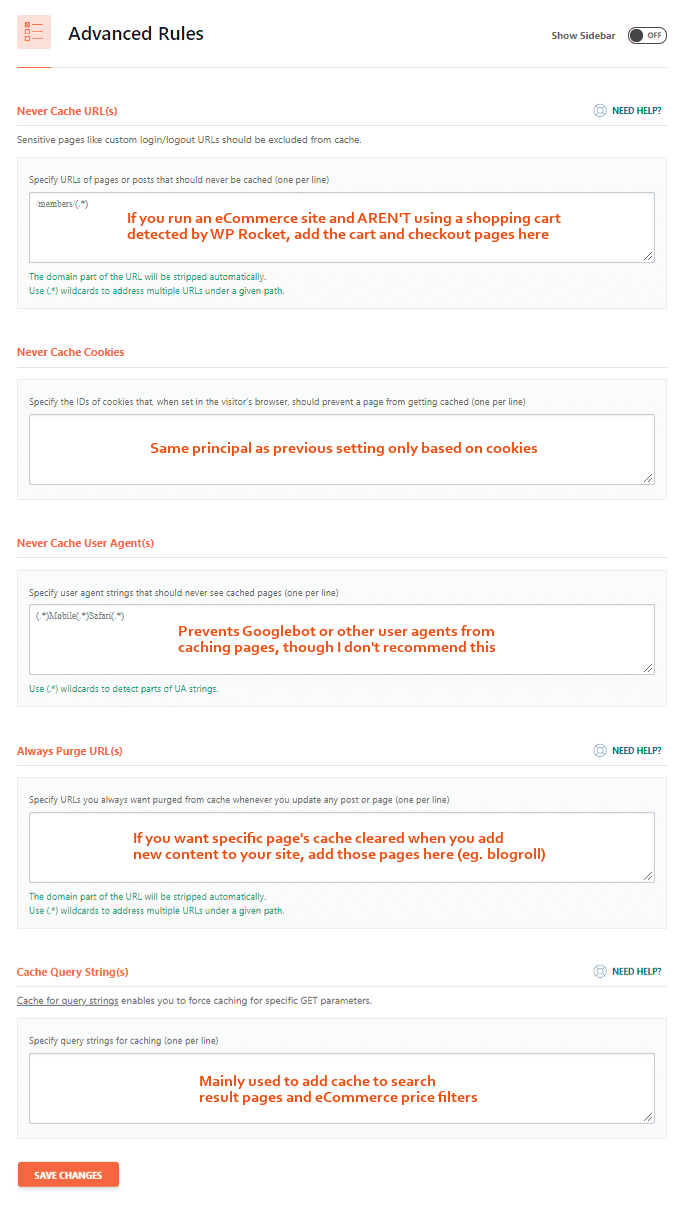
Never Cache URL(s) – if you’re using an eCommerce shopping cart not listed by WP Rocket (see the note they have in this settings), add your cart and checkout pages here. Learn more.
Never Cache Cookies – same principal as previous option only based on cookies.
Never Cache User Agent(s) – prevents Googlebot or other user agents from caching pages.
Always Purge URL(s) – let’s say you have a blogroll on your homepage. If you create a new post, you want that homepage blogroll updated immediately by emptying the homepage cache. That’s what this setting does, however WP Rocket automatically clears the cache for your homepage, categories and tags once new content is created… so there is no need for this. But if there are other page’s cache you want cleared when new content is added, add them.
Cache Query String(s) – mainly used to cache search result pages and price filtering pages for eCommerce sites.
Database
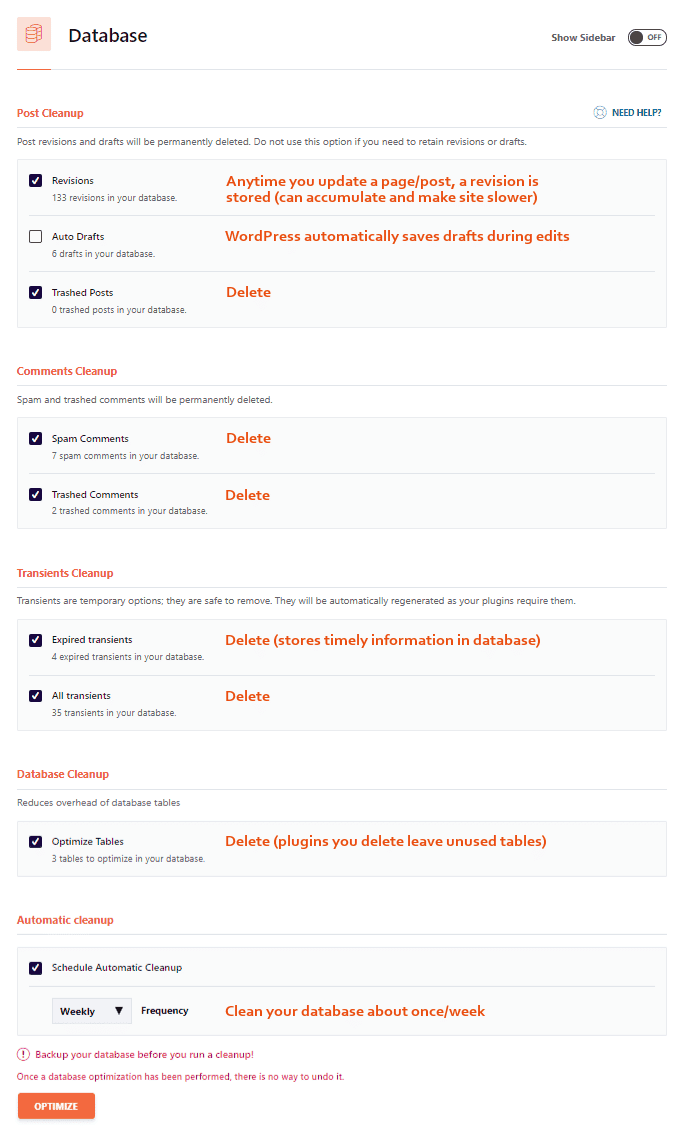
Post Cleanup – revisions, auto drafts, and trashed posts can be deleted if you don’t use them. Unless you have old versions of posts (or deleted posts) you would like to use, delete them.
Comments Cleanup – spam and trashed comments can be deleted.
Transients Cleanup – stores data that takes a long time to get (like social counts) so the next time you need it, it returns super fast. But sometimes when transients get expired they stay in the database and should be deleted. WP Beginner has a great explanation of transients.
Database Cleanup – when you delete a plugin it can leave unused tables in your WordPress database, which you can delete.
Automatic Cleanup – schedule WP Rocket to cleanup your database. Weekly is good unless these accumulate quickly (eg. many people work on your site). If you have WP-Optimize or another database cleanup plugin installed, you can delete it since WP Rocket does this for you.
Optimize – click the optimize button when you’re done, just be sure to backup your database especially if it’s your first time doing this.
CDN
StackPath’s CDN mirrors your site on 30+ data centers across the US and globe, reducing the geographical distance between your server and visitors. Using StackPath and Cloudflare is recommended, as more data centers = faster content delivery. This can shave multiple seconds off your load time especially for visitors who (used to be) far away from your 1 origin server. If you’re using another CDN, want tips on using a CDN with an SSL, or for troubleshooting, see WP Rocket’s CDN tutorials. You can use StackPath’s tutorial but here’s exactly what to do…
Step 1: Sign up for StackPath using a 30-day trial to get access to their data centers…

Step 2: In the dashboard, click the CDN tab, then proceed to create a StackPath CDN Site…


Step 3: Copy CDN URL from StackPath and paste into WP Rocket’s “CDN CNAME(s)” field…

Step 4: In StackPath go to CDN → Cache Settings, then click “Purge Everything”…

Step 5: Run your site in GTmetrix and “content delivery network” should be green in YSlow.

Exclude Files From CDN – there may be certain files being served by the CDN you would like to serve locally. Usually these files are parts of plugins designed to disregard cross domain load. To change this, simply add these files or directories into the “rejected files” area of WP Rocket (add one filedirectory per line) which you can use directives to locate WP directories.
Example:
- {uploads_dir}/wpcf7_captcha/*
- {uploads_dir}/imagerotator.swf
- {plugins_dir}/wp-fb-autoconnect/facebook-platform/channel.html
Step 5: In MaxCDN, go to the “manage cache” tab in your pull zone settings and purge files…

Step 6: Run your site in GTmetrix and “content delivery network” should be green in YSlow.
If you expand items in GTmetrix and see it has to do with your CDN, contact MaxCDN’s support team who should be able to help you fix these. They have outstanding support.
