Create a link for customers to write reviews
You can share your short URL with customers from your Google My Business dashboard on your computer or the mobile app. Customers can leave reviews and view your Business Profile through your short URL.
Note: URLs previously created through the PlaceID Lookup Tool or from Google Search will continue to work, but we recommend that every business create a short name and use a short URL for customers.
Share your short URL with customers for reviews
Computer
- Sign in to Google My Business.
- If you have multiple locations, open the location you’d like to manage.
- In the menu on the left, click Home.
- In the “Get more reviews” card, you can copy your short URL to share with customers.
Mobile
- On your mobile device, open the Google My Business app
.
- Tap Customers
Reviews.
- In the top right, tap Share
.
- If your short name is not created, you will be prompted to create one.
- Copy your short URL to share with customers.
When customers click your link, they’ll be able to rate your business and leave a review. Learn how to read and reply to customer reviews.
Keep in mind that it’s against Google review policies to solicit reviews from customers by offering incentives or setting up review stations at your place of business. Reviews that violate the policy may be removed.
Note: In recent times, we’ve found this method doesn’t always work across all devices. For a bullet-proof way, read our article about Finding Any Google ID which combines your personalized Google ID with a standardize url that works on all browsers and devices.
Have you ever been frustrated that Google doesn’t give you a simple place you can send customers to read your reviews?
When Google overhauled Google Plus, they killed most of the features that were useful to businesses, including the ability to show your customer reviews.
For a while we found this vexing, and we struggled to find a reliable way to add a links to our clients websites so their visitors could read their reviews. We tried linking to Google maps, but found this didn’t work reliably on mobile devices. However, after some experimentation and testing we eventuality found a suitable solution.
In this article I’ll explain how we add links to your Google Reviews, and also show you how make a direct link where customers can leave a Google Review.
The (Current) Best Way To Link to Your Google Reviews From Your Website
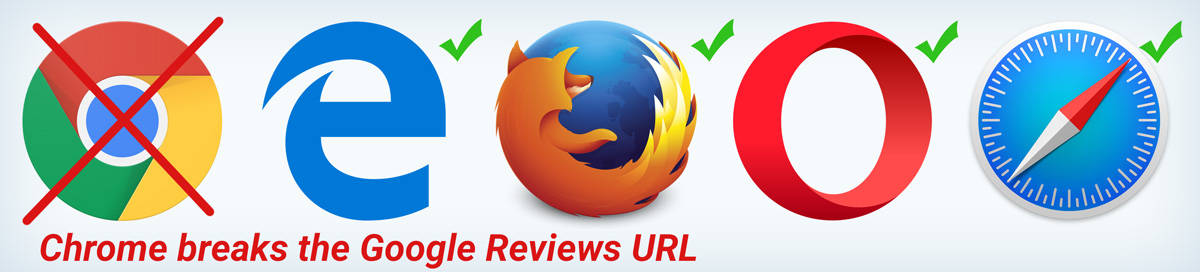
Step 1. Open a browser, but don’t use Chrome. You can use Firefox, or Edge, or even Internet Explorer but not Google Chrome because it alters the URL and your link will not work correctly.
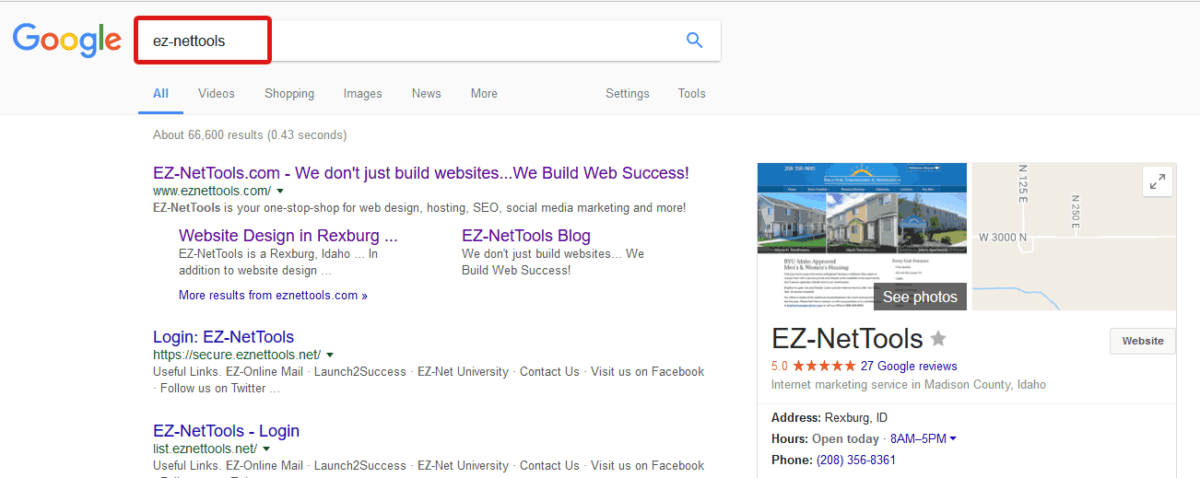
Step 2. Go to Google.com and search for your company’s name.
Step 3. Find the card on the right and click “View All Google Reviews”

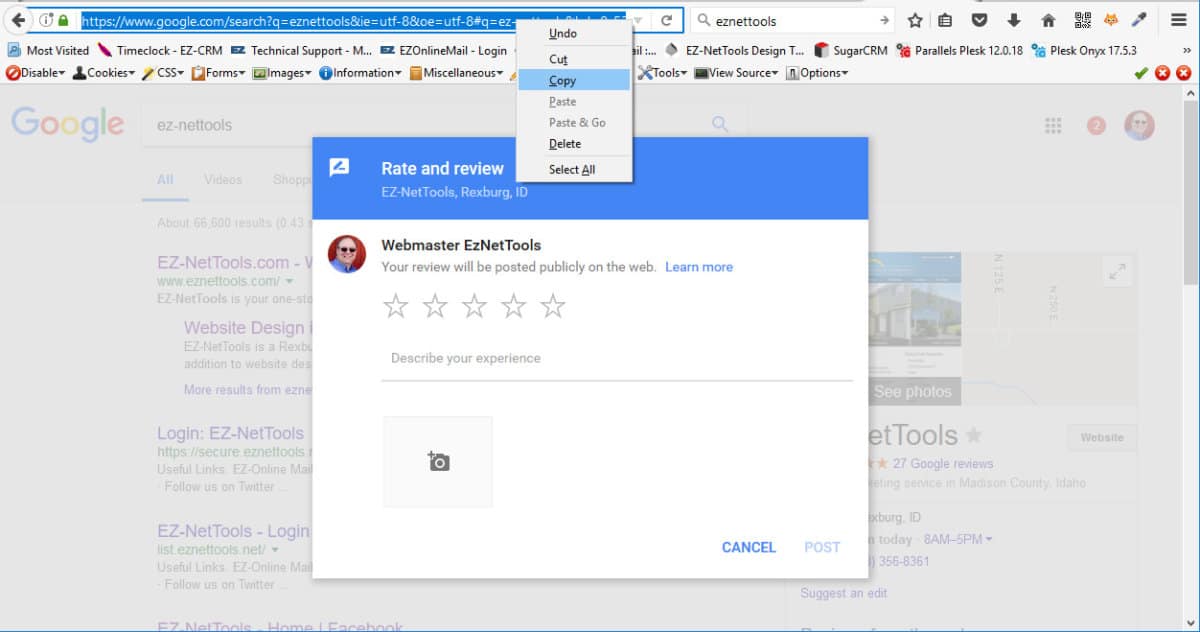
Step 4. Copy the URL in the address bar.
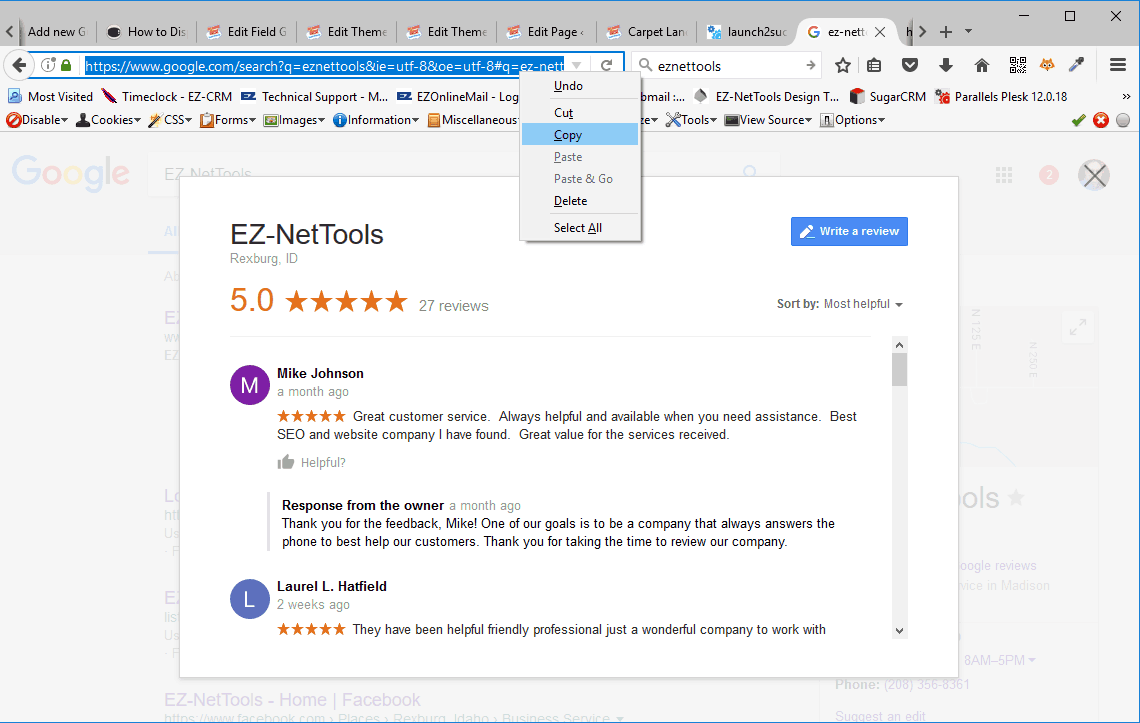
Step 5. Now paste the URL as a link on your website.
That’s it. You now have a link to your Google Reviews so you can show off how much your customers love you!
Troubleshooting
If you don’t see the card on the right when you search for your company name, try to make your search more specific. Sometimes companies that have generic names won’t have their card show up in the search results.
Bonus Tip: Add A Link to Let Customer Leave A Google Review
It’s nice to let visitors see your reviews, but if you want a good way to get more review, try adding a link for that as well. Here’s how…
- Just like before, open a browser (not Chrome) and search for your company name.
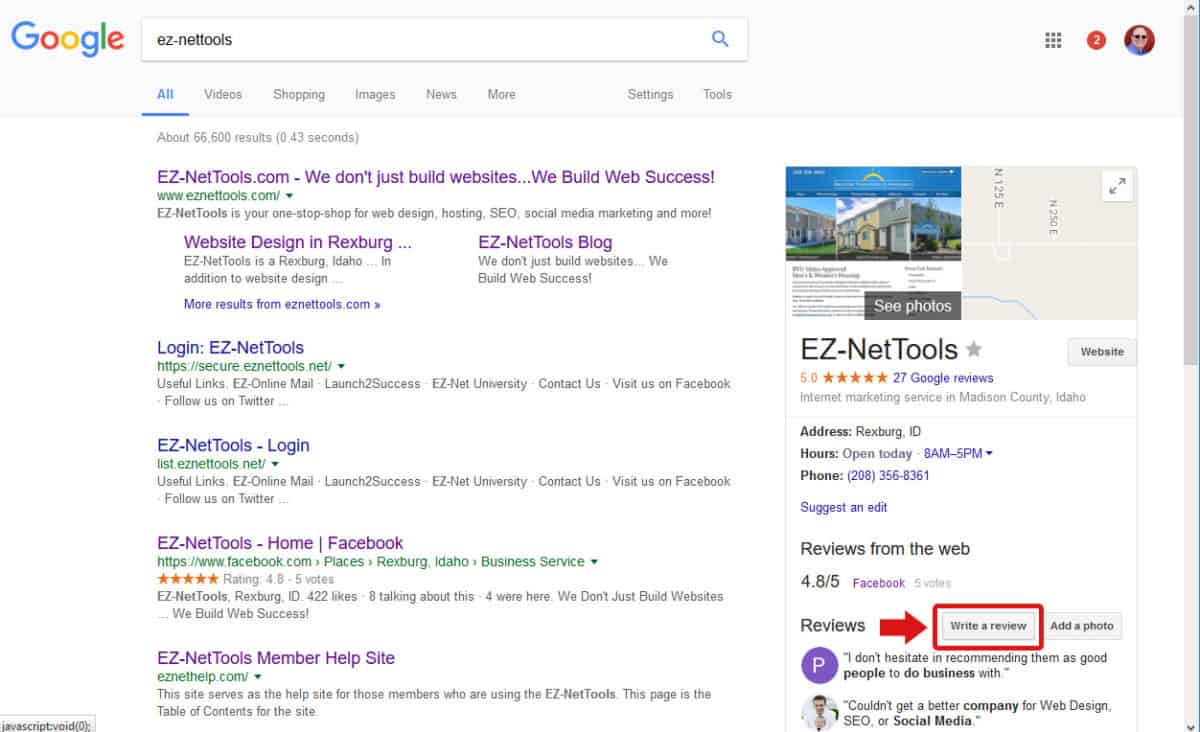
2. Click the “Write a review” button.