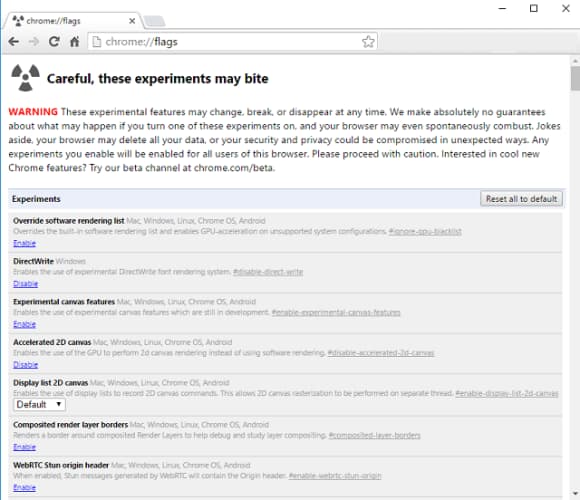
How to Access the Flags Menu
Before we begin, it is important to understand that the flags are all experimental features that may or may not end up in future stable releases. With that in mind, it is very possible that they’ll disappear altogether at some point.
Secondly, because they are experimental, changing them could have unforeseen consequences for your browser’s general usability. Proceed with caution.
The first step is to access Chrome’s secret flags menu – this is the place from which all the tweaks are made. Luckily it’s very simple – just type chrome://flags into the browser’s omnibox and you’ll be shown the list.
Hint: The list of flags seems to have no logical order. Use Ctrl + F to find the individual flags we discuss below.
0. Increase Download Speed
Enable Parallel downloading in Google Chrome
Make sure your Android device is running the latest build of Chrome Canary or Dev. You need to enable the Chrome flag ” chrome-parallel-download” to get the feature working. Follow the steps mentioned below:
- Open the “chrome://flags” page.
- On Chrome flags page, type “parallel” in the search box to display the flag called parallel downloading.
- Tap Default and choose Enable option from the drop-down menu.
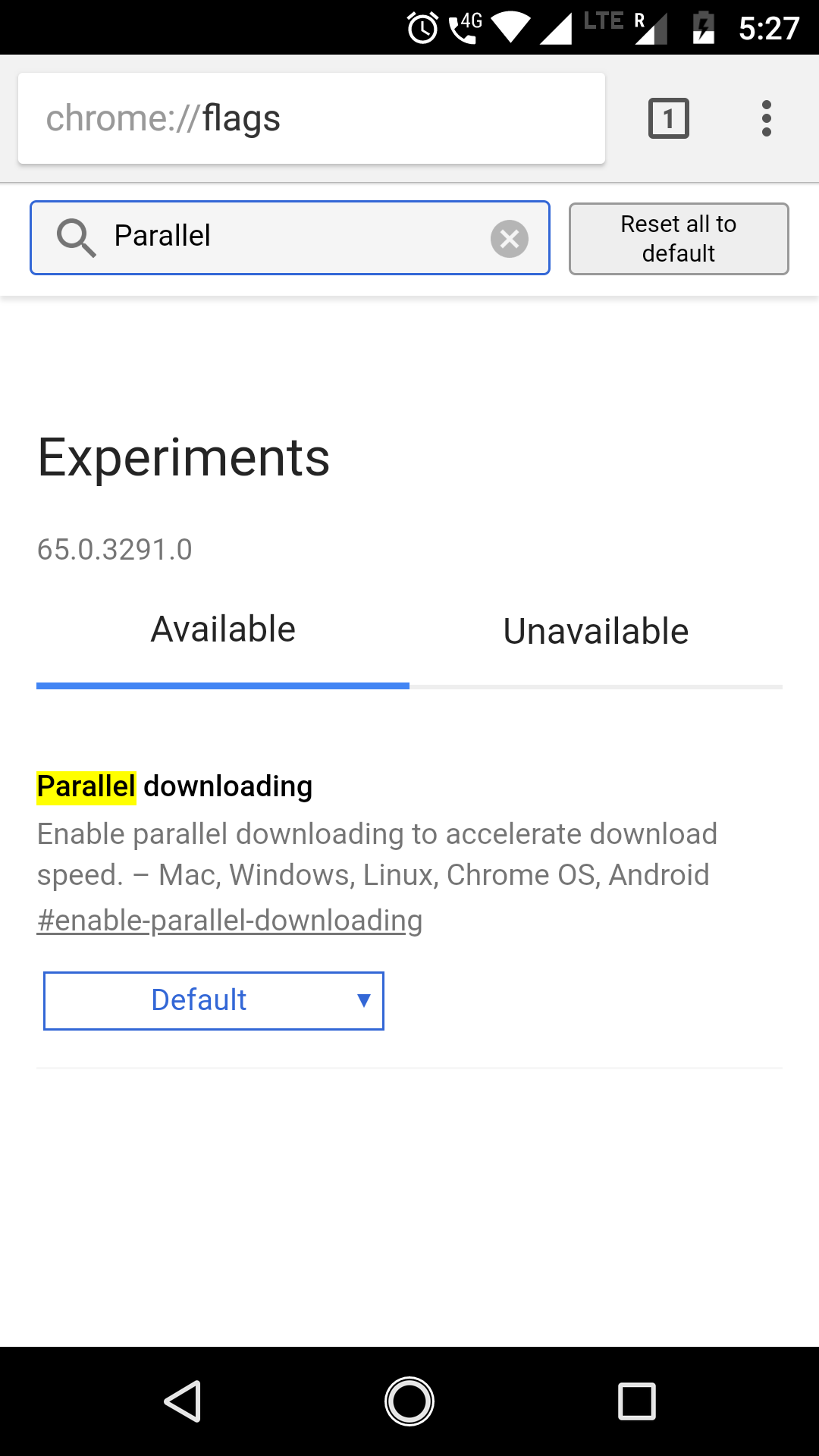
- Chrome will have to restart to apply the changes, tap Relaunch Now.
Now, the parallel downloading is enabled. You’ll be able to do the same in Chrome stable builds when Chrome 64 arrives.
The feature works for every download that exceeds 2 seconds. So, in real life, it’s pretty much every file download. But you’ll notice the difference when downloading large files.
1. Increase the “Raster Threads”
Raster graphics use pixels to form an image (as opposed to vector graphics, which use lines and curves). Virtually all websites use raster images, and raster threads are how a computer reads those images.
This is a great hack, therefore, for anyone who suffers slow-loading images on pages they visit.
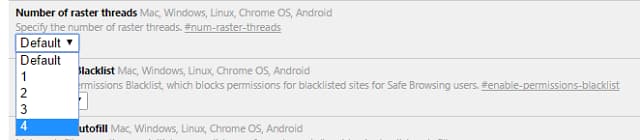
Head to Number of Raster Threads and choose 4 from the drop-down list.
2. Prevent Tabs From Reloading
If you have a poor Internet connection that keeps dropping out, it can be annoying when pages that failed to load suddenly all refresh at the same time, using up precious bandwidth.
To prevent this from happening, search for Only Auto-Reload Visible Tabs and select Enabled. It will force Chrome to only reload the tab that you’re currently looking at.

To disable the feature completely, select Disabled and also select Disabled on Offline Auto-Reload Mode (the option directly above).
3. Improve Page Loading Times
If you find that web pages frequently take a long time to load, try enabling Experimental Canvas Features.
This will allow Chrome to use opaque canvases. In practice, that means Chrome can make certain assumptions that speed up the drawing of transparent content and images. For example, it can automatically remove everything underneath the canvas pixels because it knows it will not be seen.

4. Close Tabs Faster
Tabs and windows on Chrome can be closed more rapidly by running Chrome’s JavaScript handler independently from the graphical user interface. Although the “kill” process will still be continuing behind the scenes, the tab/window itself will be removed from your screen.

You need to find the setting for Fast Tab/Window Close and click on Enable.
5. Low-Priority iFrames
An iFrame (short for Inline Frame) is used by web designers to insert content from another source within a site. In layman’s terms, it is like a webpage within a webpage. Too many iFrames on a website can dramatically impact a page’s loading time.
They are typically used for adverts, plugins, and other non-native content.

Enabling this feature will allow Chrome to ascertain what it believes to be the most important iFrames and load them first. Adverts and other non-essential content will be loaded after the rest of the page is already being displayed.
6. TCP Fast Open (Only Available on Chrome OS and Android)
TCP Fast Open (TFO) is an extension that speeds up the opening of data channels between two endpoints.
It works by giving the browser a cryptographic cookie so it can re-authenticate itself before the traditional “three-way handshake” has been completed.

In short – enabling this feature will allow data to start being sent/received more quickly.
7. QUIC Protocol
This is another data speed hack.
The QUIC (Quick UDP Internet Connections) Protocol was developed in-house by Google in 2012. It focuses on reducing bandwidth, latency, and congestion by decreasing the number of round trips needed when establishing a new connection.

Although it remains an experimental feature, QUIC was submitted to the IETF for standardization in June 2015 – so it might be about to become more widespread.
8. “Stale-While-Revalidate” Cache Directive
“Stale-While-Revalidate” is a cache directive which tells the cache that a response can be served even if its max-age has expired (i.e. – it is “stale”).
This is possible for up to five minutes – anything after that will result in a blocking fetch. However, for a period of 60 to 300 seconds, the browser will display the “stale” response and do a background update to refresh the resource.

The bottom line: better cache reuse, fewer blocking resources, and a faster browsing experience.
Confirming and Undoing Your Changes
Whenever you change a Chrome flag, you’ll need to reboot your browser before the changes take effect.
Just click on the large Relaunch Now button at which pops up at the bottom of your screen. All the pages you currently have open will be automatically reloaded, though we recommend that you save any work before proceeding.
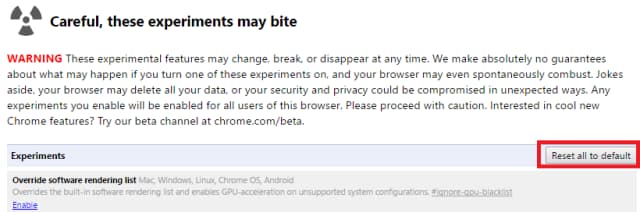
If you find that you’ve broken something but you’re not sure which setting caused the problem, you can easily restore all the flags to their default settings. Look for the Reset All To Default option in the top right-hand corner of the menu. Click it, and restart your browser.
1. Disable Google Chrome Incognito Mode Detection
If you are a Google Chrome user, chances are that you use incognito mode on Chrome fairly regularly when you don’t want to be tracked. However, there are certain websites which block content for incognito users as they want to track users when they visit their website. Websites are able to tell when you are using incognito mode by checking the “File System API” which is blocked in incognito mode.
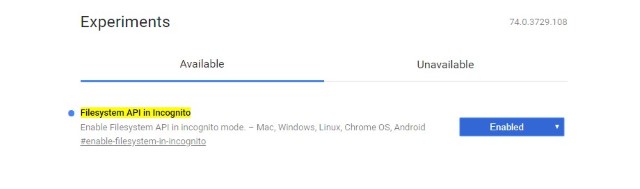
This was a big problem for Chrome users and the frustrating thing was that there was no way to solve this, that is, until now. With the new Google Chrome version 74 update, now users can spoof websites tracking incognito users by creating a temporary virtual file system making it look like Chrome is not in Incognito Mode. That said, this feature is not turned on by default and you will have to use Chrome Flags to do it. Just make sure that you are running the latest version of Chrome and then enable the “Filesystem API in Incognito” flag.
3. Secure Your Browsing Experience
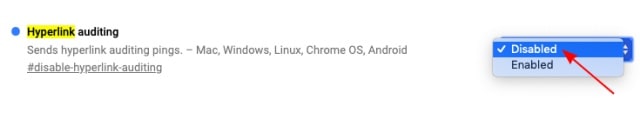
If you’re familiar with the concept of pinging, you would know that it’s used to see the availability of a remote server and it’s done by sending a message to it. It means the Chrome browser is constantly in touch with Google’s server and if you’re wary of your privacy, then disabling the ‘Hyperlink auditing’ flag should help you avoid tracking by websites.
4. Autoplay Policy
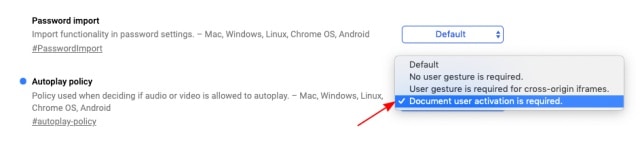
One of the most annoying things that website makers have implemented these days is autoplaying video and your speakers could be blaring random audio out of nowhere. If you’ve been looking to get rid of such audio and videos on websites you visit regularly, well, Chrome has an #autoplay-policy flag to put an end to it. You need to change the same from ‘default’ to ‘Document user activation is required’ and restart the browser.
Now, whenever you visit a website which serves an autoplaying video/audio, they’ll not play automatically. You will be in control of the playback and clicking on the play button manually will be required if you want to check it out.
5. Password Import
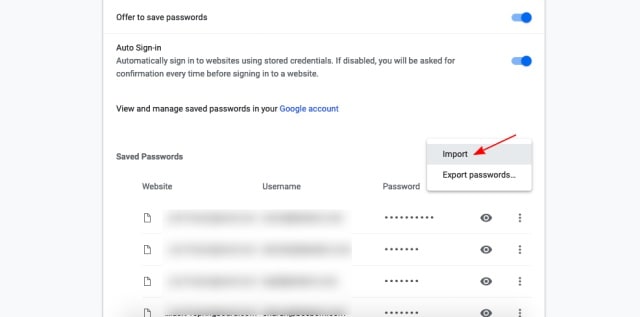
Google Chrome has offered the option to export passwords for some time now, but if you are moving to the most popular browser from one of its competitors and want to import your password, well, enabling the #PasswordImport flag is what you should do right after downloading the browser. You can then go to “Settings -> Passwords” and tap the ‘three dots’ icon next to ‘Saved Passwords’ to see the ‘Import’ option.
6. Input Saved Android Passwords on Web
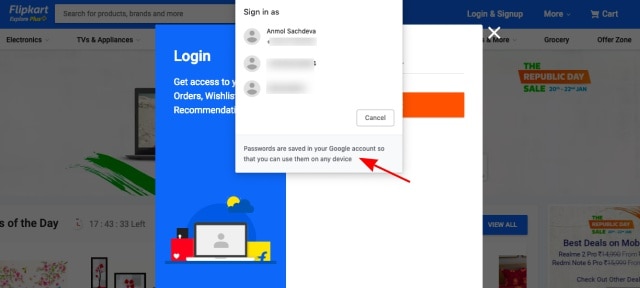
If importing passwords to Chrome seems like a tedious task to you, then you can utilize those saved on your Android smartphone on the web (both desktop and mobile) as well. Simply enable the #AffiliationBasedMastching flag in Chrome to see a pop-up which will allow you to input passwords stored for Android apps into their corresponding websites. This is a handy feature that if you’ve logged into the app once, saves you the trouble of remembering passwords to log on the web.
7. No Unwanted Redirections
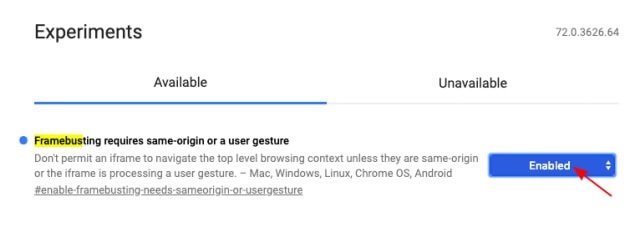
There would certainly have been times when you visited a website and clicked on some link, but instead of opening the same the website redirects you to a third unwanted link. Chrome has taken measures to secure you against such malicious behavior a long time ago, however, the #enable-framebusting-needs-sameorigin-or-usergesture flag is still hidden. You have to turn it on, after which the redirects would no longer be a trouble.
8. Automatic Tab Discarding
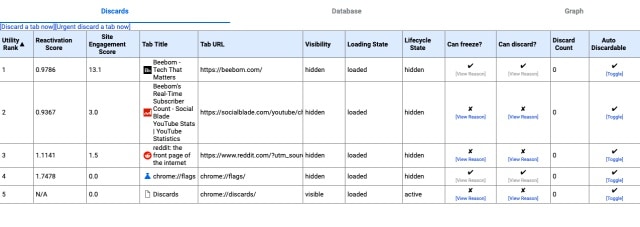
Does your Chrome browser feel like it’s slowed down when a number of tabs are open? Well, Chrome is often rebuked to be a memory hog that eats up your RAM. If that’s the situation you are in, then enabling the #automatic-tab-discarding flag will be a boon for you.
Chrome maintains a memory use list at Chrome://discards and will now start to discard tabs, starting from the bottom – highest precedence. This means it kills the process and disables the tabs in an attempt to conserve memory and you’ll have to reload them once you’re ready to use them again!
10. Improve Image Load Times
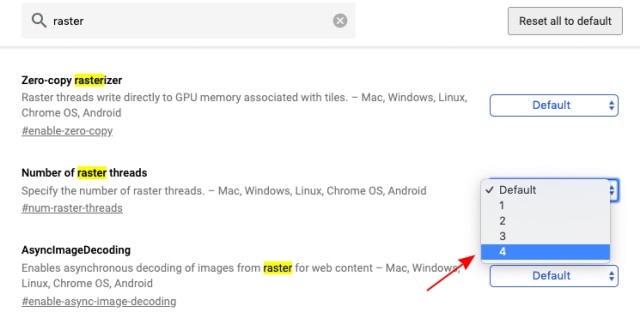
Here, you need to search for the ‘raster’ keyword and then change the ‘default’ value of the #num-raster-threads flag to 4 to speed up the time it takes to load images in Chrome. It’s expected to make your browsing experience a little smoother.
25. Performance Improvements
Finally, if you’re looking for more hacks to speed up Chrome on your desktop or mobile, you can enable the #ignore-gpu-blacklist flag, along with #enable-offline-auto-reload. I also came across the Brotli Content-Encoding support (#enable-brotli) flag which should further help give your browsing experience another speed boost!
4 Ways To Speed Up Google Chrome And Reduce RAM Usage
Chrome has the biggest market share when it comes to browser, however, it also uses an awful amount of RAM. If moving to Microsoft Edge and Mozilla Firefox is not an option, here are 4 methods guarantee to work in optimizing Google Chrome for faster speed and a huge performance boost.
These tips work for both Mac and Windows (and some even work for Linux!). Here are some tips to help you make Google Chrome fast again, and to reduce the amount of RAM the browser eats up. Here are 4 tips on how to make Chrome run faster and keep RAM usage under control.
↓ 01 – Chrome Cleanup Tool
As time goes by, your Chrome browser will be bloated with lots of plugins and extensions, not to mention unwanted toolbars and adware. Chrome Cleanup Tool by Google will scan and remove suspicious software that may cause problems with Chrome, such as crashes, unusual startup pages or toolbars, unexpected ads you can’t get rid of, or otherwise changing your browsing experience. Works great on Microsoft’s Windows 10 and Apple’s macOS.
↓ 02 – Disable / Remove Web Apps And Extension

The advantage of using Google Chrome is the ecosystem, however, without proper housekeeping, your Chrome browser will eventually be bloated with Apps and Extension. Visit the follow URL to remove unwanted apps and extensions.
↓ 03 – Enable Experimental Features
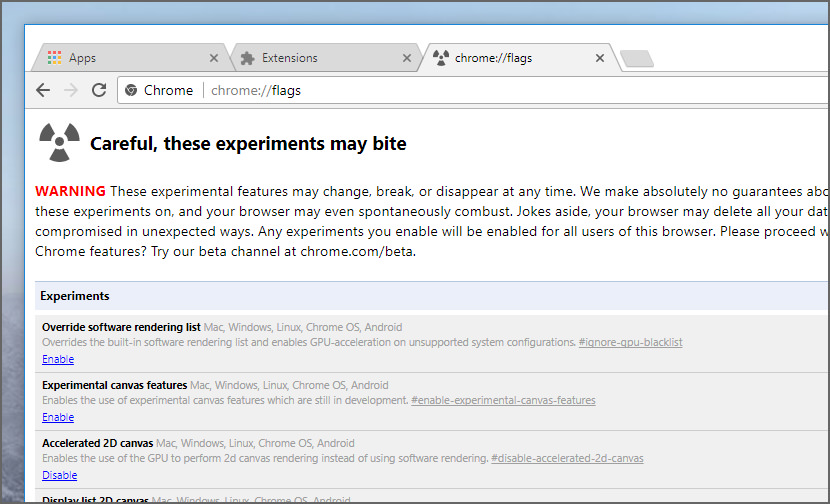
These experimental features may change, break, or disappear at any time. To enable this hidden feature, visit – chrome://flags/. Please proceed with caution.
- Experimental canvas features – This allow the Chrome to make use of opaque canvases to amplify the loading times and boost performance.
chrome://flags/#enable-experimental-canvas-features - Number of raster threads – Changing this number from “Default” to “4” will speed up image rendering.
chrome://flags/#num-raster-threads - Enable fast tab/window close – This will run Chrome’s onunload JavaScript handler independently of the GUI to make tab closing faster.
chrome://flags/#enable-fast-unload - Automatic tab discarding – If enabled, tabs get automatically discarded from memory when the system memory is low. Discarded tabs are still visible on the tab strip and get reloaded when clicked on.
chrome://flags/#automatic-tab-discarding - FontCache scaling – Reuse a cached font in the renderer to serve different sizes of font for faster layout.
chrome://flags/#enable-font-cache-scaling - Optimize background video playback – Disable video tracks when the video is played in the background to optimize performance.
chrome://flags/#disable-background-video-track - Enable Simple Cache for HTTP – The Simple Cache for HTTP is a new cache. It relies on the filesystem for disk space allocation.
chrome://flags/#enable-simple-cache-backend - Enable V8 caching mode – Caching mode for the V8 JavaScript engine.
chrome://flags/#v8-cache-options
↓ 04 – Data Saver Extension
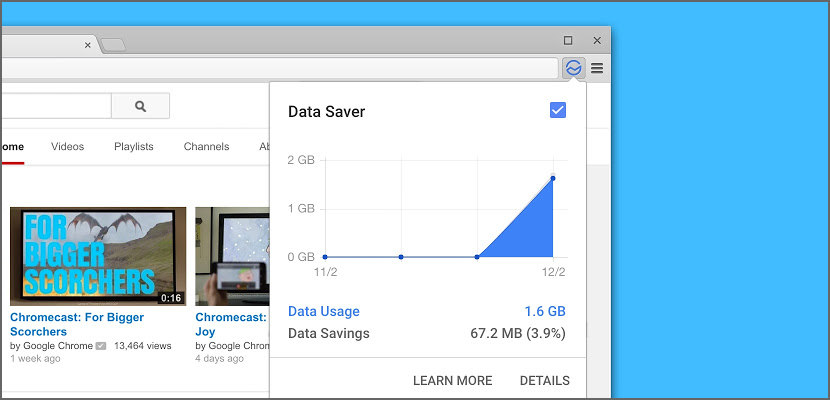
Reduces data usage by using Google servers to optimize pages you visit. By enabling this extension, Chrome will use Google servers to compress pages you visit before downloading them, making the page loads faster.
Pages accessed using private connections (HTTPS) or in incognito tabs will not be optimized or seen by Google. Get more visibility into your data usage by clicking on “Details” to see how much data is used by the sites you visit. This might help you make more informed decisions regarding your usage based on the type of connection you are using.