dashboard:

WordPress Dashboard – wp-admin: Error 500 – Internal server error

If your in the unfortunate position of receiving a

“Error 500 – Internal server error

An internal server error has occured!

Please try again later.”

This seams to happen regularly on a lot of servers when ever you  increase the amount of plug-ins you activate in your WordPress blog .

If so, then hopefully this will help!

A lot of my subscribers have had this very problem and asked me if i had a fix. It seamed that a lot of them who where having this problem where hosting their wordpress  blog with 1&1, and the problem seamed to start after updgrading to versio 2.7 of wordpress.

After a few hours of investigations, I have found an answer that seams to help anyone with an 1&1 account, but the solution should also be tried if using another Hosting Provider.

  1. Firstly create a new file in notepad or similar  and enter the following:
    php_flag register_globals off
    register_globals = 0
    memory_limit = 64M
  2. Save this file as php.ini and upload it to your /wp-admin/ directory of wordpress

That’s it, simple wasn’t it ?

Apparently this has to do with some host servers generally limiting the php access to under 8MB, which is clearly not enough if you are  installing a lot of plugins at once.

Also, if this  doesn’t work for you, you could try editing  or create an .htaccess if one is not already present.  This will make sure that your php files will run with php5, this can be true if Apache by default is running an earlier version of php.

Just put the following lines in the file on its own lines:

AddType x-mapp-php5 .php
AddHandler x-mapp-php5 .php

The .htaccess file is usually to be found in the root directory of your wordpress blog or website, and is simply a text file that can be edited with Notepad or similar, but  do ensure you save it as .htaccess and not a .txt file.

NOTE: If you already have an .htaccess, then just edit this file, DO NOT over write  it, as the contents may be required for other usage, if you dont have one then just create a new one.

(do remember to put the dot before the htaccess when naming the file)

Hope this fixes your problem!

Google Dashboard: Was Google alles über Sie weiß

Von Datenschützern wird Google gerne als Datenkrake bezeichnet, die alle Daten aufsaugt, die Google-Nutzer freiwillig oder unfreiwillig preisgeben. Wer wissen möchte, welche Daten Google bereits von Ihnen kennt und welche davon öffentlich für jedermann sichtbar sind, sollte einen Blick in das persönliche Google Dashboard werfen.

Das weiß Google über Sie

Um herauszufinden, welche Daten Google über Sie gesammelt hat oder welche Daten Sie selbst veröffentlicht haben, rufen Sie die Webseite www.google.com/dashboard auf und melden sich mit Ihrem Google-Konto an.

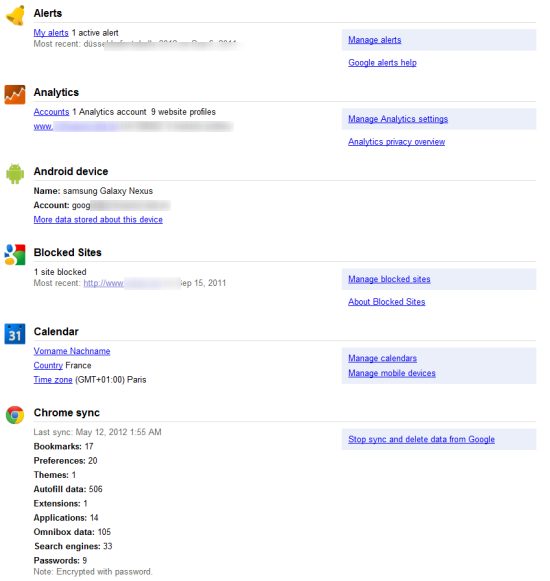
Im Dashboard sind die Daten aller Google-Dienste zusammengefasst, die Sie derzeit nutzen oder in der Vergangenheit genutzt haben, zum Beispiel

  • Account – Ihr Google-Konto
  • Me on the web – Zum Beispiel Ihre Picasa-Alben
  • Profile – Ihr Google+-Profil
  • AdSense – Ihr Google AdSense-Konto
  • Alerts – Ihre gespeicherten Google-Benachrichtigungen
  • Analytics – Ihr Google-Analytics-Konto
  • Android device – Ihre aktivierten Android-Handys
  • Blocked Sites – Ihre bei der Google-Suche blockierten Webseiten
  • Calendar – Ihr Google-Kalender
  • Chrome Sync – Ihre Google-Chrome-Synchronisierungen
  • Cloud Print – Ihre Cloud-Drucker
  • Contacts – Ihre Google-Kontakte
  • Docs – Ihre Google-Office-Dokumente (Google Text & Tabellen)
  • Google Music – Ihre Google-Musikbibliothek
  • iGoogle – Ihre iGoogle-Startseite mit Gadgets
  • Maps – Ihre gespeicherten Google-Maps
  • News – Ihre Google-News-Einstellungen
  • Picasa Web Albums – Ihre Fotoalben in Google Picasa
  • Reader – Ihre Google-Reader-Abonnements (RSS-Feeds)
  • Talk – Ihre Google-Talk-Kontakte
  • Voice – Ihre Google-Voice-Gespräche
  • Web History – Ihre Suchen und Klicks bei der Google-Suche
  • Webmaster Tools – Ihre in den Webmaster-Tools verwalteten Webseiten
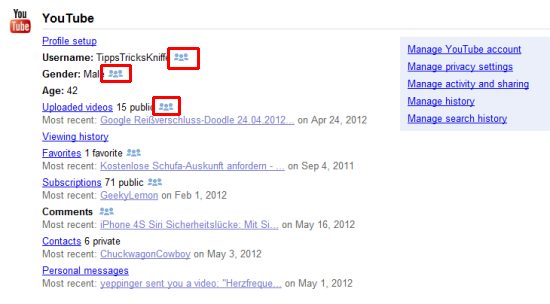
  • YouTube – Ihre YouTube-Videos und Aktivitäten bei YouTube

Noch mehr Google-Daten

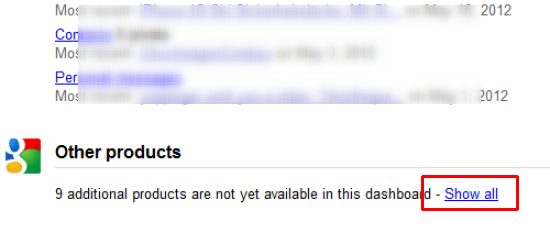
Das ist noch nicht alles. Ganz am Ende der Seite können Sie per Klick auf “Show all” weitere Google-Daten einblenden, die bisher nicht im Google-Dashboard auftauchen, darunter:

  • Ad Manager
  • Google Base
  • AdMob
  • Google Code
  • Google AdWords
  • Google URL Shortener
  • YouTube Promoted Videos

Auf die meisten Daten haben nur Sie selbst Zugriff. Steht neben dem Eintrag jedoch ein Icon mit drei stilisierten blauen Köpfen, kann diese Daten jeder im Netz sehen. Über die Links und Verknüpfungen auf der rechten Seite können Sie Einstellungen ändern und in einige Fällen die gesammelten Daten auch wieder löschen.