error:

WordPress und der 503 Error bei Strato

Fehler “503 Service Temporarily Unavailable” angezeigt.

Service Temporarily Unavailable
The server is temporarily unable to service your request due to maintenance downtime or capacity problems. Please try again later.

Was ist die Ursache?

Die Ursache für diesen 503 Error in Verbindung mit WordPress ist die Strato Server-Side Security. Diese sollte eigentlich gegen Spam in Formularen oder Gästebüchern schützen, scheint aber auch bei Logins anzuschlagen. Kommen zu viele Anfrage an ein solches Formular, weil beispielsweise ein Spambot versucht sich einzuloggen, wir die betroffene Seite für eine gewisse Zeit abgeschaltet.

Die Lösung für den 503 Error bei Strato

Die Lösung ist einfach simpel. Einfach in den Einstellungen bei Strato diesen Sicherheitsmechanismus ausschalten. Ihr findet diese Einstellung in Eurem Strato Accoung unter Sicherheit -> ServerSide Security.
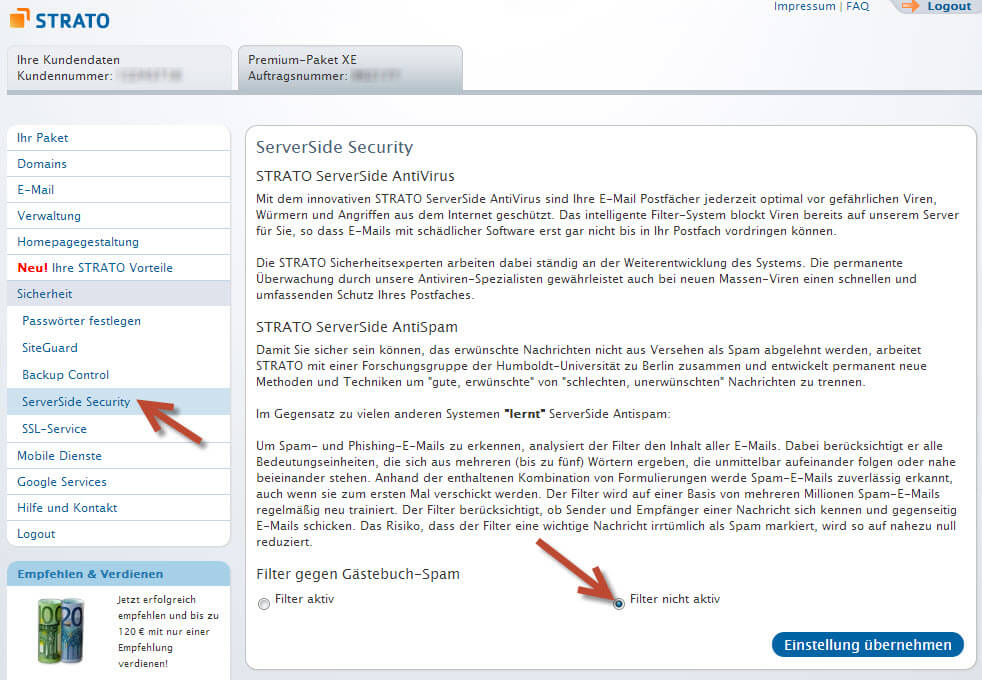
 

strato_filter_einstellung


Hier muss dann nur der Filter deaktiviert werden. Nachdem die Einstellungen getätigt wurden sollte dieses Problem behoben sein. Es kann allerdings eine Weile dauern, bis die neue Filter Einstellung wirklich wirksam wird.

WordPress Dashboard – wp-admin: Error 500 – Internal server error

If your in the unfortunate position of receiving a

“Error 500 – Internal server error

An internal server error has occured!

Please try again later.”

This seams to happen regularly on a lot of servers when ever you  increase the amount of plug-ins you activate in your WordPress blog .

If so, then hopefully this will help!

A lot of my subscribers have had this very problem and asked me if i had a fix. It seamed that a lot of them who where having this problem where hosting their wordpress  blog with 1&1, and the problem seamed to start after updgrading to versio 2.7 of wordpress.

After a few hours of investigations, I have found an answer that seams to help anyone with an 1&1 account, but the solution should also be tried if using another Hosting Provider.

  1. Firstly create a new file in notepad or similar  and enter the following:
    php_flag register_globals off
    register_globals = 0
    memory_limit = 64M
  2. Save this file as php.ini and upload it to your /wp-admin/ directory of wordpress

That’s it, simple wasn’t it ?

Apparently this has to do with some host servers generally limiting the php access to under 8MB, which is clearly not enough if you are  installing a lot of plugins at once.

Also, if this  doesn’t work for you, you could try editing  or create an .htaccess if one is not already present.  This will make sure that your php files will run with php5, this can be true if Apache by default is running an earlier version of php.

Just put the following lines in the file on its own lines:

AddType x-mapp-php5 .php
AddHandler x-mapp-php5 .php

The .htaccess file is usually to be found in the root directory of your wordpress blog or website, and is simply a text file that can be edited with Notepad or similar, but  do ensure you save it as .htaccess and not a .txt file.

NOTE: If you already have an .htaccess, then just edit this file, DO NOT over write  it, as the contents may be required for other usage, if you dont have one then just create a new one.

(do remember to put the dot before the htaccess when naming the file)

Hope this fixes your problem!

FATAL ERROR: ALLOWED MEMORY SIZE OF 67108864 BYTES EXHAUSTED – WORDPRESS

Immer öfter kommt es vor das die Fehlermeldung “Fatal error: Allowed memory size of 67108864 bytes exhausted” im Browser erscheint. Dies erscheint beispielsweise nach der Aktivierung eines Plugins, beim Hochladen von Dateien etc.

Diese Meldung bedeutet nichts anders wie das zu wenig Memory (Speicher) vorhanden ist und liegt an Hoster.

Bevor du dich allerdings an deinen Hoster wendest, kannst du auch versuchen, den Wert selber zu erhöhen.

Öffne dazu deine wp-config.php und schreibe in den Anfang der Datei (nach <php)

define('WP_MEMORY_LIMIT', '128M');

und speichere die Änderung. Eventuell sollte auch ein höherer Wert wie 128 MB probiert werden (soweit vom Hoster unterstützt).

Sollte dies nichts bringen würde ich mich mal vertrauensvoll an den Hoster wenden und ihn darauf aufmerksam machen. Bringt das auch nix – dann Anbieter wechseln!

==========

Du kannst das memory_limit über die .htaccess auch noch weiter hoch setzen. Die Einstellung:

php_value memory_limit 128M


Eine gute Kontrolle liefern die Plugins

WP-System-Health
WP-Memory-Usage