later

WordPress CRON Job startet nicht

1. Maintenance mode?

Firstly: is your website in maintenance mode? This disables scheduled tasks of all kinds – so turn it off first.

2. No visitors?

WordPress’s scheduler relies on the site having visitors. No visitors means that WordPress doesn’t run, and therefore can’t hand over to the scheduled task. If your site is in development, and you schedule a backup run for a time when all the developers are asleep, then that may be the cause for the scheduled task not running. (Read more here).

3. Is your scheduler explicitly disabled?

Perhaps your site has WordPress’s scheduler disabled in the configuration.UpdraftPlus versions 1.6.61 and later will alert you of this; to check manually, look for a line like this in your wp-config.php file (which is found in the root directory of your WordPress install), and remove it (or change true to false, making sure there are no quote marks around false):

define('DISABLE_WP_CRON', true);

In this case, the disabling may be something your web hosting company did intentionally, so be aware that they may re-disable it. Or, it may be something that you did intentionally, and you may have set another means of calling WordPress’s scheduler system, perhaps via your web hosting company’s control panel. In that case, the message about DISABLE_WP_CRON is to be expected – but note that it is then your responsibility to make sure that the scheduler is called frequently enough to process all the jobs scheduled on your site. No backups, even those scheduled with “Backup Now” will run until the time that you have set the scheduler system to be called.

Also – note that it’s possible for DISABLE_WP_CRON to be set in a file other than wp-config.php; wp-config.php is simply the most likely (99%) place. If you have a warning about DISABLE_WP_CRON, but it is not found in wp-config.php, then it will be somewhere else – you will need to hunt for it.

4. Loopback connections are disabled?

Some web hosting providers (one big one: Heart Internet) purposefully (though for no good reason) disable the “loop-back” connects that allows WordPress to run its scheduler. In such a case, you can try this use WordPress’s alternative scheduling system – instructions here. The instructions amount to one thing: add a line anywhere in the middle of your wp-config.php file as follows (don’t add it too late in the file, or it will take no effect):

define('ALTERNATE_WP_CRON', true);

5. Try using a cron job

If your web hosting company gives you “shell” access and you can set up cron jobs, and if you are confident/skilled enough to use that, then that’s a great solution. Jobs run that way won’t face any time-out issues imposed by the webserver. Read more about running via the shell here.

6. Is your entire website password-protected?

Another cause is if your entire website is password-protected at the HTTP level (e.g. via a .htaccess file). This also prevents WordPress’s scheduler from working. You should configure your webserver to allow “loop-back” connections (i.e. connections to self), otherwise you WordPress scheduler and everything that depends upon it will be broken. If you are using Apache and .htaccess, then adding these two lines to the access control section of your .htaccess should work – after replacing a.b.c.d with your website’s IP address):

Allow from a.b.c.d
Satisfy Any

Please note: The above suggestion is just a suggestion. .htaccess configuration is a very big subject. UpdraftPlus neither “supports” nor “doesn’t support” different .htaccess configurations, because .htaccess files operate at quite a different level to WordPress plugins. If you enter the correct instructions in your .htaccess file to permit access, then UpdraftPlus will work. But if you are not sure of the correct instructions for your particular server, then you need to consult with either your web-hosting company or your local .htaccess guru.

Windows Defender deaktivieren und entfernen

windows-10-defender-deaktiviert-fenster

Since Windows Vista, your operating system comes with an anti spyware program called Windows Defender. It’s a small piece of software that runs in the background to help protect your computer from various pieces of spyware and malicious software. Defender has been around since 2006 and although not a fully featured security application, it does at least offer some protection for Windows Vista and 7 out-of-the-box. In Windows 8, Microsoft went a step further basically renamingMicrosoft Security Essentials to Defender, and it’s now an antivirus package as opposed to just small resident anti spyware tool.

The problem with all Defender versions in Windows Vista and above is it’s integrated into the operating system and installs by default with no visible or hidden option to uninstall. Many people are looking for ways to disable, uninstall or remove it from their system as they prefer to use other software. Windows XP users at least have the luxury of choosing whether they want to download and install Defender in the first place as it’s a separate package, and then have the option to uninstall again through Add or Remove Programs. Luckily most of the time when you install a new anti spyware program or antivirus application that includes anti spyware, it should be smart enough to disable Windows Defender as your new software takes care of it from now on. However, if Defender is still running or causing other issues, you need to know how to turn it off manually or in more extreme cases remove it from the system completely. Here we show you how to do both.

windows defender program is turned off

Disabling Defender In Windows Vista And 7

Defender in Windows Vista is slightly more integrated into the operating system as opposed to Windows 7 with added options for protecting Internet Explorer, startup items and services/drivers etc. It also includes a tray icon for the program which is started with Windows that needs to be removed. There are two easy ways to disable Defender in Windows 7 and Vista:

Method #1

1. Click Start and type services.msc into the search box, or go to Control Panel -> Administrative Tools -> Services.

2. Look for “Windows Defender” in the services list and double click on it to bring up the Properties window.

disable Windows Defender service

3. Click the Stop button to stop the Windows Defender service and then click on the Startup type drop down menu and select Disabled. Press OK.

Stop Windows Defender Services

Method #2

1. This way is just as easy, go to Control Panel -> Windows Defender, or if it’s running in the tray under Vista, simply double click on the tray icon.

2. Click on Tools and then go to Options.

windows defender tools option

3a. In Windows Vista scroll right to the bottom of the window and you’ll see an option “Use Windows Defender” under Administrator options. Simply uncheck “Use Windows Defender” and click Save, Defender will now be turned off.

Uncheck Use Windows Defender

3b. Defender is laid out slightly differently in Windows 7. In the Options window, click on Administrator down the left and then uncheck “Use this program” and click Save.

administrator use this program

Removing The Startup Entry

If you stop and disable Vista’s Windows Defender from Services and do not disable the Windows Defender tray program (MSASCui.exe) from starting with Windows, you’ll likely get the following error message:

Application failed to initialized: 0x800106ba. A problem caused this program’s service to stop. To start the service, restart your computer or search Help and Support for how to start a service manually.

Application failed to initialized 0x800106ba

1. Click Start and type msconfig into the search box.

2. Go to the Startup tab and uncheck Windows Defender displayed in the Startup Item column. Click OK and at the restart box check “Don’t show this message again” and then click “Exit without restart”.

disable Windows defender from MSCONFIG

Of course, there are many other tools around that can disable Windows startup entries such as CCleaner which you can use instead if you wish.

Disabling Windows Defender In Windows 8

As we mentioned above, Windows 8 Defender is now pretty much the full Microsoft Security Essentials antivirus software under the Defender name. It can also be disabled using two methods which are basically the same as for Windows Vista and 7. The first method of disabling the Windows Defender service is exactly the same as Method #1 above, the second is slightly different because of the MSE looking interface.

1. Go to Control Panel -> Windows Defender or click on the Start Screen -> right click -> All Apps -> Windows Defender.

Windows 8 Defender

2. Click on the Settings tab -> click Administrator on the left, and then uncheck the “Turn on Windows Defender” box and save the changes.

turn off windows defender 8

Windows 10 Defender ausschalten und einschalten

Anleitung: Defender ausschalten unter Windows 10

Wer den Defender nur vorrübergehend ausschalten oder wieder einschalten will, der kann dies am besten über die Dienste machen. Hier besteht nicht nur die Möglichkeit den Dienst kurzzeitig anzuhalten und nach einem Neustart wieder zu starten, sondern über diesen Weg kann man den Windows 10 Defender auch komplett deaktivieren. So bleibt der Windows Malwareschutz auch nach einem Neustart komplett deaktivieren und ausgeschaltet.

  1. Einstellungen im Startmenü öffnen
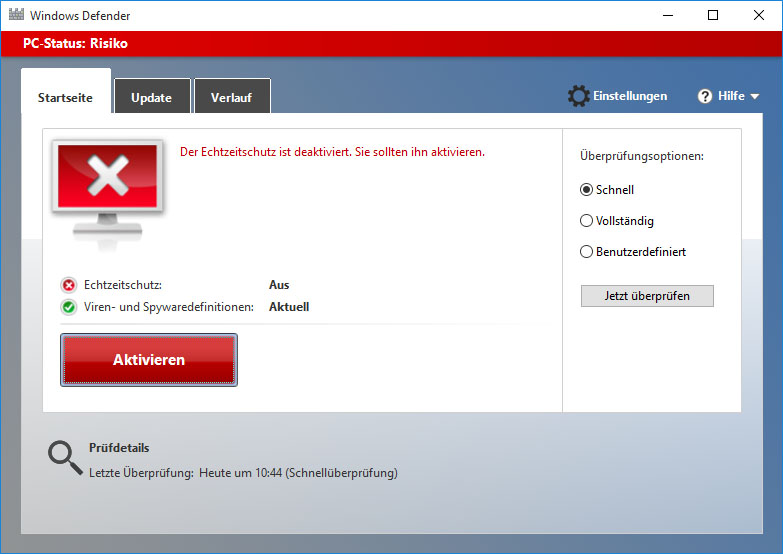
  2. Auf Update und Sicherheit und dann unter Windows Defender den Echtzeitschutz ausschalten

Defender über die Registry deaktivieren

Alternativ zu dieser Methode kann man auch über die Registry kinderleicht den Defender unter Windows 10 ausschalten. Wer also nicht über die Dienste gehen möchte, der muss folgendermaßen in der Registry vorgehen und einen bestimmten Wert ändern.

  1. Öffne die Registry über die Windows-Taste + R und gebe dort “regedit” ein.
  2. Jetzt navigierst Du zu dem Pfad “HKEY_LOCAL_MACHINESOFTWAREPoliciesMicrosoftWindowsWindows Defender” und erstellst über einen Rechtsklick einen neuen Schlüssel mit dem Namen “Windows Defender”.
  3. In diesem Pfad öffnest Du wieder das Kontextmenü über die rechte Maustaste und erstellst einen “DWORD-Wert (32-bit)” und diesen nennst Du “DisableAntiSpyware”.
  4. Setze hier den Wert auf 1 und speichere den Schlüssel ab.
  5. Jetzt ist der Windows Defender über die Registry deaktiviert worden. Um diesen wieder zu aktivieren, einfach den Wert von 1 auf 0 ändern.

Einzelne Dateien oder Ordner aus dem Scan ausschließen

Wer den Defender trotzdem nutzen möchte aber einfach nur einzelne Verzeichnisse, Dateien oder Dateiendungen aus dem Scan ausschließen will, der kann dies natürlich auch über die Einstellungen machen und das geht folgendermaßen.

  1. Öffne das Startmenü und gehe über die “Einstellungen” auf den Punkt “System”.
  2. Navigiere dort wieder zu dem “Windows Defender” und gehe auf der rechten Seite auf den Punkt “Einen Ausschluss hinzufügen”.
  3. Hier hast Du jetzt die Möglichkeit nicht nur einzelne Dateien sondern auch ganze Ordner, Dateitypen und Prozesse auszuschließen.
  4. Eine sehr nützliche Sache vor allem deswegen, weil man jetzt auch einzelne Programme ausschließen kann. Wenn es zum Beispiel Probleme mit Spielen oder Programmen wie Steam und Co. gibt.
  5. Wenn man eine falsche Datei oder Ordner angegeben hat, kann man dies jederzeit rückgängig machen über den Eintrag und “Entfernen”.

Das war unsere kurze Anleitung zum Deaktivieren von dem Windows 10 Defender. Sollte es noch Fragen geben oder wenn irgendwas nicht funktioniert wie beschrieben, einfach einen Kommentar hinterlassen.


!!! Completely Uninstalling Windows Defender !!!

For most users, simply turning off Windows Defender or disabling it via the Services Control Panel should be enough to stop it running. If for whatever reason you’re still having some sort of issue or are determined to remove Defender completely from the system, unfortunately is isn’t possible using Programs and Features or the Turn Windows features on or off window.

Although there is no official way to cleanly uninstall Defender, it is possible to remove the service, Control Panel entry, other related registry entries and all the files and folders manually so Defender is unofficially removed from the system. This does present its own set of problems though as the registry keys, files and folders are all protected with enhanced permissions and you have to take ownership of them all. Also, once removed, you can’t re-install Defender again because it isn’t a separate package.

As there seems to be no tool around to do it for you, we’ve decided to create our own little utility that can delete all the necessary protected registry keys, files and folders at the click of a button. Currently the program works great on Windows Vista and 7’s Defender but does not work and shouldn’t be used on Windows 8, we may include full Windows 8 Defender support in future if people request it.

Windows Defender Uninstaller

Simply download the portable Windows Defender Uninstaller and run it, then click the button to uninstall Defender. The lower pane will show what’s being deleted and if there are any errors. For best results, it’s best to disable Defender beforehand using one of the methods above. Please use this tool at your own risk as once Defender has been removed, it cannot easily be re-installed, make sure you have backups to hand in case you change your mind later on.

Alternative: NoDefender.zip 

Manually Removing Defender

For the more experienced, removing the Windows Defender service, files, folders and Control Panel entry can be done manually, but as they’re all protected, you need to know how to delete a protected registry key and how to take ownership of folders with a tool like WinOwnership or theTake Ownership context menu .

1. Open a command Prompt and type the following to stop and then delete the Defender service:

sc stop windefend

sc delete windefend

sc stop windefend

2. Next you need to grant full permissions to and delete the following registry key so the Defender Control Panel entry can be deleted:

HKEY_LOCAL_MACHINESOFTWAREMicrosoftWindowsCurrentVersionExplorer
ControlPanelNameSpace{D8559EB9-20C0-410E-BEDA-7ED416AECC2A}

3. Also grant full permission and delete the Defender programregistry key:

HKEY_LOCAL_MACHINESOFTWAREMicrosoftWindows Defender

4. Now take ownership of and delete the following folders:

C:Program FilesWindows Defender

C:ProgramDataMicrosoftWindows Defender

C:Program Files (x86)Windows Defender (for 64-bit users only)

After that is done, Defender should now be removed. Windows may complain that Defender is turned off but this will disappear after a reboot or you can go into Action Center and tell it not to monitor your anti spyware software.

turn off messages about spyware and related protection

Of course we don’t recommend disabling or uninstalling Windows Defender for the sake of it, especially if it’s causing you no issues or there is no specific need to do so. Disabling Windows Defender will leave your computer unprotected from spyware and other malware, so you obviously need to make sure you have another anti spyware program or security package to replace it.

WordPress und der 503 Error bei Strato

Fehler “503 Service Temporarily Unavailable” angezeigt.

Service Temporarily Unavailable
The server is temporarily unable to service your request due to maintenance downtime or capacity problems. Please try again later.

Was ist die Ursache?

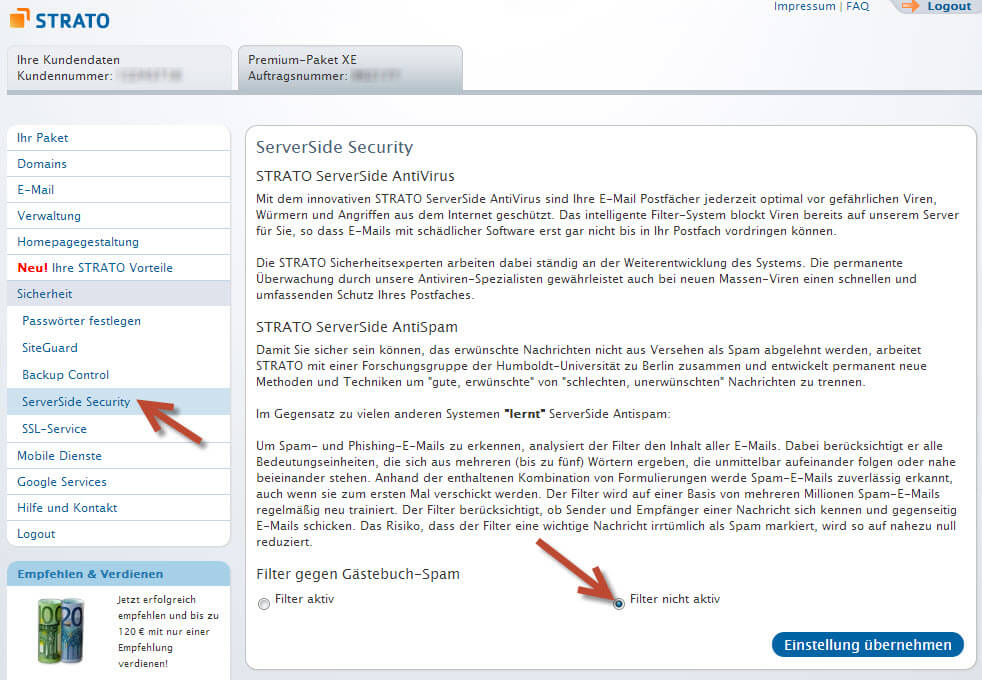
Die Ursache für diesen 503 Error in Verbindung mit WordPress ist die Strato Server-Side Security. Diese sollte eigentlich gegen Spam in Formularen oder Gästebüchern schützen, scheint aber auch bei Logins anzuschlagen. Kommen zu viele Anfrage an ein solches Formular, weil beispielsweise ein Spambot versucht sich einzuloggen, wir die betroffene Seite für eine gewisse Zeit abgeschaltet.

Die Lösung für den 503 Error bei Strato

Die Lösung ist einfach simpel. Einfach in den Einstellungen bei Strato diesen Sicherheitsmechanismus ausschalten. Ihr findet diese Einstellung in Eurem Strato Accoung unter Sicherheit -> ServerSide Security.


strato_filter_einstellung


Hier muss dann nur der Filter deaktiviert werden. Nachdem die Einstellungen getätigt wurden sollte dieses Problem behoben sein. Es kann allerdings eine Weile dauern, bis die neue Filter Einstellung wirklich wirksam wird.

Google Chrome: Mit “Read Later Fast” Internet-Links archivieren und später lesen

Sie surfen im Netz. Schon wieder finden Sie einen interessanten Link. Doch was war denn auf der letzten Seite nochmal wichtig? Inzwischen haben sich die Tabs in Ihrem Browser breit gemacht. Sie können deren Überschriften schon nicht mehr erkennen, weil es so viele geworden sind. Zum allen Überfluss müssen Sie jetzt auch noch offline gehen. All die Informationen, die Sie sich eigentlich ansehen wollen, klicken Sie einfach weg. Ich finde die Seiten auch beim nächsten Mal, denken Sie sich. Doch leider ist es nicht so einfach. Es geht viel einfacher.

“Read Later Fast” – Mit der rechten Maustaste die URL der Webseite sichern

Natürlich können Sie Ihren Browser auch so einstellen, dass er die letzten offenen Tabs wieder herstellt. Oder Sie speichern die Seite als Offline-Webseite auf Ihrem Rechner ab. Das kann aber mitunter sehr aufwendig werden, insbesondere wenn Sie es eilig haben und jede Seite abspeichern wollen. Auch die Lesezeichen und Favoriten können Sie nutzen, aber dafür sind diese eigentlich nicht gedacht. Nutzen Sie stattdessen Browser-Erweiterungen, die Ihnen Ihr Anliegen mit einem Klick abnehmen können. Im Falle von Google Chrome nennt sich diese Browser-App “Read Later Fast“. Installieren Sie sich dieses kleine Programm über den Chrome Web Store, indem Sie wie üblich auf “Hinzufügen” klicken.

google-chrome-read-later-2

Erstellen Sie eine Liste mit Ihren Links

Haben Sie eine Webseite geöffnet, die Sie später lesen wollen, so klicken Sie einfach mit der rechten Maustaste auf eine beliebige Stelle in der Site, hinter der sich kein Link befindet. Im sich dann öffnenden Menü erkennen Sie den Eintrag “Read Later” recht schnell, da er mit einer roten Schleife markiert ist. Klicken Sie drauf, und Read Later schreibt den Link in seine Merkliste.

google-chrome-read-later

Sehen Sie auf der Site einen Link, müssen Sie diesen nicht öffnen. Nach einem Rechtsklick auf diese Verknüpfung erscheint im Menü der Punkt “Read this Link later”, mit dem sie analog verfahren können. Mit der Zeit entsteht so eine Ansammlung an Seiten, die Sie interessieren könnten.

Um die gespeicherten und gemerkten Seiten zu lesen, öffnen Sie die Read-Later-FastApp, indem Sie einen neuen Tab öffnen und auf “Read Later Fast” klicken.

google-chrome-read-later-3

Damit Ihre Liste nicht zu unübersichtlich wird, können Sie auch von Ihnen ausgewählte Site-Verknüpfungen ins Read Later-Archiv verschieben.

google-chrome-read-later-4