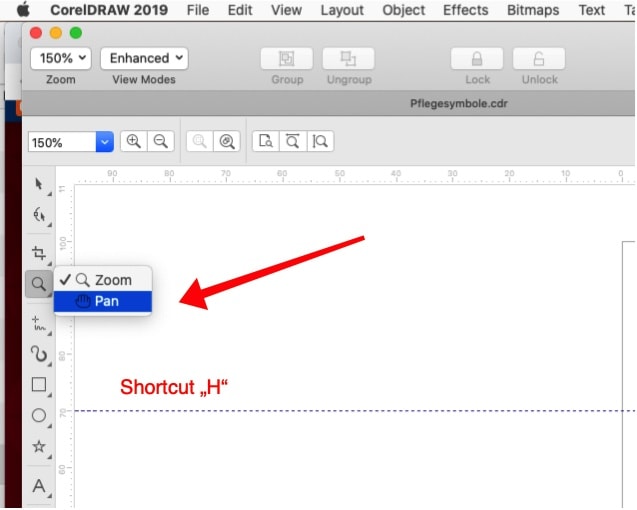
CorelDRAW basics: The Pan tool
Pan tool (also called „Hand“ tool) is an additional way to view specific areas of a drawing. It is very useful when you work with large drawings and when you use a high magnification level and some parts of your drawing are not displayed in the drawing windows.
To use this tool you have to click on the Pan tool button (you’ll find this button in the Toolbar in the same flyout with the Zoom tool). With the Pan/Hand tool activated click and drag your page until you’ll see the desired area of your artwork in the Drawing Window. As you perform this action, the scroll bars and document rulers move in unison to reflect the new position.
Shortcuts available for this tool:
If you want to use the Pan/Hand tool while you are using another tool, you can activate the Pan/Hand tool by using the keyboard short-cut „H“ (H from Hand). When you’ve finished with the Pan’Hand tool, click the Spacebar to return to the previous tool. This short-cut doesn’t work when you are editing text.
Double-click the Zoom tool in the toolbox and the page will be centered in the drawing window.
With the Pan/Hand tool activated you can zoom in and out without alternate the two tools: double-click anywhere in the drawing window to zoom in, right-click in the drawing window to zoom out.
