shortcuts

CorelDraw Hand-Tool / Pan-Tool

CorelDRAW basics: The Pan tool


Pan tool (also called „Hand“ tool) is an additional way to view specific areas of a drawing. It is very useful when you work with large drawings and when you use a high magnification level and some parts of your drawing are not displayed in the drawing windows.

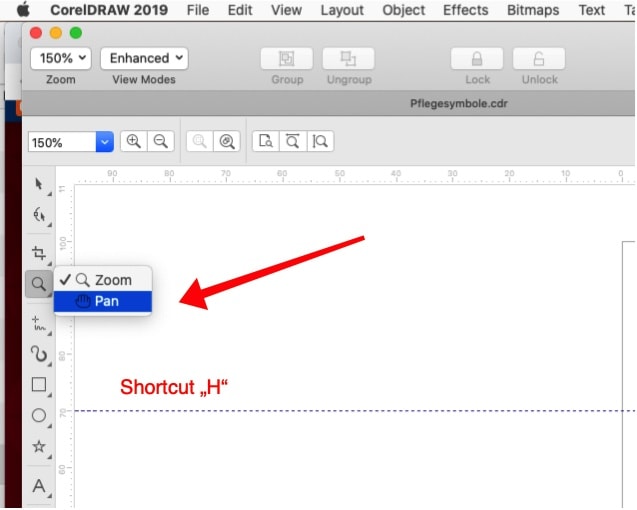
To use this tool you have to click on the Pan tool button (you’ll find this button in the Toolbar in the same flyout with the Zoom tool). With the Pan/Hand tool activated click and drag your page until you’ll see the desired area of your artwork in the Drawing Window. As you perform this action, the scroll bars and document rulers move in unison to reflect the new position.

Shortcuts available for this tool:
If you want to use the Pan/Hand tool while you are using another tool, you can activate the Pan/Hand tool by using the keyboard short-cut „H“ (H from Hand). When you’ve finished with the Pan’Hand tool, click the Spacebar to return to the previous tool. This short-cut doesn’t work when you are editing text.

Double-click the Zoom tool in the toolbox and the page will be centered in the drawing window.

With the Pan/Hand tool activated you can zoom in and out without alternate the two tools: double-click anywhere in the drawing window to zoom in, right-click in the drawing window to zoom out.

Photoshop: Tastaturbelegung / Keyboard Shortcuts

Phlearn_Photoshop Keyboard_Wallpaper_Small_3


General

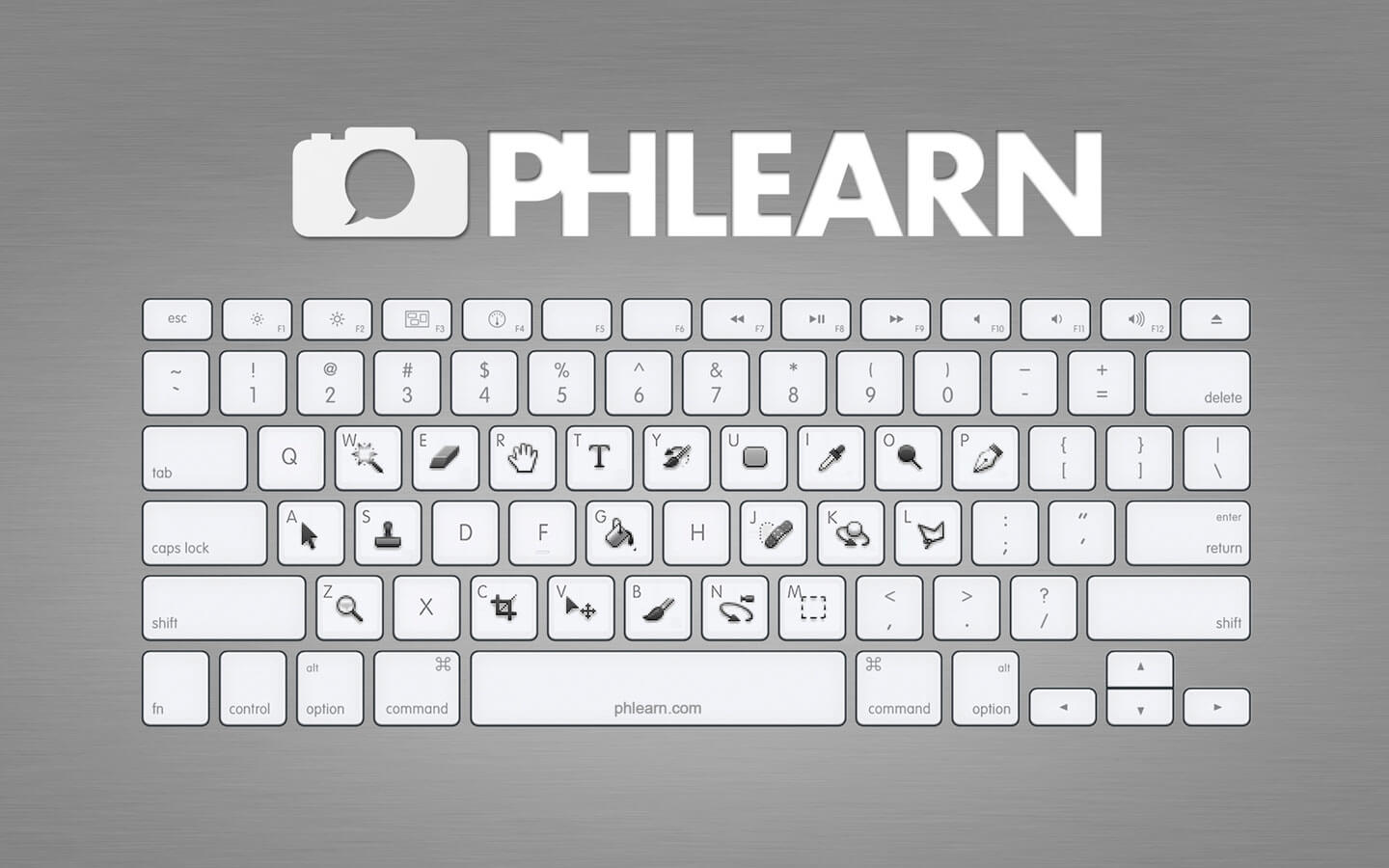
Although there is a giant Mac keyboard above, all these keyboard shortcuts will work for PC as well. Here are the simple substitutions that need to be made.

  • Default Colors: D (black and white)
  • Flip Foreground and Background colors: X
  • Rotate View: R (Make sure OpenGL setting is turned on in your preferences)
  • Move around image: (hand Tool) Hold Spacebar

Workflow

Although there is a giant Mac keyboard directly above this text, all these keyboard shortcuts will work for PC as well. Here are the simple substitutions that need to be made.

  • Save As: Cmd Shift S
  • Save for Web: Cmd Shift Alt S
  • Undo: Cmd Z
  • Step back: Cmd Alt Z (lets you keep going back)
  • Stamp Visible: Cmd Shift Alt E
  • Hide selection: Cmd H
  • Fullscreen: F

Selections

Although there is a giant Mac keyboard directly above this text, all these keyboard shortcuts will work for PC as well. Here are the simple substitutions that need to be made.

  • Inverse: Shift Cmd I (for selections)
  • Select All: Cmd A
  • Deselect: Cmd D
  • Select Layer: Cmd Click on Thumb

Tool Commands

Although there is a giant Mac keyboard directly above this text, all these keyboard shortcuts will work for PC as well. Here are the simple substitutions that need to be made.

  • Brush Opacity: 1-0
  • Brush Flow:Shift + 1-0
  • Brush Larger: ]
  • Brush Smaller: [
  • Brush Harder: Shift ]
  • Brush Softer: Shift [

Adjustments

Although there is a giant Mac keyboard directly above this text, all these keyboard shortcuts will work for PC as well. Here are the simple substitutions that need to be made.

  • Levels: Cmd L
  • Hue/Sat: Cmd U
  • Curves: Cmd M

Layer Masks

Although there is a giant Mac keyboard directly above this text, all these keyboard shortcuts will work for PC as well. Here are the simple substitutions that need to be made.

  • Select: Cmd Click on thumb
  • Temporarily disable: Shift Click on Thumb
  • Show black and white: Alt Click on Thumb
  • Show quick mask display: Q
  • Fill with Foreground: Alt Del
  • Fill with BG Color: Cmd Del
  • Fill Dialogue: Shift Del

Layers

Although there is a giant Mac keyboard directly above this text, all these keyboard shortcuts will work for PC as well. Here are the simple substitutions that need to be made.

  • Invert: Cmd I
  • Delete Layer: Delete
  • Transform: Cmd T
  • New Layer: Cmd Shift Alt N
  • Duplicate Layer, or if selection is active, Duplicate Selection: Cmd J
  • Transform menu: right click on layer, Cmd T
  • Step and Repeat: Cmd Alt T(first step), Cmd Alt Shift T (second step)
  • Move Layer Up: Cmd ]
  • Move Layer Down: Cmd [
  • Move Layer to Top: Cmd Shift ]
  • Move Layer to Bottom: Cmd Shift [
  • Group Layers: Cmd G