tastaturbelegung

Windows 10: Systemsprache wechseln

Verklickt beim Windows-Setup? PC im Ausland gekauft? So ändern Sie die Sprache!

Wenn Sie einen PC mit vorinstalliertem Windows kaufen, zum Beispiel mit einer Refurbisher-Lizenz, kann es sein, dass Windows auf Englisch (im besten Fall) läuft. Um die Sprache nach der Installation zurückzuwechseln muss man einige Kniffe kennen.

    1. Starten Sie die Systemsteuerung (Control Panel).
      sprache1
    2. Wählen Sie den Menupunkt Zeit, Sprache und Region aus (Clock, Time, and Region).
      Klicken Sie auf den Button Sprache hinzufügen (Add a language) unter dem Punkt Sprache (Language).
      Wählen Sie das gewünschte Sprachpaket aus.sprache2

      sparche2a
      3. Klicken Sie im Optionen-Menü auf Sprachpaket herunterladen und installieren (Download and install language pack).

      sprache3
      4. Das Sprachpaket steht nun in der Liste. Über den Button Nach oben ändern Sie die Position des Pakets. Verschieben Sie es nach ganz oben.
      5. Starten Sie den PC neu.
      6. Ändern Sie nach dem Neustart die Tastaturbelegung indem Sie im Systray einen Rechtsklick auf das Sprachsymbol ausführen und Einstellungen wählen.
      7. Legen Sie das gewünschte Tastaturlayout als Standard fest.

Adobe Photoshop und Illustrator Tastaturbelegung

Cheetyr ist das ideale Cheat-Sheet für alle Photoshop-Nutzer. Das Webtool bietet sämtliche Tastaturkürzel in einer sortierten Liste mit Suchfunktion. Neben Photoshop findet man auch Kürzel für Adobe Illustrator, CSS, Git und Vim. Wenn Sie also öfters eine Tastenkombination vergesse, öffnen Sie einfach Cheetyr.com.

Erste Schritte: Cheetyr zeigt seine Tastenkürzel in Listenform an. Von der Startseite gelangen Sie über die Auswahl auf der linken Seite zur jeweiligen Liste. Innerhalb der Liste finden Sie zuoberst eine Suchfunktion. Darunter sind die verschiedenen Tastenkürzel nach Kategorie sortiert aufgelistet. Die Tastenbefehle sind für Mac angegeben. In Windows verwenden Sie einfach statt Command die Ctrl-Taste und statt Option die Alt-Taste. Shift bleibt Shift.

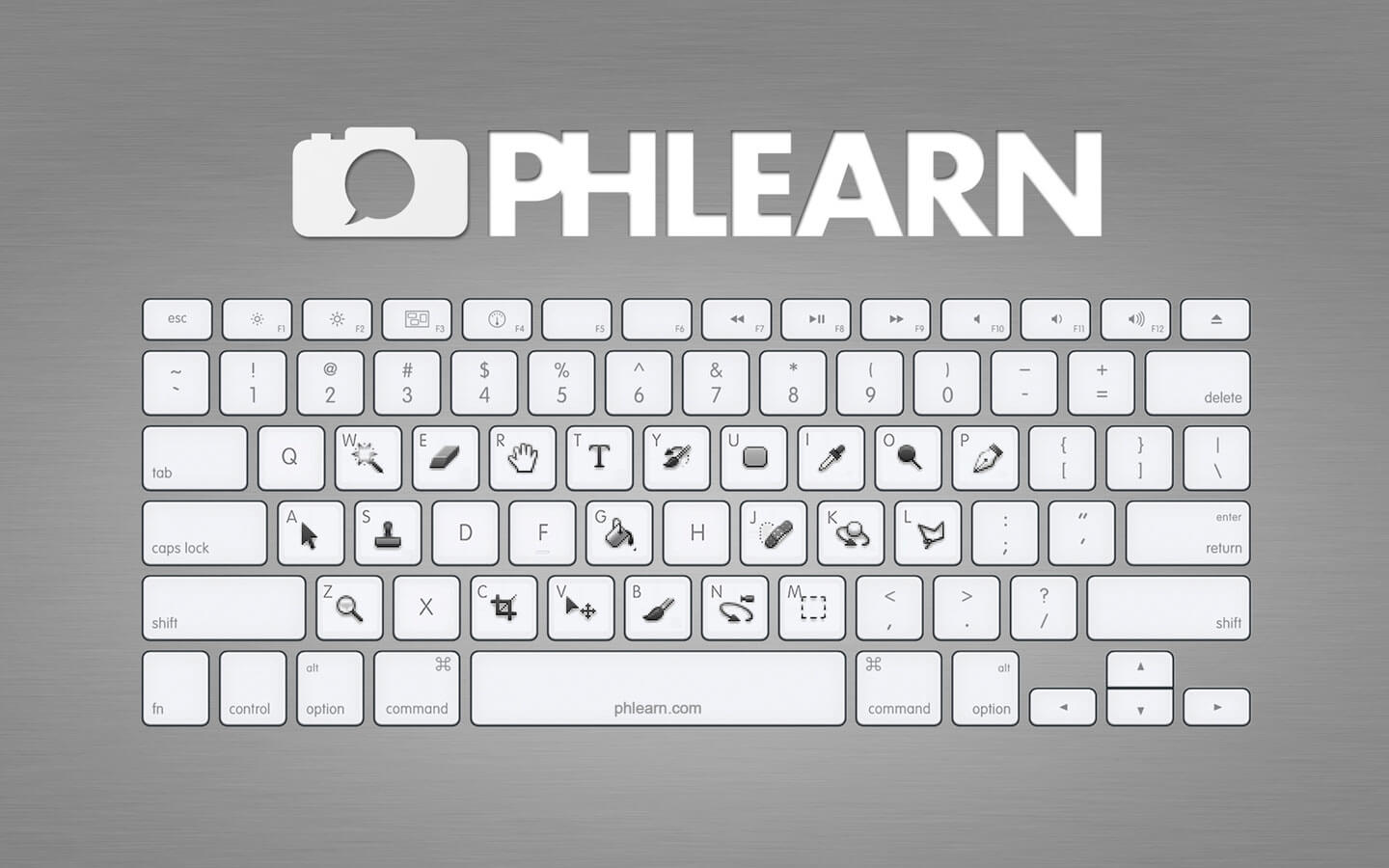
Photoshop: Tastaturbelegung / Keyboard Shortcuts

Phlearn_Photoshop Keyboard_Wallpaper_Small_3


General

Although there is a giant Mac keyboard above, all these keyboard shortcuts will work for PC as well. Here are the simple substitutions that need to be made.

  • Default Colors: D (black and white)
  • Flip Foreground and Background colors: X
  • Rotate View: R (Make sure OpenGL setting is turned on in your preferences)
  • Move around image: (hand Tool) Hold Spacebar

Workflow

Although there is a giant Mac keyboard directly above this text, all these keyboard shortcuts will work for PC as well. Here are the simple substitutions that need to be made.

  • Save As: Cmd Shift S
  • Save for Web: Cmd Shift Alt S
  • Undo: Cmd Z
  • Step back: Cmd Alt Z (lets you keep going back)
  • Stamp Visible: Cmd Shift Alt E
  • Hide selection: Cmd H
  • Fullscreen: F

Selections

Although there is a giant Mac keyboard directly above this text, all these keyboard shortcuts will work for PC as well. Here are the simple substitutions that need to be made.

  • Inverse: Shift Cmd I (for selections)
  • Select All: Cmd A
  • Deselect: Cmd D
  • Select Layer: Cmd Click on Thumb

Tool Commands

Although there is a giant Mac keyboard directly above this text, all these keyboard shortcuts will work for PC as well. Here are the simple substitutions that need to be made.

  • Brush Opacity: 1-0
  • Brush Flow:Shift + 1-0
  • Brush Larger: ]
  • Brush Smaller: [
  • Brush Harder: Shift ]
  • Brush Softer: Shift [

Adjustments

Although there is a giant Mac keyboard directly above this text, all these keyboard shortcuts will work for PC as well. Here are the simple substitutions that need to be made.

  • Levels: Cmd L
  • Hue/Sat: Cmd U
  • Curves: Cmd M

Layer Masks

Although there is a giant Mac keyboard directly above this text, all these keyboard shortcuts will work for PC as well. Here are the simple substitutions that need to be made.

  • Select: Cmd Click on thumb
  • Temporarily disable: Shift Click on Thumb
  • Show black and white: Alt Click on Thumb
  • Show quick mask display: Q
  • Fill with Foreground: Alt Del
  • Fill with BG Color: Cmd Del
  • Fill Dialogue: Shift Del

Layers

Although there is a giant Mac keyboard directly above this text, all these keyboard shortcuts will work for PC as well. Here are the simple substitutions that need to be made.

  • Invert: Cmd I
  • Delete Layer: Delete
  • Transform: Cmd T
  • New Layer: Cmd Shift Alt N
  • Duplicate Layer, or if selection is active, Duplicate Selection: Cmd J
  • Transform menu: right click on layer, Cmd T
  • Step and Repeat: Cmd Alt T(first step), Cmd Alt Shift T (second step)
  • Move Layer Up: Cmd ]
  • Move Layer Down: Cmd [
  • Move Layer to Top: Cmd Shift ]
  • Move Layer to Bottom: Cmd Shift [
  • Group Layers: Cmd G

Windows mit Mac-Tastatur bedienen: Tastaturbelegung für Windows auf Mac-Tastaturen

Es muss nicht immer Mac OS X sein. Auf Mac-Rechnern lässt sich problemlos ein Windows installieren. Allerdings hat man dann ein Tastaturproblem. Denn so eine Mac-Tastatur passt nicht richtig zu Windows. Viele Tasten fehlen oder heißen anders. So gibt es beim Mac zum Beispiel keine [Druck]-Taste für Screenshots und keine [Alt Gr]- oder [Windows-Taste]. Macht nichts. Denn mit folgender Übersicht finden Sie zu allen Windows-Tasten und -Tastenkombinationen die passende Entsprechung auf der Mac-Tastatur. (mehr …)