
How to connect to OpenVPN via Network Manager:
- 1. Open Terminal, Applications -> Accessories -> Terminal
- 2. Install network-manager-openvpn by typing in Terminal:
sudo apt-get install network-manager-openvpn-gnome
Press Enter (Enter password if it needed). If that doesn’t work, try running these commands first:
sudo add-apt-repository universe
sudo apt-get update
- 3. You will be prompted: Do you want to continue? [Y/n]. Type Y and hit Enter.
- 4. Once installation is complete, restart Network Manager by typing:
sudo service network-manager restart
Press Enter.
You might need to restart your computer if the service does not restart this way. - 5. Network-manager is now running. Now download the following files:
OpenVPN Configuration File PackageExtract them into your selected directory. - 6. Click on the double arrow button at the top right of the screen and then select Edit Connections… from the drop-down.
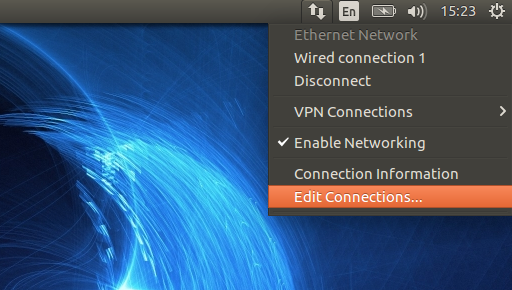
- 7. Then press Add.
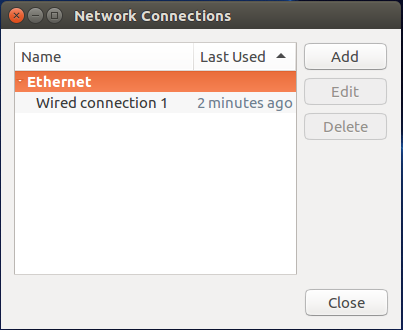
- 8. You will be prompted to choose a connection type. Select Import a saved VPN configuration… and click on Create…
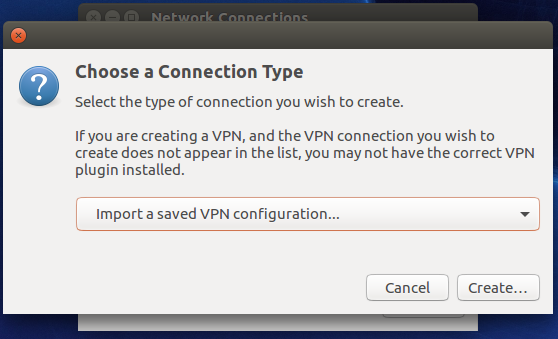
- 9. You will be asked to select a file that you would like to import. Please navigate to a folder where you have extracted the configuration files and select one of the files from the list and click Open. You can check what file corresponds which server at our server list.
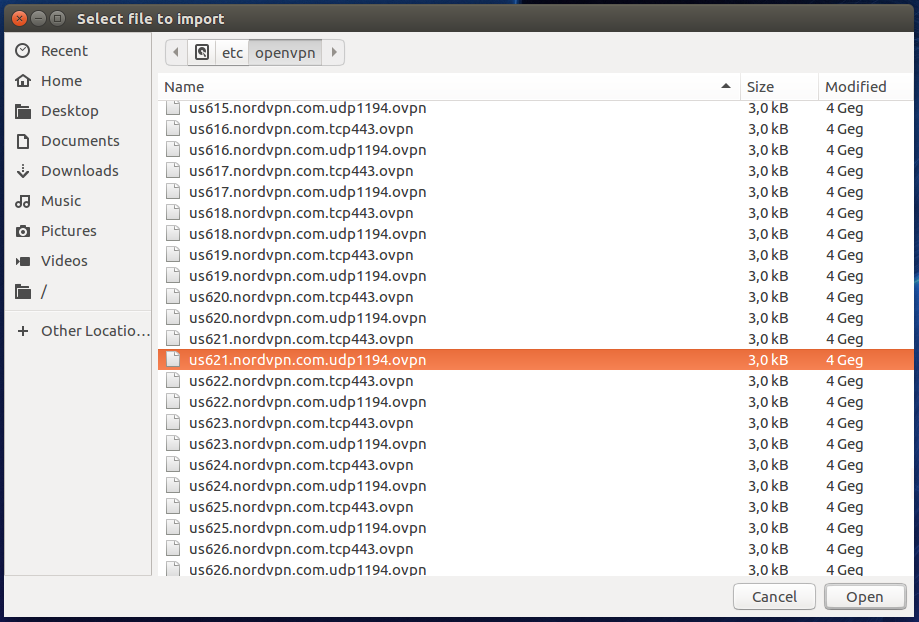
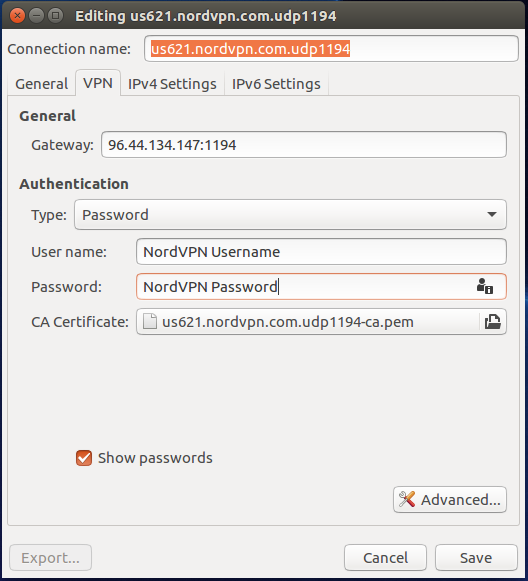
- 10. In the popped window put in your NordVPN Username and NordVPN Password. Then press Save. And close all of the open windows.
- 11. Now click on the double arrow button at the top right of the screen again and then select VPN connections from the drop-down. Select the server which you have set up and click on it.

- 12. Congrats! You are connected to VPN. In our website you can check if the connection works well for you. Refresh the website and check if the status is shown as Secured.