
Standardmäßig ist das Startmenü unter Windows 10 in zwei Hälften unterteilt. Auf der linken Seite bekommt ihr neben Ordnern wie Musik, Videos und Downloads auch die auf dem PC installierten Apps und Programme angezeigt. Auf der rechten Seite platziert Microsoft dynamische Kacheln – etwa zu Wetter, Sport, Kontakte und Mail. Auf Wunsch lassen sich die Kacheln deaktivieren und das Startmenü so wesentlich verkleinern.
- Kachel entfernen: Klickt mit der rechten Maustaste auf eine Kachel und im Kontextmenü auf „Von Start lösen“
- Kacheldynamik deaktivieren: Klickt mit der rechten Maustaste auf eine Kachel und im Kontextmenü auf „Live-Kachel deaktivieren“
- Kachel und dazugehöriges Programm deinstallieren: Klickt mit der rechten Maustaste auf die Kachel und wählt „Deinstallieren“ aus
Um das Startmenü zu verkleinern, wiederholt ihr den Schritt „Kachel entfernen“ für alle im Startmenü platzierten Kacheln. Sobald alle Kacheln entfernt wurden, zieht ihr das Startmenü mit der linken Maustaste auf eine schmale Größe. Somit werden nur noch die Inhalte angezeigt, die Microsoft für die linke Spalte vorgesehen hat – oder ihr eingestellt habt.
Use PowerShell to Uninstall Built-in Apps
You can uninstall most of the built-in apps — even ones that don’t normally offer an “Uninstall” option — with a PowerShell cmdlet. This trick won’t allow you to remove a few of the most important built-in apps, including Cortana and Microsoft Edge. If you try, you’ll see an error message saying they can’t be removed.
First, open PowerShell as administrator. Open the Start menu, search for “PowerShell,” right-click the PowerShell shortcut, and select “Run as administrator.” Agree to the UAC prompt.
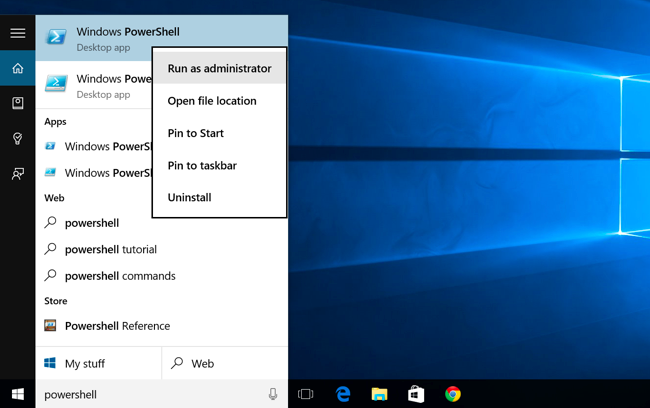
Copy and paste (mit Tastaturkürzel) one or more of the following commands into the PowerShell prompt, pressing Enter after each one to remove the apps you don’t want on your Windows 10 system:
Uninstall 3D Builder:
Get-AppxPackage *3dbuilder* | Remove-AppxPackage
Uninstall Alarms and Clock:
Get-AppxPackage *windowsalarms* | Remove-AppxPackage
Uninstall Calculator:
Get-AppxPackage *windowscalculator* | Remove-AppxPackage
Uninstall Calendar and Mail:
Get-AppxPackage *windowscommunicationsapps* | Remove-AppxPackage
Uninstall Camera:
Get-AppxPackage *windowscamera* | Remove-AppxPackage
Uninstall Contact Support:
This app can’t be removed.
Uninstall Cortana:
This app can’t be removed.
Uninstall Get Office:
Get-AppxPackage *officehub* | Remove-AppxPackage
Uninstall Get Skype:
Get-AppxPackage *skypeapp* | Remove-AppxPackage
Uninstall Get Started:
Get-AppxPackage *getstarted* | Remove-AppxPackage
Uninstall Groove Music:
Get-AppxPackage *zunemusic* | Remove-AppxPackage
Uninstall Maps:
Get-AppxPackage *windowsmaps* | Remove-AppxPackage
Uninstall Microsoft Edge:
This app can’t be removed.
Uninstall Microsoft Solitaire Collection:
Get-AppxPackage *solitairecollection* | Remove-AppxPackage
Uninstall Money:
Get-AppxPackage *bingfinance* | Remove-AppxPackage
Uninstall Movies & TV:
Get-AppxPackage *zunevideo* | Remove-AppxPackage
Uninstall News:
Get-AppxPackage *bingnews* | Remove-AppxPackage
Uninstall OneNote:
Get-AppxPackage *onenote* | Remove-AppxPackage
Uninstall People:
Get-AppxPackage *people* | Remove-AppxPackage
Uninstall Phone Companion:
Get-AppxPackage *windowsphone* | Remove-AppxPackage
Uninstall Photos:
Get-AppxPackage *photos* | Remove-AppxPackage
Uninstall Store:
Get-AppxPackage *windowsstore* | Remove-AppxPackage
Uninstall Sports:
Get-AppxPackage *bingsports* | Remove-AppxPackage
Uninstall Voice Recorder:
Get-AppxPackage *soundrecorder* | Remove-AppxPackage
Uninstall Weather:
Get-AppxPackage *bingweather* | Remove-AppxPackage
Uninstall Windows Feedback:
This app can’t be removed.
Uninstall Xbox:
Get-AppxPackage *xboxapp* | Remove-AppxPackage

How to Reinstall All Built-in Apps
If you decide you want the preinstalled apps back, you can get them back with a single line of PowerShell code. Again, open a PowerShell window as Administrator. Copy and paste the following line into the PowerShell window and press Enter:
Get-AppxPackage -AllUsers| Foreach {Add-AppxPackage -DisableDevelopmentMode -Register “$($_.InstallLocation)AppXManifest.xml”}This tells Windows to install those default apps again. Give it some time and allow it to finish, even if nothing appears to happen at first. Even if you see an error message, restart and examine your Start menu — you may just have all those default apps back again, anyway.

There’s no real advantage to doing this beyond decluttering your Start menu.