How to Enable and Use Clipboard History on Windows 10
Windows 10 takes copy and paste to another level with a feature called Clipboard history, which lets you see a list of items you have copied to the clipboard recently. Just press Windows+V. Here’s how to turn it on and view your clipboard history.
What Gets Stored in Clipboard History?
Clipboard history first appeared in Windows 10’s October 2018 Update (Version 1809). Currently, Clipboard history supports text, HTML, and images less than 4 MB in size. Larger items won’t be stored in the history.
Clipboard history stores a maximum of 25 entries, with the oldest items disappearing as new ones appear. Also, unless an item is pinned to the Clipboard, the Clipboard history list will reset every time you restart your computer or device.
How to Enable Clipboard History in Windows 10 // „Zwischenablageverlauf“
First, click the “Start” button, and then click the “Gear” icon on the left side of the Start menu to open the “Windows Settings” menu. You can also press Windows+i to get there.
In Windows Settings, click on “System.”
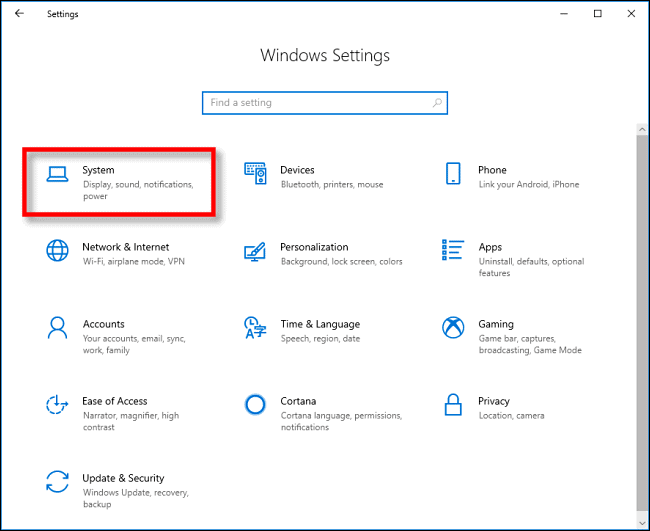
On the Settings sidebar, click on “Clipboard.” In Clipboard settings, locate the section called “Clipboard history” and toggle the switch to “On.”
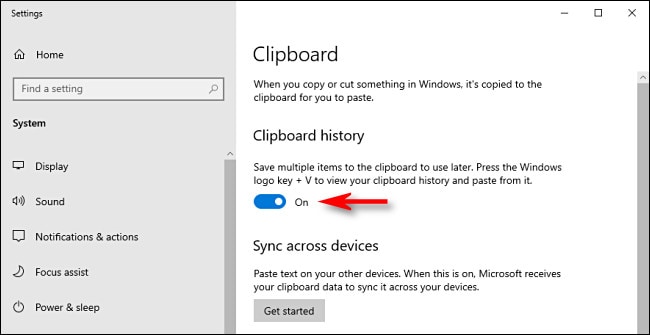
Clipboard history is now turned on. You can now close Settings and use the feature in any application.
How to View Clipboard History in Windows 10
Once you have enabled Clipboard history, you can call up a list of items you have copied recently while using any application. To do so, press Windows+V.
A small window will pop up. The most recent items you’ve copied are at the top of the list.

You can click on any item in the Clipboard history list to paste it into an open application.
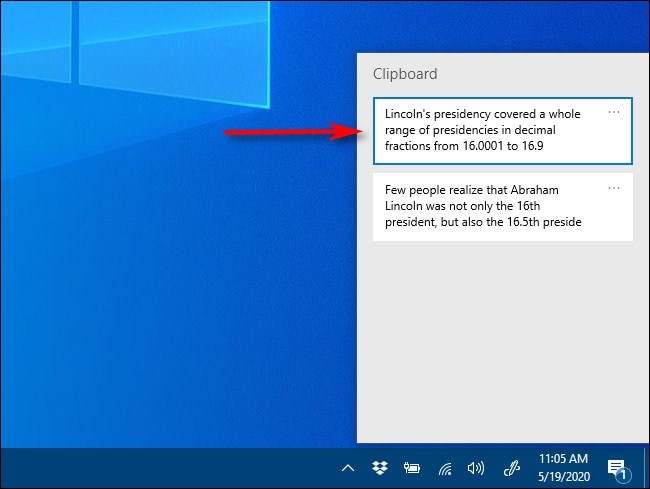
To remove items from Clipboard history, click on the ellipses (three dots) beside the item you’d like to delete. Select “Delete” from the small menu that pops up.
If you’d like to remove all the items from Clipboard history, click “Clear All” In the ellipses menu.
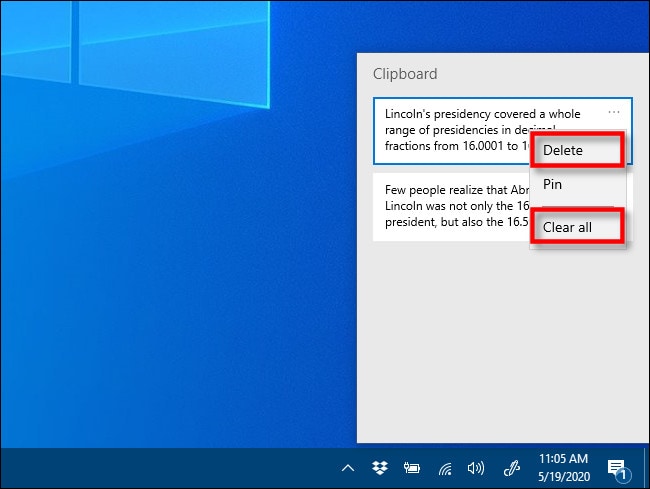
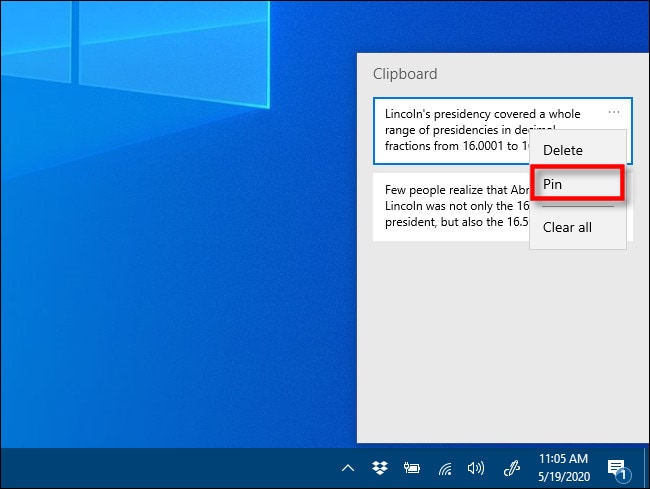
It’s also possible to pin an item on the Clipboard history list. That way, it will stay on the list even if you reboot the computer or click a “Clear All.” To do so, click on the three-dot menu and select “Pin.” You can unpin the item later by selecting “Unpin” from the ellipses menu.
The Clipboard history interface has a slightly different look to it on older versions of Windows. Here are instructions for those running a build prior to 1909.
After using the Windows+V keyboard shortcut, a small floating window will pop up either near the application you are using, or if all windows are closed or minimized, in the lower-right corner of your screen. The most recent items you have copied will be at the top of the list.
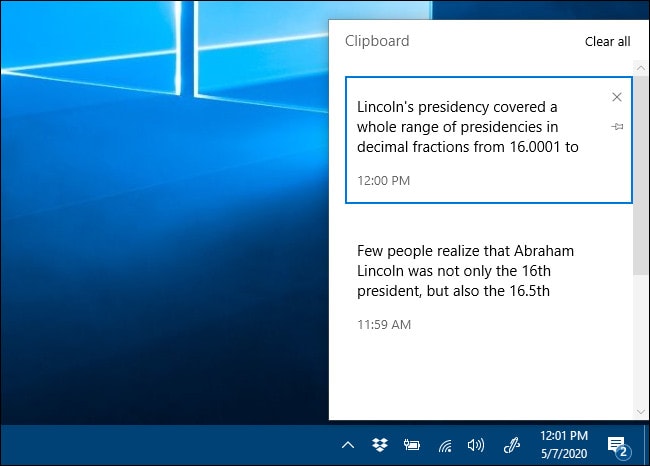
While the Clipboard history window is open, you can click on any item in the list to paste it into an open application or document.
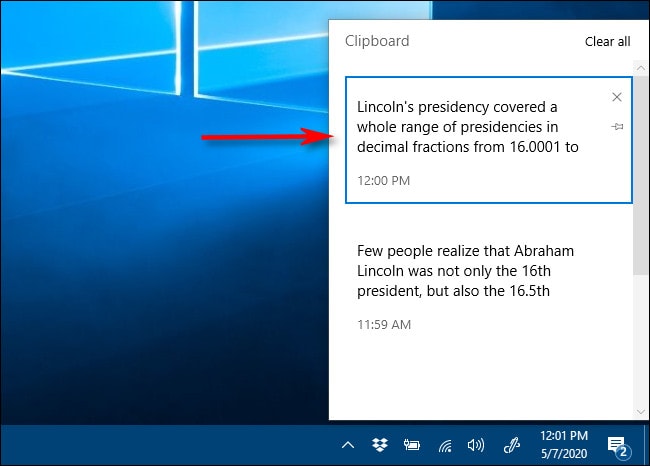
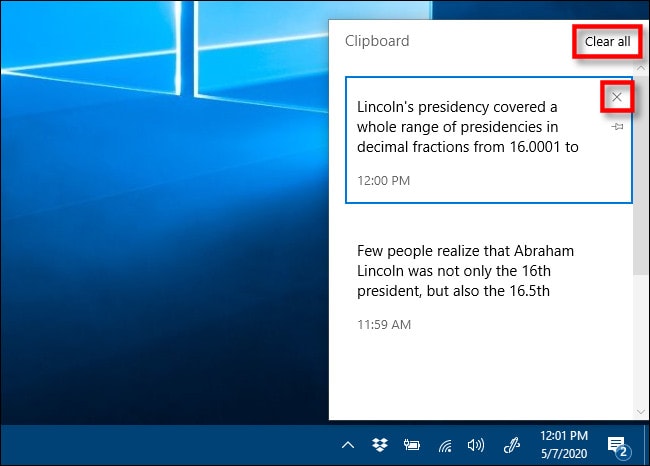
To remove items from Clipboard history, click the small “X” beside an item on the list. Or you can clear the entire list by clicking “Clear All” in the upper-right corner of the Clipboard history window.
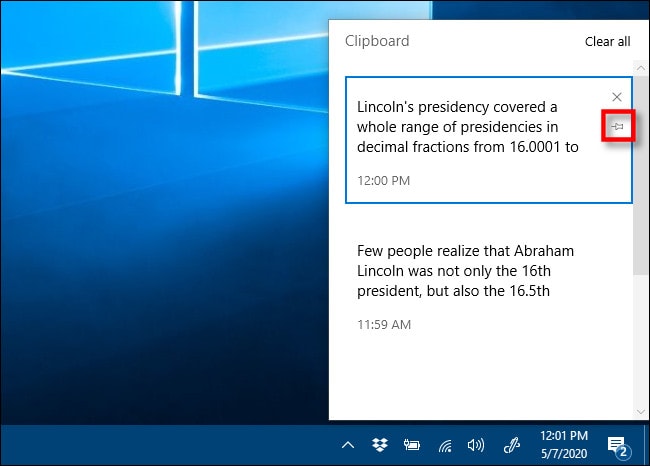
You can also pin an item to the Clipboard history list by clicking on the tiny pushpin icon beside the item. That way, the item will remain on the Clipboard history list even if you reboot the computer or click “Clear All.”
How to Disable Clipboard History in Windows 10
To turn off Clipboard history in Windows 10, navigate to Settings > System > Clipboard. Locate the option titled “Clipboard history” and toggle the switch to “Off.”
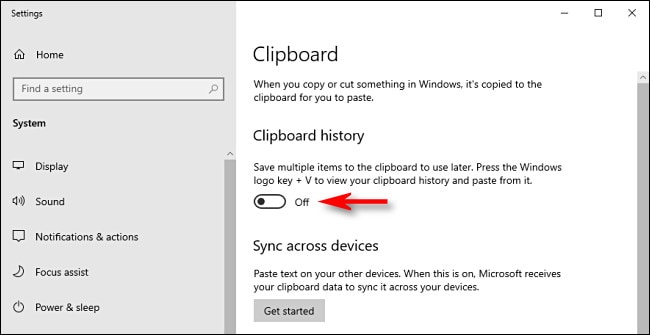
Once disabled, if you press Windows+V, you will see a small window alerting you that Windows 10 cannot show your clipboard history because the feature is turned off.
Remove formatting from Clipboard & paste Text only with PureText for Windows 10
Copying and pasting text into Windows’ default applications like Clipboard is easy. However, a nagging issue encountered during this process is the replication of formatting from the source. As such, removing rich formatting from text manually become a tedious job. You can beat this with the freeware PureText for Windows 10.
The application without causing any nuisance pastes plain and unformatted text from the source to a clipboard app. Simply copy the content to the clipboard, choose the PureText app, and then paste to any application.
PureText for Windows 10
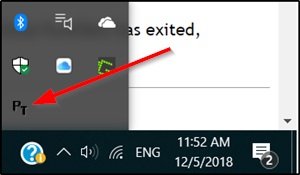
The software utility is available for download as a ZIP file and features a single PureText.exe file. You just need to double-click the file to run it. When run, a „PT“ icon pops up near the clock of your Windows 10 taskbar. Just right-click on the icon visible at the bottom to display a menu with additional options.
The easiest way to use PureText is to use its Hotkey to paste text instead of using the standard CTRL+V Hotkey. However, you’ll need to configure it first.
Remove formatting from Clipboard & paste Text only
To enable this, right-click on its tray icon and select ‘Options’ from the pop-up menu. By default, the Hotkey chosen is WINDOWS+V. You can change this to your liking. Also, you can configure PureText to run each time you start Windows.
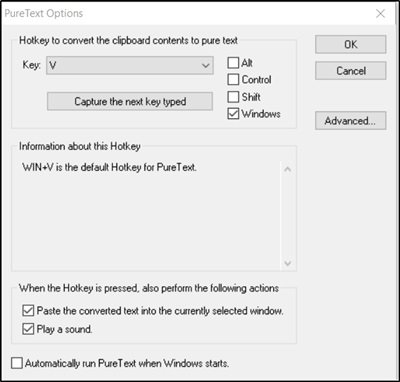
On a side note, if you are running a recent version of Windows 10 (version 1809), you can install PureText directly from the Windows Store. It functions the same as the great PureText, but the Store method provides easy installation and uninstallation. In addition to this, it offers updates to new versions of PureText, automatically.
Like the installation, uninstallation of the application is simple. Right-click on the icon and choose the ‘Exit’ option. Once you exit, go to the download/saved location of PureText.exe and delete it to complete the uninstallation. Just ensure that the application is not running while the removal process is in effect.
PureText only removes rich formatting from text and does not modify the actual text in any way. The rich formatting removable includes:
- Font face
- Font style (bold, italics, etc.)
- Font color
- Paragraph styles (left/right/center aligned)
- Margins
- Character spacing
- Bullets
- Subscript
- Superscript
- Tables
- Charts
- Pictures
- Embedded objects.
You can download the freeware from its homepage. It is also available as a Microsoft Store app.
ClipboardFusion
ClipboardFusion ist ein einfacher Zwischenablage-Manager mit bestimmten erweiterten Funktionen. Ein Merkmal, das diese Anwendung von den anderen unterscheidet, ist ihre Fähigkeit zum Textbereinigen. Diese Funktion ist äußerst nützlich, wenn Sie Text von einer Anwendung in eine andere kopieren — da Formatierungen, Leerzeichen und HTML-Tags entfernt werden und nur Text übrig bleibt.
ClipboardFusion bietet die Funktion zum Ersetzen von Text, mit der Sie alle Instanzen einer bestimmten Textzeichenfolge in Ihrem Zwischenablage-Manager leicht finden und ersetzen können.
Dank der Funktion zur Vorschau der Zwischenablage können Sie problemlos eine Vorschau aller Bilder anzeigen, die in die Zwischenablage kopiert wurden. Zusätzlich zu Bildern funktioniert diese Funktion auch mit HTML-Farbcodes.
Wenn Sie also Webdesigner sind, wird Ihnen diese Funktion wahrscheinlich gefallen. Erwähnenswert ist auch, dass ClipboardFusion Makros vollständig unterstützt und Sie mit C # alle Arten von Makros erstellen können.