Check HTML code
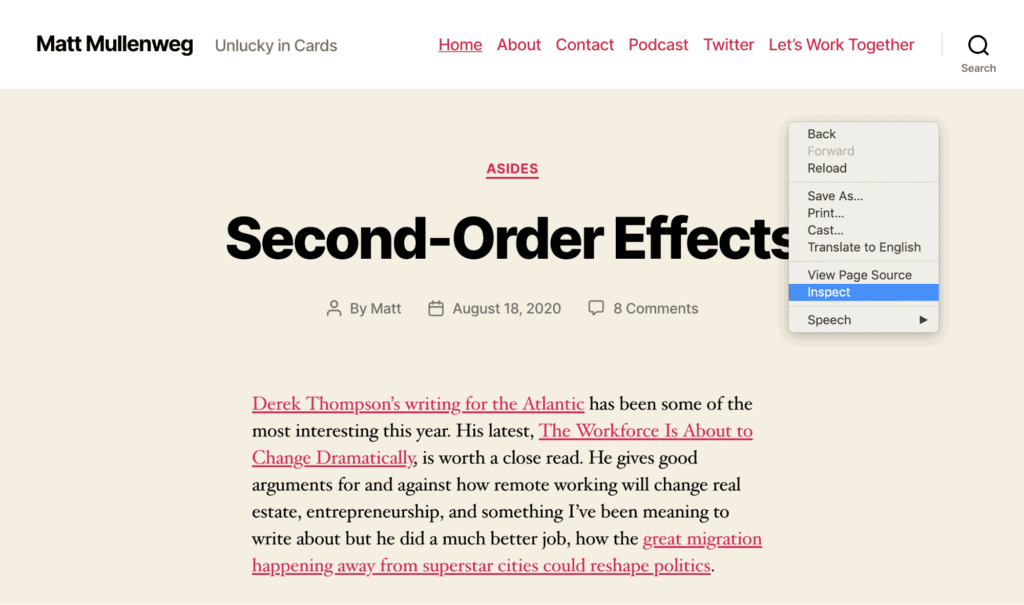
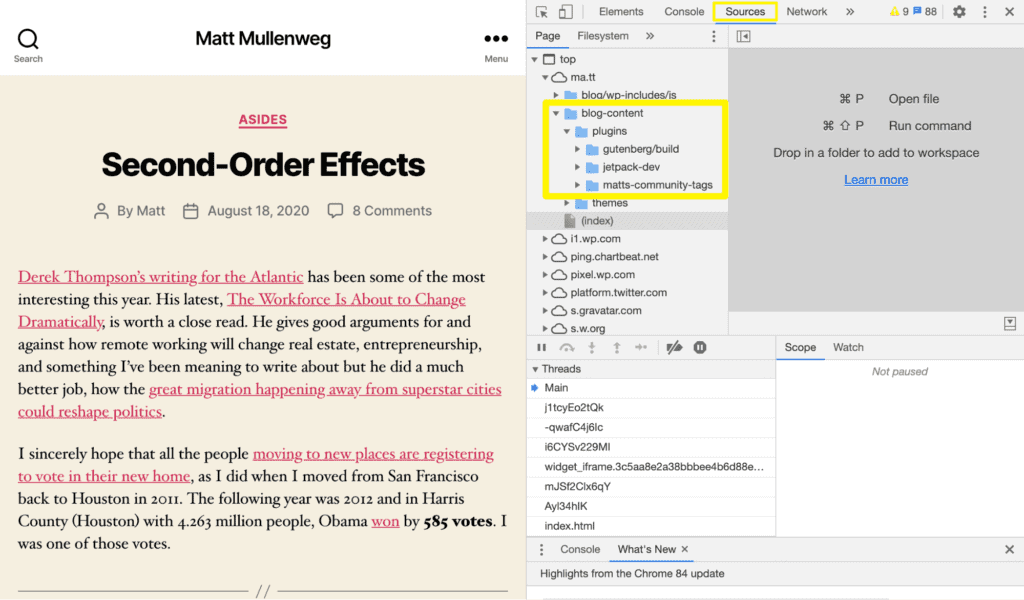
Some webmasters can easily be confused about what WordPress version their websites have or simply is it WordPress site. All sites use HTML code to display content. The browser sees this code and displays it so that we can recognize it. Seeing and understanding the code is not so difficult. Let’s look at three ways to look for clues in the code that some plugins leave. We will use the Chrome browser (the same principles will work in other browsers):
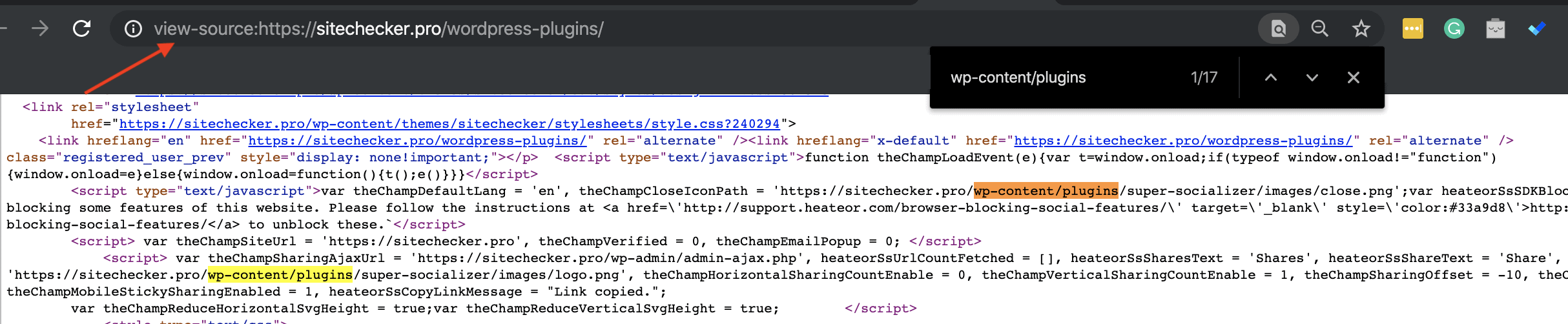
- View page source and do a quick search in the resulting code on the line “wp-content / plugins /”. After this text, the code may contain the name of the plugin (note: there may be several such occurrences in the code if there are many plugins on the site). Also, you can try searching the style sheets or JS files (search by “.css” or “.js” in the code), since they may contain the name of the plugin in their names.
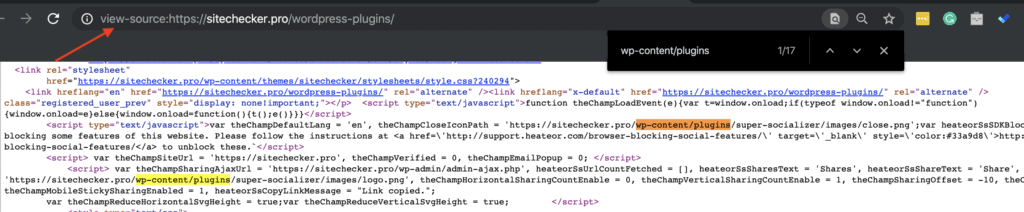
- Looking for HTML comments. Some plugins leave their own code on the page wrapped in HTML comments – Yoast’s SEO is a great example. View page source to scroll through the code and examine the lines with green text – these green lines are HTML comments.

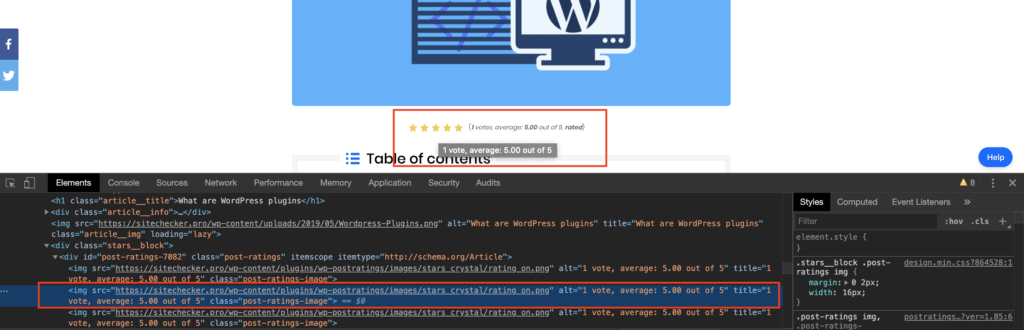
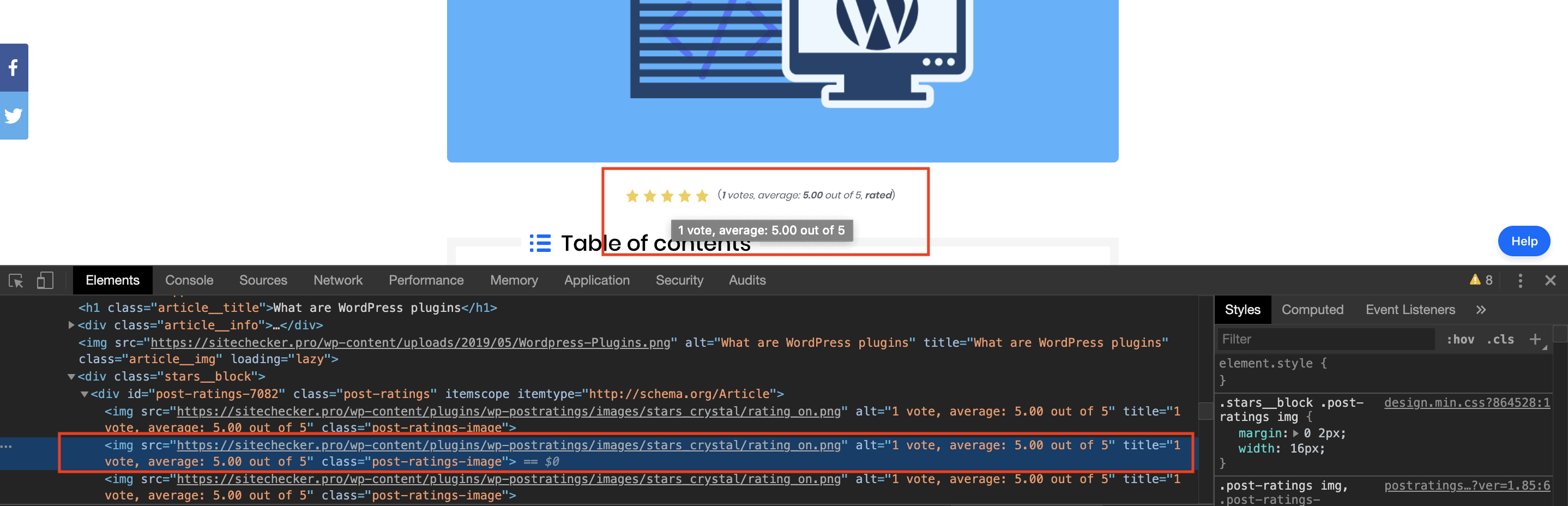
- Explore specific web elements. Inspect the element of a certain web element (widget, table, etc.). Examine the code and try to find the names ID or Class. Class or identifier names may include the name of the plugin that is responsible for this feature.