page

PiHole – Sicher und werbefrei surfen mit dem Raspberry Pi

Als Mediacenter oder IoT-Lösung – der Bastelrechner Raspberry Pi ist vielseitig einsetzbar. Mit Pihole macht er sogar euer gesamtes Netzwerk werbefrei und frei von Trackern. So richtet ihr die Software Schritt für Schritt einKling.

Was ist der Unterschied von Pihole zu einem Adblocker?

Warum einen Raspberry Pi mit etwas ausstatten, das ein Adblocker im Browser auf den ersten Blick auch kann? Weil Adblocker-Plugins etwas anders funktionieren und aufgerufene Websites erst blocken, sobald sie euren PC, Mac oder das Smartphone erreicht haben. Pihole hat einen anderen Ansatz, denn es blockt Tracker, Viren-verseuchte Websites und Werbung auf DNS-Ebene.

Das heißt, dass das Pihole quasi alles ausfiltert, bevor es an die Geräte im Netzwerk ausgeliefert wird. Wie ein Sieb, das zwischen eurem Router und allen Geräten im Netzwerk arbeitet. Und es bringt den Vorteil mit, dass diese Geräte auch in den nativen Apps werbefrei sind – und nicht nur mit Plugins oder speziellen Apps. Ich blicke in deine Richtung, iPhone.

Weniger Tracking, mehr Speed

Weniger Tracker bedeuten auch gleichzeitig mehr Privatsphäre, denn die eingebauten Filter sorgen dafür, dass deutlich weniger Informationen über euer Surfverhalten gesammelt werden können. Pihole ist zwar kein Tails oder Tor, das euren Traffic über fünf Millionen Proxies und dann noch mal zur Venus schickt, blockt aber sehr viele Anbieter und gefährliche Seiten.

Weniger Werbung und weniger Gefunke von Trackern und Analytics-Anbietern bedeutet zudem weniger Traffic und schnellere Ladezeiten von Websites und Apps. Na, überzeugt? Das alles braucht ihr für die Einrichtung.

Diese Hardware brauchst du für den Raspberry Pi mit Pihole

  • Einen Raspberry Pi – im Grunde tut es jeder Raspberry, auch der Raspberry Pi 1 oder Zero. Wir empfehlen euch jedoch einen Raspberry Pi 3 und aufwärts, um die Weboberfläche vom Pihole flott nutzen zu können.
  • Ein Netzteil – oder einen USB-Anschluss mit 2A-Output oder mehr.
  • Eine Micro-SD-Karte und einen SD-Adapter, der Karten meistens beiliegt.
  • Optional: Ein Gehäuse für den Raspberry Pi.
  • Optional: Einen Hoodie, da ihr ein paar einfache Shell-Befehle kopieren werdet und dabei aussehen müsst, wie ein Hacker.

Software für Pihole


Vorbereitung der SD-Karte

  1. Ladet euch im ersten Schritt Balenaetcher (oder eine der oben erwähnten Alternativen) herunter und installiert das Tool. Balenaetcher braucht ihr, um das Betriebssystem für den Raspberry Pi auf der SD-Karte zu „installieren“. Das Image öffnen und die Dateien kopieren funktioniert übrigens nicht, da eine Partitionstabelle auf die Micro-SD-Karte geschrieben werden muss.
  2. Raspberry Pi OS findet ihr hier, wobei ihr für das Pihole nur die „Lite“-Version braucht. Bei der Veröffentlichung dieses Artikels ist das Raspberry Pi OS (32-bit) Lite (basierend auf Debian Buster). Ihr könnt aber auch die 64-Bit-Variante installieren oder die Version mit einer Desktopumgebung, falls ihr den Raspberry Pi mit Pihole noch für andere Dinge verwenden wollt.
  3. Startet Balenaetcher, wählt die heruntergeladene und entpackte Datei und dann die Micro-SD-Karte aus, die nun mit oder ohne Adapter in eurem PC stecken sollte. Checkt bitte vorher, dass ihr die richtige Micro-SD-Karte und nicht eine externe Festplatte oder den USB-Stick auswählt (den mit dem geheimen Ordner, den Mutti niemals sehen sollte).
  4. Balenaetcher schreibt das Raspberry Pi OS auf die SD-Karte, und somit wäre das gute Stück dann auch schon bereit für den Einsatz. Steckt die Karte in euren Raspberry und stöpselt ihn mit einem HDMI- und am besten einem Netzwerkkabel verbunden an die Strombuchse. Ihr braucht zudem eine Tastatur mit Bluetooth-Adapter oder ganz oldschool eine mit Kabel.


Voreinstellungen des Raspberry Pi OS

Nachdem der Raspberry Pi gebootet hat (was ein wenig nach „Matrix“ aussieht), loggt ihr euch mit folgenden Logindaten und Passwort ein:

pi
raspberry

(beziehungsweise „raspberrz“, da die Tastatur noch auf Englisch eingestellt ist)

Ich bin zwar kein Hellseher, nehme aber an, dass ihr mit hoher Wahrscheinlichkeit eine deutsche Tastatur nutzt. Damit das auch der Raspberry weiß, gebt ihr im Terminal ein:

sudo raspi-config

In dem Konfigurationstool hüpft ihr zu Punkt 4 (Localisation Options) und stellt im nächsten Schritt die Locale unter I1 auf Deutsch (DE), die Timezone (I2) auf Berlin, das Keyboard Layout (I3) auf Deutsch (DE) und WLAN Country (I4) ebenfalls auf DE. Die Punkte wählt ihr mit der Space-Taste an oder ab und wechselt mit Tab auf „Select“ beziehungsweise „Back“. Nach etwas Gerödel verlasst ihr das Menü über „Finish“ und startet den Raspberry am besten neu, mit:

sudo reboot

Nach dem Neustart ändert ihr zunächst das Passwort, damit Mr. Robot nicht so einfach Zugriff auf euren Raspberry Pi hat. Loggt euch ein (diesmal mit hoffentlich deutschem Tastaturlayout) und gebt ein:

passwd

Gebt euer aktuelles Passwort ein (raspberry) und dann euer neues, das ihr am besten in einem Passwortmanager speichert. Um das Betriebssystem auf den neuesten Stand zu bringen, führen wir ein Update durch, mit:

sudo apt update && sudo apt -y upgrade && sudo apt-get -y dist-upgrade && sudo apt -y autoremove && sudo apt -y autoclean && sync && sudo reboot

Nach dem Neustart installiert ihr nun Pihole und macht euch erstmal zum root, da Pihole bestimmte Rechte für die Installation braucht:

sudo passwd root

Vergebt jetzt ein temporäres Passwort und loggt euch als root ein, mit:

su -


Deutsche Tastatur:

  1. sudo raspi-config
  2. Punkt 4 Localisation Options
  3. l3 Change Keyboard Layout
  4. PC generic de 105 tecles (intl.)
  5. Runtergehen auf „Andere“
  6. Das Wort Duits suchen und bestätigen
  7. Dann nach oben und DUITS auswählen
  8. und dann geht es komischerweise wie gewohnt weiter


Die Installation von Pihole auf dem Raspberry Pi
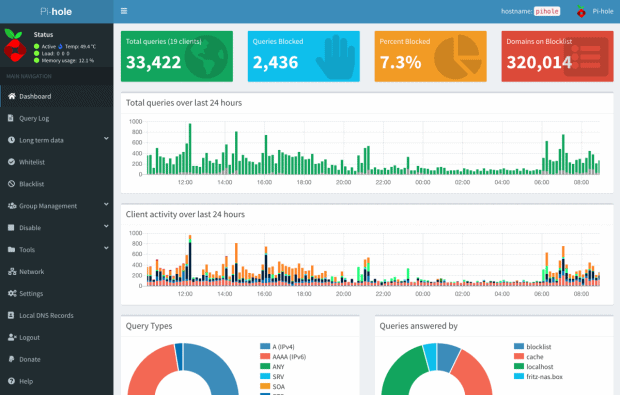
Pihole bietet eine übersichtliche Oberfläche, mit der ihr weitere Einstellungen vornehmen könnt. 

Falls ihr nicht wisst, welche IP euer Pihole hat, findet ihr es so raus und notiert es am besten:

hostname -I

(das ist ein großes I, wie „Ihhh“, kein L)

Jetzt installiert ihr das Pihole über das Skript:

curl -sSL https://install.pi-hole.net | bash

Sollte das nicht funktionieren, weil curl fehlt, könnt ihr auch Folgendes tun:

wget -O basic-install.sh https://install.pi-hole.net
sudo bash basic-install.sh


Bei Problemen findet ihr weitere Infos zur Installation auf der GitHub-Seite von Pihole. Das Skript installiert und arbeitet ein bisschen vor sich hin und wird euch zwischendurch einige Fragen stellen, die ihr wie folgt, beantworten könnt:


Select Upstream DNS Provider: Cloudflare oder Google oder einer eurer Wahl.

Select Lists: Wählt hier einfach alle Listen aus.

Select Protocols: IPv4 und/oder IPv6, falls ihr IPv6 nutzt.

Do you want to use your current network settings as a static address: Gebt hier die IP-Adresse des Raspberry Pi ein, die euer Router zugewiesen hat (beziehungsweise Enter), und wählt den Router als Gateway aus – meist 192.168.0.1, aber prüft es zur Sicherheit nochmal in den Einstellungen eures Routers.

Do you wish to install the web admin interface: Ja, denn hier nehmt ihr nachher Einstellungen vor und seht, was das Pihole alles filtert.

Do you wish to install the web server (lighttpd): Ja, denn ohne läuft auch die Weboberfläche nicht oder ihr müsst euch den Server anders zusammenfrickeln.

Do you want to log queries: Ja, sofern ihr die Zugriffe in Logdateien speichern wollt.

Select a privacy mode for FTL: Je nachdem, ob ihr ein öffentliches Netzwerk betreibt oder die Anfragen schlicht und einfach komplett anonymisieren wollt (hallo DSGVO), könnt ihr hier einstellen, was genau geloggt wird.


Nach der Installation zeigt euch das Skript die Adresse des Pihole als IPv4 und/oder IPv6 sowie das Passwort für die Weboberfläche an. Loggt euch wieder als root aus und auch ein Neustart kann nicht schaden:

exit
sudo passwd -dl root
sudo reboot


Pihole als DNS-Server des Routers eintragen

Im Grunde könnt ihr den Raspberry nun an seinen Zielort verfrachten. Er braucht nur noch Strom und ein Netzwerkkabel zu eurem Router. Das Pihole funktioniert im Grunde auch per WLAN, sofern es nicht der ganz alte Raspberry Pi 1 ist. Für eine stabile Verbindung, und um etwas Frickelei zu vermeiden, solltet ihr aber ein Netzwerkkabel nutzen. Wer den Raspberry Pi übrigens nicht kennt: Das Teil hat leider keinen An- oder Aus-Schalter. Ihr macht ihn an, wenn ihr das USB-Kabel anstöpselt und fahrt ihn am besten herunter mit:

sudo shutdown now

Dann könnt ihr ihn vom Strom trennen und wieder anklemmen, wenn ihr ihn einschalten wollt. Im Idealfall wird er aber die ganze Zeit durchlaufen und Trackinganfragen, Werbung und anderen Firlefanz auf DNS-Ebene blocken. Damit das funktioniert, müsst ihr das in einem letzten Schritt eurem Router mitteilen.
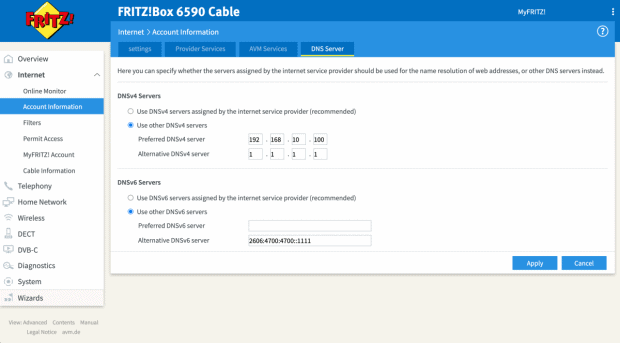
Pihole müsst ihr im Backend der Fritzbox als DNS-Server eintragen. Hier unterscheiden sich die Modelle bei ihrer Weboberfläche natürlich. Bei der Fritzbox findet ihr die Einstellung unter Internet > Zugangsdaten > DNS-Server.

Hier gebt ihr die IPv4- und/oder die IPv6-Adresse eures Pihole ein. Als Alternative empfiehlt sich noch ein zweiter DNS-Server, falls ihr den Raspberry mal wechseln, aber dennoch weiter Internet haben wollt. Hier bieten sich Cloudflare (1.1.1.1) oder Googles DNS-Server (8.8.8.8) an, aber ihr könnt natürlich nehmen, was ihr wollt.


Die Weboberfläche und weitere Einstellungen

Im Grunde sollte alles out-of-the-box funktionieren. Ihr könnt euch die Weboberfläche vom Pihole ansehen, indem ihr die IP-Adresse im Browser angebt und ein „/admin/“ anhängt, zum Beispiel:

http://192.168.0.10/admin/

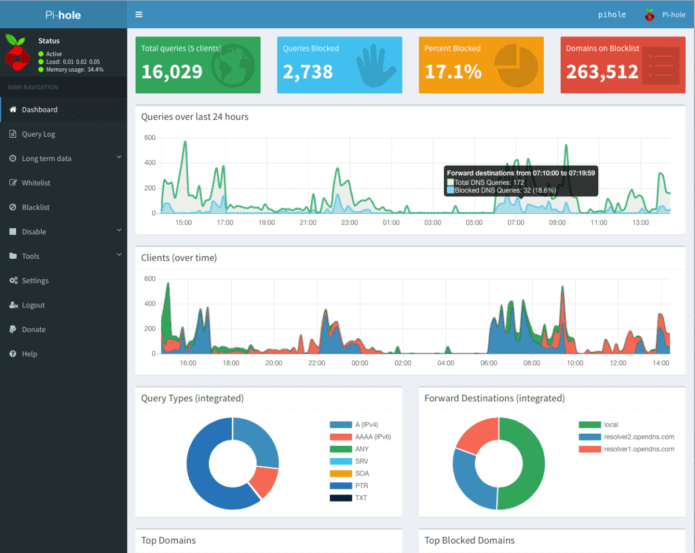
Loggt euch mit dem Passwort aus der Installation ein und ihr könnt euch auf dem Dashboard ansehen, wie viele Anfragen vom Pihole geblockt worden sind, welche Domains und Tracker das waren und so weiter. Wenn ihr die Listen aktuell halten wollt, könnt ihr unter dem Punkt Tools > Update Gravity auf Update klicken.

Eine Allow-Liste findet ihr ebenfalls im Menü links und ihr werdet sie das eine oder andere Mal brauchen, denn manchmal blockt Pihole relativ harmlose Werbetracker oder versaut euch Links in Newslettern, da diese meist über Tracking-Tools laufen. Setzt die entsprechenden Domains dann einfach auf die Liste oder schaltet Pihole kurzzeitig mit einem Klick auf Disable aus und wählt, für wie lange er ausbleiben soll.

Wer möchte, kann das Pihole auch als DHCP-Server nutzen, DNSSEC aktivieren, als rekursiven DNS-Server mit Unbound nutzen, weitere Adblock-Listen hinzufügen oder die Allow-Lists automatisch updaten lassen. Auf die gehört übrigens auch www.t3n.de – ist ja klar. Wie ihr das alles anstellt, erfahrt ihr hier:

Als kleiner Tipp: Wenn das Blocken mal nicht direkt funktioniert, wartet ein paar Minuten, bis euer Netzwerk das Pihole als DNS-Server „vermittelt“ hat. Oder startet euer Gerät ein Mal neu. Das gleiche gilt auch, wenn ihr das Pihole im Menü kurzzeitig ausschaltet, denn ein paar Sekunden lang wird es Tracker immer noch blocken.


Neue Ad-Block Filterlisten in Pi-hole einbinden


Standardmäßig enthält Pihole 5.0 aktuell 7 Filterlisten zum Blocken von Domains bzw. Webseiten. Diese ermöglichen Pihole das Filtern von unerwünschten Inhalten wie z.B. Werbebannern oder unerwünschten Scripten. Durch das Hinzufügen weiterer Filterlisten lässt sich die Zahl der unerwünschten Domains sehr einfach erhöhen. Wir wollen euch heute zeigen, wie ihr euren Pi-hole noch besser im Ad-Blocking machen könnt.

Filterlisten gibt es wie Sand am Meer. Wichtig ist, dass diese Listen gepflegt werden, denn die Listen werden nicht nur einmal in Pihole eingebunden, sondern regelmäßig auf Änderungen geprüft. Wir haben für euch ein paar Listen bzw. Webseiten zusammengetragen:

for blocklists i’m using

https://raw.githubusercontent.com/StevenBlack/hosts/master/hosts https://mirror1.malwaredomains.com/files/justdomains http://sysctl.org/cameleon/hosts https://zeustracker.abuse.ch/blocklist.php?download=domainblocklist https://s3.amazonaws.com/lists.disconnect.me/simple_tracking.txt https://s3.amazonaws.com/lists.disconnect.me/simple_ad.txt https://hosts-file.net/ad_servers.txt https://raw.githubusercontent.com/HenningVanRaumle/pihole-ytadblock/master/ytadblock.txt https://github.com/anudeepND/youtubeadsblacklist/blob/master/domainlist.txt https://v.firebog.net/hosts/lists.php?type=tick

for blacklists i’m using

ad.doubleclick.net clients6.google.com googleads.g.doubleclick.net i1.ytimg.com pagead2.googlesyndication.com pubads.g.doubleclick.net r1—sn-vgqsen7z.googlevideo.com r1.sn-vgqsen7z.googlevideo.com r17—sn-vgqsenes.googlevideo.com r2—sn-vgqs7n7k.googlevideo.com r20—sn-vgqs7ne7.googlevideo.com r20.sn-vgqs7ne7.googlevideo.com r4—sn-vgqs7nez.googlevideo.com r4.sn-vgqs7nez.googlevideo.com securepubads.g.doubleclick.net static.doubleclick.net www.youtube-nocookie.com

I’ve had decent success with this regex

^r[0-9]*([-]{1,3}|.)sn-[a-z0-9]{4,}-[a-z0-9]{4,}\.googlevideo

It’s not perfect, but does block about 80% of the ads that play during streaming, but only about 40% of the ads that play before the video begins.


Einbinden neuer Filterlisten in Pi-Hole

Ab der Version 5 von Pi-Hole befindet sich die Verwaltung der Filterlisten im Gruppen-Management der Software. Ihr könnt mehrere Gruppen definieren, die dann auf unterschiedliche Blocklisten zugreifen können.
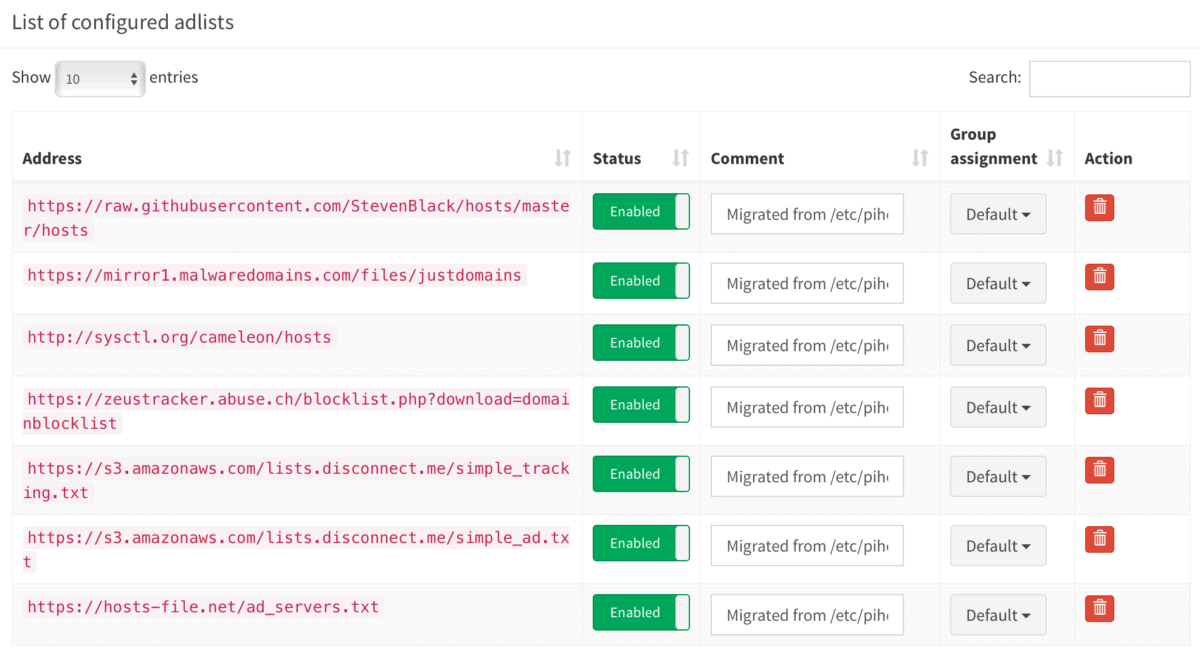
 
Nach dem Einbinden neuer Blocklisten müssen diese noch über die im Bereich Tools vorhandene Funktion Update Gravity in Pi-Hole aktiviert werden.


pihole5-list-tool

Installing Python packages

sudo apt update
sudo apt install python3-picamera

sudo apt install python3-pip

installation

If you don’t sudo pip3 install, things won’t work – possibly in a very confusing way. Definitely on Raspbian 10, so probably before that.

$ sudo pip3 install pihole5-list-tool --upgrade

usage / running

Simply run:

$ sudo pihole5-list-tool

Finishing up

After adding lists, they must be loaded by running:

$ pihole -g


allowlists

Currently the only source for maintained whitelists is anudeepND’s allowlist. They are presented as:

  • Allowlist Only – Domains that are safe to allow i.e does not contain any tracking or

      advertising sites. This fixes many problems like YouTube watch history,
      videos on news sites and so on.
    
  • Allowlist+Optional – These are needed depending on the service you use. They may contain some

      tracking sites but sometimes it's necessary to add bad domains to make a
      few services to work.
    
  • Allowlist+Referral – People who use services like Slickdeals and Fatwallet need a few sites

      (most of them are either trackers or ads) to be whitelisted to work
      properly. This contains some analytics and ad serving sites like
      doubleclick.net and others. If you don't know what these services are,
      stay away from this list. Domains that are safe to whitelist i.e does
      not contain any tracking or advertising sites. This fixes many problems
      like YouTube watch history, videos on news sites and so on.
    

ad/blocklists

Currently the only source for maintained blocklists is firebog.net

  • Non-crossed lists: For when someone is usually around to whitelist falsely blocked sites
  • Ticked lists: For when installing Pi-hole where no one will be whitelisting falsely blocked sites
  • All lists: For those who will always be around to whitelist falsely blocked sites


Zusätzliche Whitelists

Gibt es, um mal welche zu nennen:

Aber die Ersteller/Verwalter von Blocklists sollten Einträge aus solchen Whitelists eigentlich bereits aus ihren Listen entfernt haben.


IP-Adresse oder sonstige Netzwerkeinstellungen ändern

Reconfigure pi hole via command line: pihole -r

You can also change ip address in

/etc/pihole/setupVars.conf


Updating

Updating is as simple as running the following command:

pihole -up


How do I set or reset the Web interface Password?

The Web interface password needs to be reset via the command line on your Pi-hole. This can be done locally or over SSH. You will use the pihole command to do this:

pihole -a -p

You will be prompted for the new password. If you enter an empty password, the password requirement will be removed from the web interface.

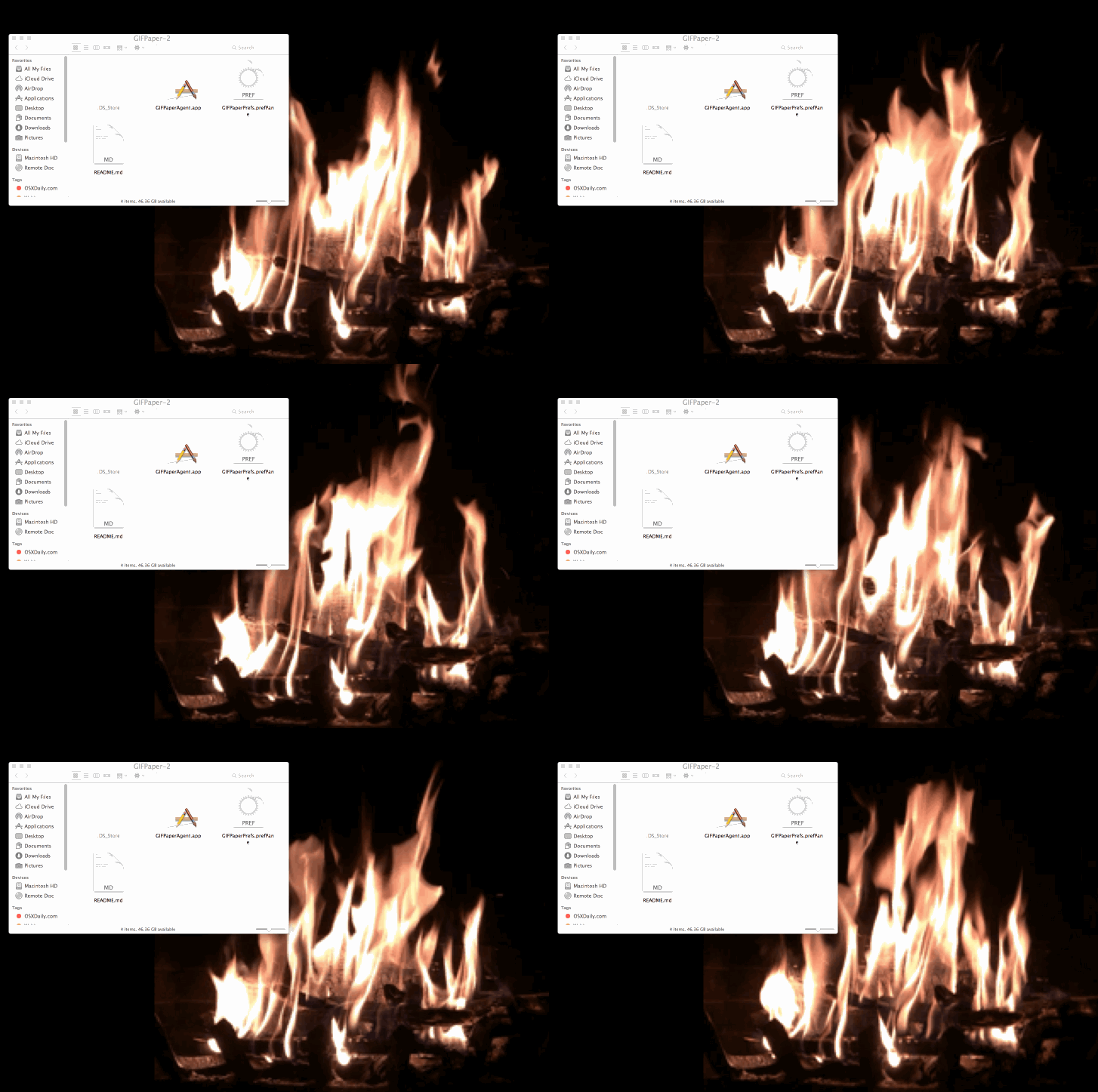
Mac OS X: Animiertes GIF als Schreibtisch-Hintergrund

animated-gif-wallpaper-mac

Have you ever wished the wallpaper on your Mac was animated? One common trick to achieve that effect is to set a screen saver as the desktop wallpaper in Mac OS X, which looks great but can wind up using a fair amount of processor to display the animations, but now another option is available; use an animated GIF as desktop wallpaper on the Mac instead, thanks to a little free app called GifPaper.


GIFPaper is somewhat experimental at this point, requires skipping Gatekeeper, uses about 15% of CPU to display the animation, requires manually installing a preference panel, and if you want to get rid of it, you have to force quit the associated process through Activity Monitor. Because of all that, using GifPaper is likely better used exclusively by more advanced Mac users, as it’s totally unsupported by the developer (or anyone else). If you aren’t comfortable with any of that, don’t use the GifPaper app for now. If you don’t mind those caveats, here’s how you can use GIFPaper to set an animated GIF as the desktop picture on a Mac.

How to Set Animated GIF as Desktop Wallpaper in Mac OS X

    1. Get GIFPaper from this Dropbox link*, it’s free from the developer but unsupported
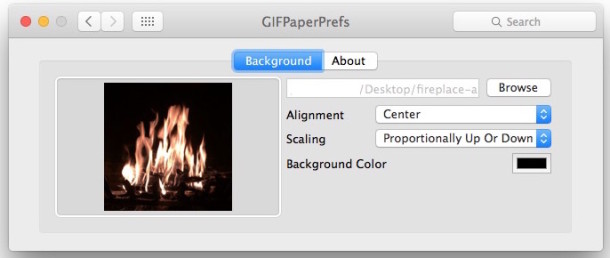
    2. Install the preference panel and use the Browse option to select your animated GIF, then adjust the settings as desired

animated-gif-as-wallpaper-mac

  1. The animated GIF should load as wallpaper immediately, but if it doesn’t try manually launching the Gifpaper.app to load the gif as the desktop background picture

Here’s an example of the Mac desktop with a fireplace GIF in use as the wallpaper background image:

animated-gif-wallpaper-mac

And here’s another Mac desktop example with animated GIF as wallpaper via Lifehacker:

animated-gif-mac-wallpaper-lifehacker

This can be a fun use for your Live Photos converted to GIFs, which is what I have done in this piece with a fireplace gif that was created from a Live Photo. Of course if you have Gif Brewerythan you can use other masterful animated GIF creations of your own doing as well, otherwise a quick Google Image search for “animated gif (item)” or visit to a site like Giphy should find you something to meet your GIF needs.

* Download and use this app at your own discretion, currently there is no associated developer page or Github page about the GifPaper app. Generally speaking it is unwise to download and use apps or files from random web links from an unidentified developer, but this app was found by LifeHacker and it works as advertised (the creepy blinking eyes gif via 2001 (the movie) shown on page is from Lifehacker too).

Removing GIF Paper and getting the regular wallpaper back again

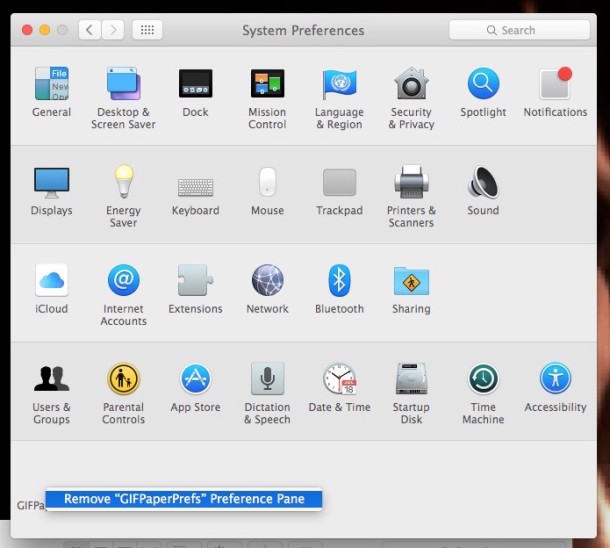
You can remove the GifPaper preference panel with a right-click:

gifpaper-prefs-remove

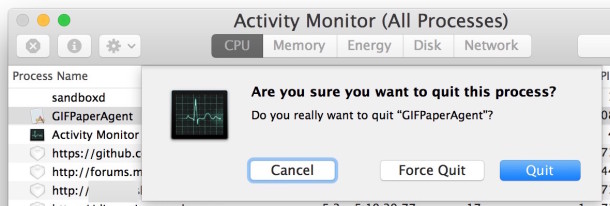
And if you want to end the animated GIF as your wallpaper, either reboot the Mac, or quit the Gif Paper process running through Activity Monitor:

quit-gif-paper-agent

Unfortunately there isn’t a Github page with source or an official site for the project, though the developer Tomasz Wojcik mentions they’d likely put it on Github eventually. If you were hoping to get a look at the source, get support for the app, or ask questions specifically about the project or how it works, you’ll have to reach out to the creator directly via the readme file attached to the download, for now anyway.

Coverr.co – Gratis und lizenzfreie Videos für die Homepage

Grossflächige Background-Videos mit thematischen und atmosphärischen Videos sind seit einiger Zeit ein Trend im Webdesign. Beispiele dafür findet man zum Beispiel auf den Webseiten von Unternehmen wie Hoststar oder Nike. Wer auf seiner Homepage selber solche Videos verwenden möchte, aber den Aufwand oder die Kosten für die Produktion eines solchen Videos scheut, der findet jetzt auf coverr.co verschiedene thematische Videos zur lizenzfreien Verwendung.

coverr.co bietet gratis und lizenfreie Background-Videos, auch für kommerzielle Zwecke

Auf coverr.co finden sich frei verwendbare Videos, und laut den Betreibern der Seite kommen jeden Montag 7 neue lizenzfreie Videos hinzu. Die Videos werden in den zwei wichtigen Video-Formaten mp4 sowie webm, und zusätzlich als JPG angeboten. Wer für das Einbinden der Videos Hilfe benötigt, findet bei coverr auch eine Anleitung und die notwendigen Code-Schnippsel, um seine Homepage mit den Videos auszurüsten.

Google Fonts über den eigenen Server einbinden

Es gibt verschiedene Methoden, um Google Fonts in eine Webseite einzubinden. Die klassische Methode ist, die Schriften über einen Link in der header.php oder – besser – über die functions.php ins Theme einzubinden. Ellen Bauer hat einen ausführlichen Artikel dazu geschrieben: Google Fonts in WordPress Themes

Bei dieser Methode liegen die Schriften auf den Google-Servern und werden über einen Link auf meine Webseite geholt. Wird meine Seite geladen, schickt sie eine Anfrage an den Google Server und der liefert dann die Schriften aus. Davon merkt man in der Regel nicht viel. Aber es bleibt die Tatsache, dass eine Abfrage passiert und das dauert ein paar Millisekunden.

Je nach der Qualität der Datenverbindung kann es auch passieren, dass die Schriften nicht schnell genug ausgeliefert werden. Dann erscheinen alle Texte plötzlich in Arial oder Times.
Auch Firewalls können ein Problem darstellen – in manchen Firmen gelten so strenge Regeln, dass die Mitarbeiter keine Google Fonts zu sehen kriegen.

Google Fonts herunterladen und Webfont erzeugen

Aus diesen Gründen bin ich in letzter Zeit dazu übergegangen, Google Webfonts nicht mehr per Link einzubinden, sondern direkt auf den Sever zu laden, auf dem auch das WordPress-Theme liegt. Ich gehe davon aus, dass das rechtlich kein Problem ist, denn die Google Webfonts haben eine SIL Open Font License, die das Herunterladen erlaubt.

Wenn man sich bei den Google Webfonts eine Auswahl zusammengestellt hat, kann man diese Auswahl über einen Link herunterladen. Der Link versteckt sich hinter dem kleinen Pfeil rechts über der bunten Page-Load-Anzeige.


Allerdings befindet sich in dem zip-Archiv, das im Download-Ordner landet, nur eine TrueType-Version der Schrift. Damit können nicht alle Browser etwas anfangen. Der Font muss in mehreren Formaten (ttf, eot, woff, woff2, svg) zur Verfügung gestellt werden.

Das ist aber nicht weiter schwierig, denn es gibt Tools um aus einem TrueType-Font einen Webfont zu erzeugen. Zum Beispiel den Google Webfonts Helper. Ich nutze sehr gerne den Webfont-Generator von fontsquirrel.com.

Beide Tools bringen praktische CSS-Schnipsel mit, die man per Copy & Paste in die CSS-Datei des WordPress-Themes übertragen kann. Hier ein Beispiel von FontSquirrel.

/* Generated by Font Squirrel (http://www.fontsquirrel.com) on March 12, 2016 */
@font-face {
    font-family: 'fira_sansthin';
    src: url('firasans-thin-webfont.eot');
    src: url('firasans-thin-webfont.eot?#iefix') format('embedded-opentype'),
         url('firasans-thin-webfont.woff2') format('woff2'),
         url('firasans-thin-webfont.woff') format('woff'),
         url('firasans-thin-webfont.ttf') format('truetype'),
         url('firasans-thin-webfont.svg#fira_sansthin') format('svg');
    font-weight: normal;
    font-style: normal;

}

Geschwindigkeit deiner Website optimieren

Wir alle kennen die Tools zum Messen der Geschwindigkeit einer Website: Pagespeed, YSlow, Pingdom, Webpagetest oder das Kombitool aus Pagespeed und YSlow GTMetrix. Aber wie wird zum Beispiel Browser Caching aktiviert? Wer sich damit nicht auskennt, der findet viele, viele Artikel dazu, die viel Code in sich haben und nichts erklären. Hier ist noch einer davon. 😉
Über die vergangenen Jahre habe ich dieses Gist immer wieder ergänzt, verbessert und korrigiert. Entstanden ist eine sehr praktische Sammlung von Einstellungen, die fail safe die jeweiligen Möglichkeiten des Hosters ausnutzen. Die entsprechenden Anweisungen sind in If-Abfragen gekapselt, so dass es bei guten Hostern keine Probleme mit nicht unterstützen Modulen geben sollte.

Die Einstellungen teilen sich in drei Bereiche: Komprimierung (Deflate/GZip), Browser Caching (Ablaufdatum für statische Caching-Inhalte definieren) und dem Setzen von sinnvollen Headern (Keep Alive, Accept Encoding, etc.).

#
# Sources:
# http://stackoverflow.com/questions/7704624/how-can-i-use-gzip-compression-for-css-and-js-files-on-my-websites
# http://codex.wordpress.org/Output_Compression
# http://www.perun.net/2009/06/06/wordpress-websites-beschleuinigen-4-ein-zwischenergebnis/#comment-61086
# http://www.smashingmagazine.com/smashing-book-1/performance-optimization-for-websites-part-2-of-2/
# http://gtmetrix.com/configure-entity-tags-etags.html
# http://de.slideshare.net/walterebert/die-htaccessrichtignutzenwchh2014
# http://de.slideshare.net/walterebert/mehr-performance-fr-wordpress
#
<IfModule mod_deflate.c>
# Insert filters / compress text, html, javascript, css, xml:
AddOutputFilterByType DEFLATE text/plain
AddOutputFilterByType DEFLATE text/html
AddOutputFilterByType DEFLATE text/xml
AddOutputFilterByType DEFLATE text/css
AddOutputFilterByType DEFLATE text/vtt 
AddOutputFilterByType DEFLATE text/x-component
AddOutputFilterByType DEFLATE application/xml
AddOutputFilterByType DEFLATE application/xhtml+xml
AddOutputFilterByType DEFLATE application/rss+xml
AddOutputFilterByType DEFLATE application/js
AddOutputFilterByType DEFLATE application/javascript
AddOutputFilterByType DEFLATE application/x-javascript
AddOutputFilterByType DEFLATE application/x-httpd-php
AddOutputFilterByType DEFLATE application/x-httpd-fastphp
AddOutputFilterByType DEFLATE application/atom+xml 
AddOutputFilterByType DEFLATE application/json
AddOutputFilterByType DEFLATE application/ld+json 
AddOutputFilterByType DEFLATE application/vnd.ms-fontobject 
AddOutputFilterByType DEFLATE application/x-font-ttf 
AddOutputFilterByType DEFLATE application/x-web-app-manifest+json 
AddOutputFilterByType DEFLATE font/opentype 
AddOutputFilterByType DEFLATE image/svg+xml
AddOutputFilterByType DEFLATE image/x-icon
# Exception: Images
SetEnvIfNoCase REQUEST_URI \.(?:gif|jpg|jpeg|png|svg)$ no-gzip dont-vary
# Drop problematic browsers
BrowserMatch ^Mozilla/4 gzip-only-text/html
BrowserMatch ^Mozilla/4\.0[678] no-gzip
BrowserMatch \bMSI[E] !no-gzip !gzip-only-text/html
# Make sure proxies don't deliver the wrong content
Header append Vary User-Agent env=!dont-vary
</IfModule>
## EXPIRES CACHING ##
<IfModule mod_expires.c>
ExpiresActive On
ExpiresDefault "access plus 1 week"
ExpiresByType image/jpg "access plus 1 year"
ExpiresByType image/jpeg "access plus 1 year"
ExpiresByType image/gif "access plus 1 year"
ExpiresByType image/png "access plus 1 year"
ExpiresByType image/svg+xml "access plus 1 month" 
ExpiresByType text/css "access plus 1 month"
ExpiresByType text/html "access plus 1 minute"
ExpiresByType text/plain "access plus 1 month"
ExpiresByType text/x-component "access plus 1 month" 
ExpiresByType text/javascript "access plus 1 month"
ExpiresByType text/x-javascript "access plus 1 month"
ExpiresByType application/pdf "access plus 1 month"
ExpiresByType application/javascript "access plus 1 months"
ExpiresByType application/x-javascript "access plus 1 months"
ExpiresByType application/x-shockwave-flash "access plus 1 month"
ExpiresByType image/x-icon "access plus 1 year"
ExpiresByType application/json "access plus 0 seconds"
ExpiresByType application/ld+json "access plus 0 seconds"
ExpiresByType application/xml "access plus 0 seconds"
ExpiresByType text/xml "access plus 0 seconds" 
ExpiresByType application/x-web-app-manifest+json "access plus 0 seconds" 
ExpiresByType text/cache-manifest "access plus 0 seconds" 
ExpiresByType audio/ogg "access plus 1 month" 
ExpiresByType video/mp4 "access plus 1 month" 
ExpiresByType video/ogg "access plus 1 month" 
ExpiresByType video/webm "access plus 1 month" 
ExpiresByType application/atom+xml "access plus 1 hour" 
ExpiresByType application/rss+xml "access plus 1 hour" 
ExpiresByType application/font-woff "access plus 1 month" 
ExpiresByType application/vnd.ms-fontobject "access plus 1 month" 
ExpiresByType application/x-font-ttf "access plus 1 month" 
ExpiresByType font/opentype "access plus 1 month" 
</IfModule>
## EXPIRES CACHING ##
#Alternative caching using Apache's "mod_headers", if it's installed.
#Caching of common files - ENABLED
<IfModule mod_headers.c>
<FilesMatch "\.(ico|pdf|flv|swf|js|css|gif|png|jpg|jpeg|txt|html|htm)$">
Header set Cache-Control "max-age=2592000, public"
</FilesMatch>
</IfModule>
<IfModule mod_headers.c>
 <FilesMatch "\.(js|css|xml|gz)$">
 Header append Vary Accept-Encoding
 </FilesMatch>
</IfModule>

<filesMatch "\\.(js|js.gz)$">
Header set Cache-Control "max-age=604800, private"
</filesMatch>
<IfModule mod_gzip.c>
 mod_gzip_on Yes
 mod_gzip_dechunk Yes
 mod_gzip_item_include file \.(html?|txt|css|js|php|pl)$
 mod_gzip_item_include handler ^cgi-script$
 mod_gzip_item_include mime ^text/.*
 mod_gzip_item_include mime ^application/x-javascript.*
 mod_gzip_item_exclude mime ^image/.*
 mod_gzip_item_exclude rspheader ^Content-Encoding:.*gzip.*
</IfModule>
# Set Keep Alive Header
<IfModule mod_headers.c>
 Header set Connection keep-alive
</IfModule>
# If your server don't support ETags deactivate with "None" (and remove header)
<IfModule mod_expires.c> 
 <IfModule mod_headers.c> 
 Header unset ETag 
 </IfModule> 
 FileETag None 
</IfModule>

Gmail: Mehrere E-Mails auf einen Schlag als PDF herunterladen und eventuell archivieren

Alle Nachrichten in Google-Mail können für einen späteren Zugriff archiviert werden. Leider kann man aber ohne eine aktive Internetverbindung nicht auf die archivierten E-Mail zurückgreifen. Einzelne Mails können jedoch über die Druckfunktion (als PDF speichern) auf dem Computer abgelegt werden. Benötigt man aber mehrere Nachrichten, dann wird das ganze schon etwas zeitaufwendiger. Wie heißt es doch so schön: Zeit ist Geld! Mit der Erweiterung Duffel lassen sich beliebig viele Nachrichten als PDF in einem Arbeitsschritt herunterladen und speichern.

Duffel funktioniert nur in Verbindung mit Gmail und dem Chrome-Browser. Du kannst das Gmail-Add-On entweder über den Chrome Web Store oder über die Duffel Homepage gratis herunterladen.

gmail-pdf-download-herunterladen-archivieren-duffel-erweiterung

Die Erweiterung Duffel fügt der Gmail-Bearbeitungsleiste einen Download-Button hinzu. Dieser steht dir in jeder geöffneten E-Mail zur Verfügung. Dieser wird ebenfalls im Posteingang angezeigt, sobald du eine Nachricht per Checkbox markierst.

download-email-format-duffel-pdf-konvertiert-zip-mehrere

Eine einzelne E-Mail wird direkt als PDF im Download-Ordner gespeichert. Hast du mehrere Nachrichten markiert, werden alle in einem ZIP-Archiv zusammengefasst.

duffel-email-gmail-google-mail-archivieren-einzel-nachricht-pdf-mehrere-als-zip-datei

Die ZIP-Order finde ich persönlich sehr praktisch, da ich – nach Kalendertag sortiert – meinen Posteingang immer offline zur Verfügung habe.

6 Landing Page Design Tips


How to Speed up WordPress

When you’ve built a WordPress blog, an important aspect of maintaining that blog is to keep it as fast as possible for your readers otherwise they will leave your site very quickly.

If you find that your blog is performing slower than you would like, there are many ways to speed up your WordPress site. It’s important to note that some of these suggestions will only provide a slight boost in speed, while others will deliver noticeable improvements.I hope to provide an in-depth guide that will show you exactly how to speed up your WordPress blog.

Build a Strong Foundation

The first part of running a fast WordPress blog is to make sure that you are working with the right tools. So first make sure that your themes, plugins and WordPress version is all updated to the most recent stable release, not only is this a good idea for performance but also for blog security too.

Next it might be time to look at upgrading your web host from a shared hosting environment. Shared hosting is good for small blogs with only a few thousand visitors per month but it might be time to look at something better. For example Blue Host now offers specialist WordPress hosting environments which are a lot faster or for a little more investment you can sign up with a managed WordPress hosting provider such as WP Engine.

Locate Any Plugins That Are Causing Slowdowns

Plugins can be some of the biggest culprits when it comes to slow loading pages that frustrate users. While each of the plugins you have installed at the moment may be necessary to the blog, it’s still important to identify which ones may be causing some slowdown, if any at all, in order to ascertain what you should do in the future regarding these plugins.

Using diagnostic plugins like P3 will actually provide you with a detailed breakdown of all of the plugins you have running and the amount of slowdown that each are causing for your website. If social-sharing plugins are the reason for some of the slowdown, you might want to consider removing these plugins and instead embed buttons for the respective social websites directly into the source code for your theme. There are also times when you can simply choose to replace one plugin for another, less demanding one.

Compress All Images

Compressing the images you’ve placed onto your nlog is also useful in cutting down page load times ever so slightly. However, simply compressing them down can also bring about a huge loss of quality in the pictures themselves. Using a tool like WP Smush.it will take out all of the bytes within the pictures that are deemed to be dispensable while still retaining the overall quality of the image. This will ensure that your images are never large enough to hamper the speeds of your site.

Remove Trash From the Database

While the autosave feature that is included with WordPress is certainly a nice feature to have, it also fills up your database with tons of data you simply don’t need, which can create slowdown for your site. This data includes all of the pingbacks, trackbacks and revisions made throughout the day. Thankfully, there are two methods of dumping this trash and freeing up a good amount of space that will make page load times quicker. For one, you could implement the WP-Optimize plugin into your WordPress, which will clean up the trash within your database on a regular and consistent basis. This ensures that only the essential website data is kept stored in the database. When you are getting ready to do this, make sure to create a back up of your most important data should anything go wrong during the procedure.

It’s also possible to directly set your WordPress to empty the trash itself on a daily basis by adding the line define(‘EMPTY_TRASH_DAYS’, 10 ); to the wp-config.php file. This allows you to manually set the number of days between each trash removal.

Utilize Browser Caching

Browser caching is an exceedingly useful trick to speeding up your WordPress, though it can be more difficult to implement than most of the tips mentioned here. Browser caching makes visiting your website speedier for customers that have already visited in the past. Expires headers are designed to tell a browser if it should take a web page from the browser’s cache. The pages stored within the cache allows the user to more quickly load the pages they’ve been to in the past, as there is already a cached version of that page within the browser. While this, of course, doesn’t work for people that have never visited before, it’s a nice tool that will keep return customers happy.

There are a number of useful and highly rated tools that you can use for browser caching, which include WP Super Cache and Hyper Cache. Each of these are easy to use for your caching needs. However, it’s essential that you install them correctly, as not doing so can make for a frustrating experience.

Place JavaScript on Bottom and CSS to Top

css-top-javacsript-bottom

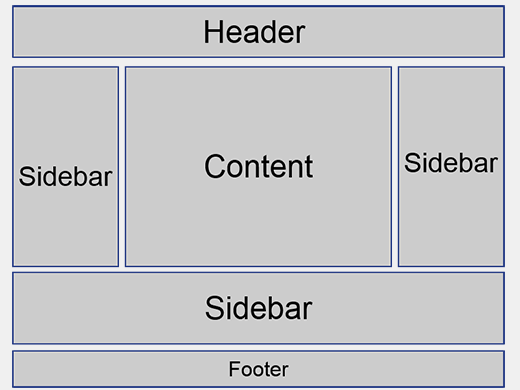
Placing JavaScript and CSS at the correct areas on the pages of your website can work wonders in actually speeding it up. When it comes to CSS files, make sure to put them as close as you can to the top of the page. Though this might seem like an odd thing to do, it’s important to note that browsers won’t fully load a page until the CSS file has been fully rendered. Putting it at the top of the page helps to expedite this process as much as possible. As for JavaScript, placing it at the very bottom of the footer is the best course of action, as this typically doesn’t allow portions of a page to be parsed until after the JavaScript has been completely loaded. By doing this, there won’t be anything left to parse after the JavaScript has loaded. Both of these suggestions help to create the correct order for loading a page that will automatically improve the loading speed of that page.
Use Static HTML in the Place of PHP at Times

Static HTML and PHP should be used hand in hand throughout your WordPress site. PHP, in particular, helps to make a website more efficient and greatly minimizes the necessity of entering information a multitude of times. Despite this advantage, PHP also uses up a larger amount of server resources than static HTML. As such, you’ll want to replace the PHP with HTML code in the spots around your website where you don’t necessarily need PHP as much. While this won’t drastically reduce load times, it can help to create a reduction in speeds when combined with a few of these other tips and tools.

Remove Any Inactive Plugins

In relation to a previous tip about detecting the plugins that slow down your site the most, a great and simple means of speeding up your WordPress is by removing any plugins that are currently inactive. While WordPress plugins can be extremely appealing, particularly new ones that pop up all the time, keeping a website as quick as possible requires trimming some of the excess that has a penchant to slow pages down. Make sure to identify all of the plugins that aren’t really necessary for your website and remove them entirely. This requires more than just pressing the deactivation button, as this will still take up much needed space, which can be bothersome if you don’t have much space to spare. Once you have identified all of the plugins that you don’t need, delete them completely from your website. Depending on the amount of plugins that you end up cutting, this could improve speeds dramatically.

Try Hosting Video Externally

Unless you fall under the rare situation of actually having a ton of space and an extremely quick server, it’s highly disadvantageous to host videos directly on your own WordPress, as this can cause a huge slow down on the pages associated with the videos. Hosting the videos you make and use on your WordPress with sites like Youtube and Vimeo can help to keep your site speeds fast for all customers. This is particularly important for anyone that posts a stray video here or there. Unless your website is basically dedicated towards posting lots of videos on a regular basis, hosting externally is the preferred method of video hosting.

Compress CSS Code

You should also attempt to compress your CSS code as much as possible, similar to what you would do when compressing an image. Making the code smaller will allow your browser to basically render the code faster, thus reducing the amount of time it takes for the code and subsequent page to load. The great thing about compressing your CSS code is that there are multiple options available for doing so. For instance, it’s possible to use a service known as a CSS Drive in order to compress the code manually. However, if you make changes to the CSS code on a consistent basis, then it’s much more preferable to use the WP CSS plugin, which is designed to automatically reduce the size of your CSS files by eliminating any of the unnecessary white space contained within. With this tool, you are also provided with the ability to set an expiry time for these CSS files.

Get Rid of Pingbacks and Trackbacks

disabletrackbacks

If you’re not currently fully aware, pingbacks and trackbacks are two tools within WordPress that are designed to notify you when another blog or website has linked to your own. This helps to calculate any potential increases you could have in traffic to your site. While interesting and potentially useful at times, these features of WordPress can also be exceedingly taxing on the overall speed of your pages. As such, it’s best to go ahead and turn these notifications off. In order to properly do this, go to the “settings” section of your WordPress and further select the “Discussion” tab. Once you have arrived at that location, turn these two features to off.

Use the Keep Alive Feature

Keep Alive is a feature that sends a message from a visitor’s machine to the Web server as a means of asking permission to download a specific file. By allowing the Keep Alive feature to run in your WordPress, the visitor will be able to download a multitude of files without having to go through the permission process each and every time. This can save you a lot of bandwidth. To manually do this yourself, place the text Header set Connection keep alive into the file titled .htaccess.

By following each of these tips and recommendations, you will find that your page speed has been improved by a lot in next to no time. All of the aforementioned tips are relatively easy to implement and you will be surprised at what they can do for the amount of website traffic you receive now and in the future.